> ## Documentation Index
> Fetch the complete documentation index at: https://enterprise-docs.bglobale.com/llms.txt
> Use this file to discover all available pages before exploring further.
# Creating Return Reasons
## Overview
You can **create return reasons** to track why customers return items, spot patterns, and reduce future returns. You can customize which reasons customers see in the **New Return Portal**, and add **follow-up questions** to collect the details your team needs for validation and analysis.
The following video describes creating return reasons:
## What You’ll Accomplish
* Add, edit, and display return reasons in the Admin dashboard
* Add follow-up questions (including mandatory questions and media requests)
* Reorder reasons to control how they appear in the new return portal
* Find return reasons on an RMA and analyze return reason trends in Analytics or exports
## Requirements
Admin-level permissions in the admin dashboard (to manage return reasons and follow-up questions)
## Prerequisites
Global-e recommends the following prerequisites:
* Decide which reasons should be customer-facing (vs. internal-only).
* Provide details (e.g., Damaged > request photo).
* Keep reason names short and customer-friendly; use follow-up questions for specifics.
## Adding Return Reasons
This procedure describes how to add return reasons.
**To add return reasons**
1. Navigate to *Settings > Return Reasons*.
2. Do one of the following:
* **Create a return reason**- click **ADD REASON**.
* **Edit a return reason** - click the pencil icon next to an existing reason to edit it.
3. Enable **Display reason** to make the reason visible to customers in the new return portal.
4. Edit the reason’s display name.
5. Set a return reason category.
6. Click the **save**icon in the top right hand corner of the page.
## Adding Follow-up Questions to a Return Reason
Follow-up questions appear in the new return portal **after**a customer selects a return reason (for that item). They help you collect context for validation, analytics, and processing.
1. Click the **edit** icon corresponding to a return reason.
2. In the Return Reasons editor, click **ADD QUESTION**.
3. Click the **pencil**icon next to the follow-up question to configure it.
4. Toggle **Display question** so customers see it in the new return portal.
5. (Optional) Toggle **Mandatory question** to require an answer.
6. Edit the Internal name (for internal reference/reporting).
7. Choose an **Answer type**:
* Free text
* Media text
* Multiple choice
* Numerical stepper
* Yes/No
Additional fields are displayed based on your **Answer type** selection. For example, if you select **Multiple choice – select one**, fields for optional answers are displayed on the page.
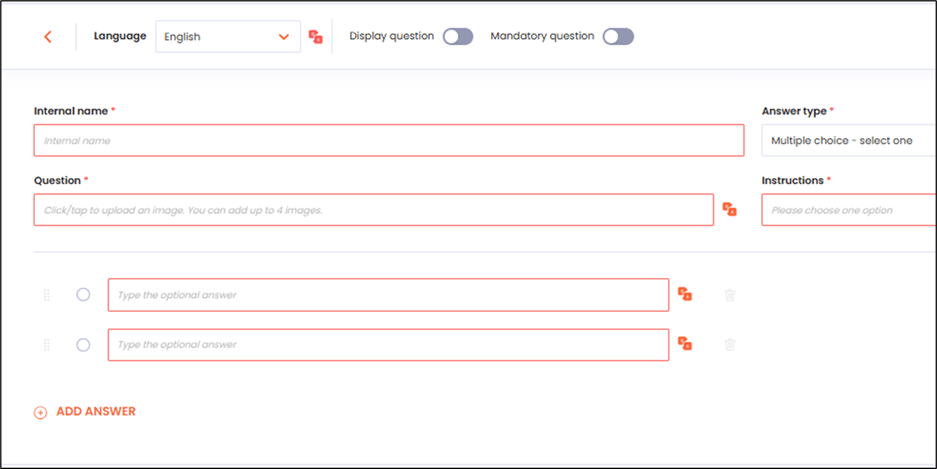 8. Enter or edit the customer-facing **Question**text.
9. Enter **instructions** in the Instructions field using the **plus** and **minus** buttons to set the quantity.These numbers set what the Customer should provide.
10. Configure any additional settings required by the selected answer type, such as **media type** or **multiple-choice options**.
The following limits apply to the **Media Request**:
* Customers can upload **up to four** images or videos at a time
* Supported image types: **JPG**, **JPEG**, **PNG**, **HEIF**
11. Click the **save**icon in the top right corner of the page.
## Sorting Return Reasons and Questions
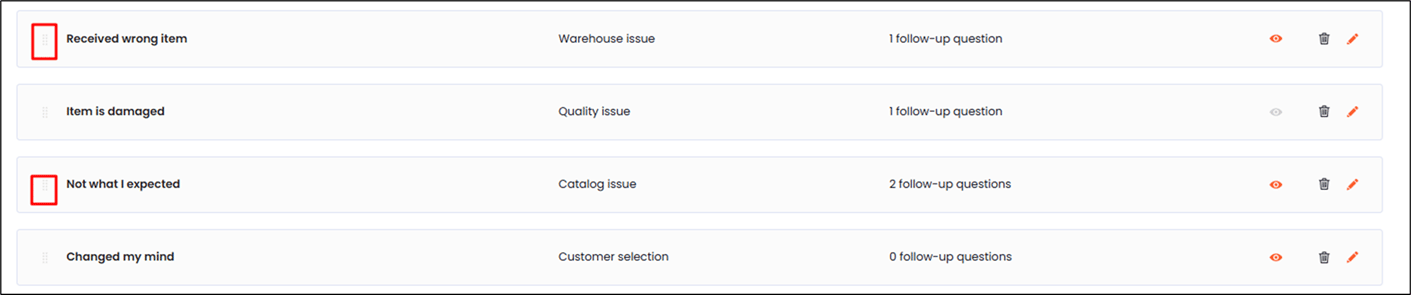
Sorting return reasons and questions lets you determine the order they are displayed in the portal.
**To sort return reasons and questions**
1. Navigate to *Settings > Return Reasons*.
2. Drag and drop return reasons into your preferred order.
Place the most common reasons near the top to reduce customer friction.
8. Enter or edit the customer-facing **Question**text.
9. Enter **instructions** in the Instructions field using the **plus** and **minus** buttons to set the quantity.These numbers set what the Customer should provide.
10. Configure any additional settings required by the selected answer type, such as **media type** or **multiple-choice options**.
The following limits apply to the **Media Request**:
* Customers can upload **up to four** images or videos at a time
* Supported image types: **JPG**, **JPEG**, **PNG**, **HEIF**
11. Click the **save**icon in the top right corner of the page.
## Sorting Return Reasons and Questions
Sorting return reasons and questions lets you determine the order they are displayed in the portal.
**To sort return reasons and questions**
1. Navigate to *Settings > Return Reasons*.
2. Drag and drop return reasons into your preferred order.
Place the most common reasons near the top to reduce customer friction.
 ## Verifying Created Returns
This procedure describes to customers using the **New Returns Portal** how to verify that their returns have been created and can be seen in the platform.
1. Verify the return in the New Returns Portal:
1. Start a return for an order in the new return portal.
2. Select an item to return.
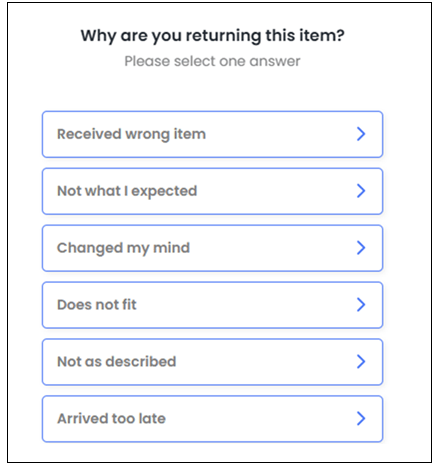
3. Confirm the customer sees your enabled reasons (those with **Display reason** turned on).
4. Select a reason that has follow-up questions and confirm:
* Questions appear after selecting the reason
* Mandatory questions must be completed before continuing
* Media requests allow uploads (and video uploads only if the add-on is enabled)
## Verifying Created Returns
This procedure describes to customers using the **New Returns Portal** how to verify that their returns have been created and can be seen in the platform.
1. Verify the return in the New Returns Portal:
1. Start a return for an order in the new return portal.
2. Select an item to return.
3. Confirm the customer sees your enabled reasons (those with **Display reason** turned on).
4. Select a reason that has follow-up questions and confirm:
* Questions appear after selecting the reason
* Mandatory questions must be completed before continuing
* Media requests allow uploads (and video uploads only if the add-on is enabled)
 2. **Verify on the RMA in the admin dashboard**
1. Navigate to **Manage Returns** and open an RMA.
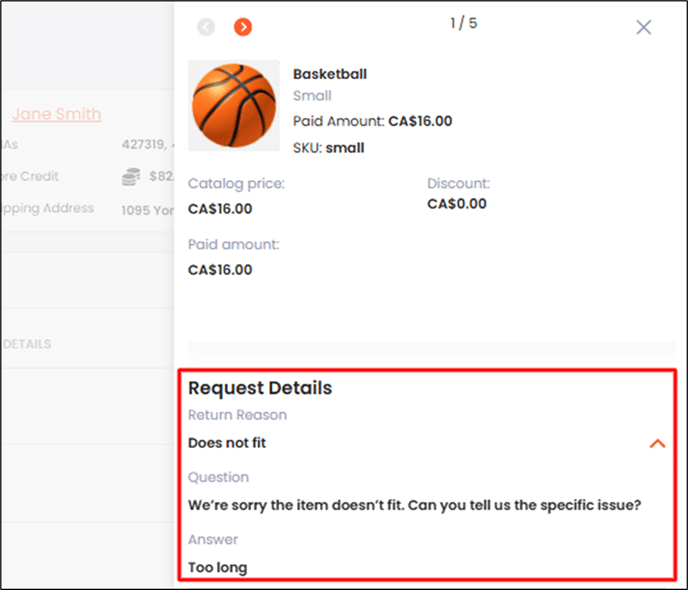
2. In the item **Details** area, check the Details section (right side) to see the selected return reason next to each returned item.
2. **Verify on the RMA in the admin dashboard**
1. Navigate to **Manage Returns** and open an RMA.
2. In the item **Details** area, check the Details section (right side) to see the selected return reason next to each returned item.
 ## Troubleshooting Common Issues
This section describes how to troubleshoot some commonly occurring issues:
| Question | Answer |
| ------------------------------------------------- | -------------------------------------------------------------------------------------- |
| Reason doesn’t appear in the new return portal | Confirm Display reason is ON and you clicked the save icon. |
| Follow-up question not showing | Confirm Display question is ON and saved. |
| Customer can skip an answer you need. | Toggle Mandatory question ON. |
| Customers can’t upload videos. | Video uploads require enabling the Video Upload add-on (images still work without it). |
| Reason order in the portal isn’t what you expect. | Reorder reasons via drag-and-drop in *Settings > Return Reasons*. |
## Frequently Asked Questions
The following table shows some common frequently asked questions and their answers:
| Question | Answer |
| --------------------------------------------------------- | ---------------------------------------------------------------------------------------------------------------------------------------- |
| What are the default return reasons? | The platform includes a built-in set of commonly used default return reasons you can use as-is or customize. |
| How many return reasons can I add? | There is no limit. |
| How many follow-up questions can I add per reason? | There is no limit. |
| How do I change the order shown in the new return portal? | Reorder items in Settings > Return Reasons (drag-and-drop). The portal follows that order for reasons (and follow-up questions). |
| What’s the upload limit for media requests? | Up to 4 files at a time, 140MB per file. Supported images: JPG, JPEG, PNG, HEIF. Videos require the Video Upload add-on. |
| Do return reasons appear on order notes in Shopify? | Return reasons are included in the order’s notes once the item has been restocked, provided Restock by is set to Refund \$0 and restock. |
## Troubleshooting Common Issues
This section describes how to troubleshoot some commonly occurring issues:
| Question | Answer |
| ------------------------------------------------- | -------------------------------------------------------------------------------------- |
| Reason doesn’t appear in the new return portal | Confirm Display reason is ON and you clicked the save icon. |
| Follow-up question not showing | Confirm Display question is ON and saved. |
| Customer can skip an answer you need. | Toggle Mandatory question ON. |
| Customers can’t upload videos. | Video uploads require enabling the Video Upload add-on (images still work without it). |
| Reason order in the portal isn’t what you expect. | Reorder reasons via drag-and-drop in *Settings > Return Reasons*. |
## Frequently Asked Questions
The following table shows some common frequently asked questions and their answers:
| Question | Answer |
| --------------------------------------------------------- | ---------------------------------------------------------------------------------------------------------------------------------------- |
| What are the default return reasons? | The platform includes a built-in set of commonly used default return reasons you can use as-is or customize. |
| How many return reasons can I add? | There is no limit. |
| How many follow-up questions can I add per reason? | There is no limit. |
| How do I change the order shown in the new return portal? | Reorder items in Settings > Return Reasons (drag-and-drop). The portal follows that order for reasons (and follow-up questions). |
| What’s the upload limit for media requests? | Up to 4 files at a time, 140MB per file. Supported images: JPG, JPEG, PNG, HEIF. Videos require the Video Upload add-on. |
| Do return reasons appear on order notes in Shopify? | Return reasons are included in the order’s notes once the item has been restocked, provided Restock by is set to Refund \$0 and restock. |