> ## Documentation Index
> Fetch the complete documentation index at: https://enterprise-docs.bglobale.com/llms.txt
> Use this file to discover all available pages before exploring further.
# Flat Shipping Rates
## Marketing Proposition
The following image shows the Marketing Proposition main screen:
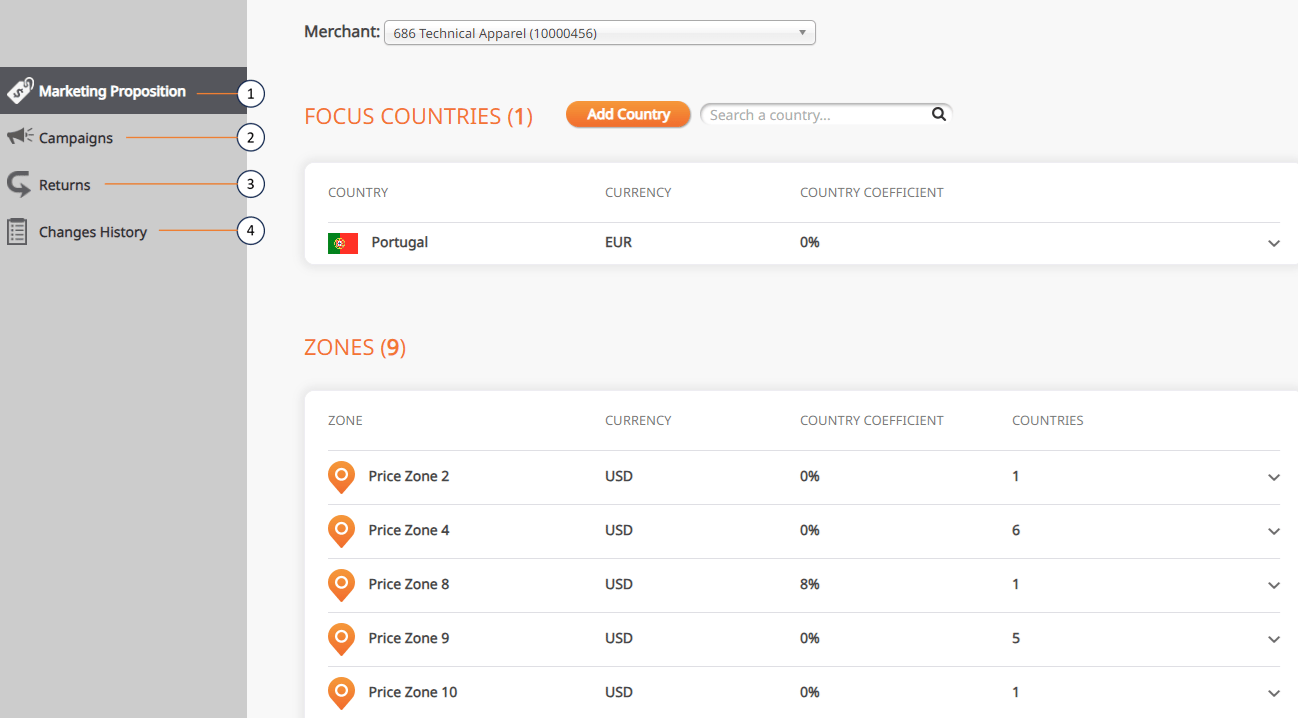 Marketing Proposition Main Screen
The following table describes the Marketing Proposition main screen elements:
| No. | Element | Description |
| --- | ---------------------------------------------------------------------------------------------------------- | ---------------------------------------------------------------------------------------------------------------------------------------------- |
| 1 | [Managing Market Propositions](/flat-shipping-rates-275522#managing-market-propositions) | Displays a list of your focus countries. (These countries were defined as your focus countries during the on-boarding process with Global‑e.). |
| 2 | [Creating and Canceling Campaigns](/marketing-propositions--main-screen-#creating-and-canceling-campaigns) | Lets you change the default shipping rates and cart range over a specified time period. |
| 2 | [Returns](/marketing-propositions--main-screen-#returns-331369) | Lets you search your returns. |
| 4 | [Change History](/flat-shipping-rates-275522#change-history-275522) | Lets you view the history of all the changes made to the default settings (established during the configuration process with Global‑e). |
### Managing Market Propositions
### Accessing Marketing Propositions
### Accessing Marketing Propositions
The **Marketing Propositions** feature lets you set up campaigns and configure your email notifications.
To use these features you must first access the Marketing Propositions page.
1. Navigate to Configuration > Marketing Proposition from the top menu.
2. Select a merchant from the Merchant menu.The Focus Countries list is displayed showing all added countries.
3. Do one of the following:
* Manage your [marketing propositions](/marketing-propositions--main-screen-#marketing-propositions)
* Manage your [campaigns](/marketing-propositions--main-screen-#campaigns-331369)
* Manage your [returns](/marketing-propositions--main-screen-#returns-331369)
* View your [change history](/marketing-propositions--main-screen-#change-history-331369)
The following figure shows the Marketing Propositions screen:
Marketing Proposition Main Screen
The following table describes the Marketing Proposition main screen elements:
| No. | Element | Description |
| --- | ---------------------------------------------------------------------------------------------------------- | ---------------------------------------------------------------------------------------------------------------------------------------------- |
| 1 | [Managing Market Propositions](/flat-shipping-rates-275522#managing-market-propositions) | Displays a list of your focus countries. (These countries were defined as your focus countries during the on-boarding process with Global‑e.). |
| 2 | [Creating and Canceling Campaigns](/marketing-propositions--main-screen-#creating-and-canceling-campaigns) | Lets you change the default shipping rates and cart range over a specified time period. |
| 2 | [Returns](/marketing-propositions--main-screen-#returns-331369) | Lets you search your returns. |
| 4 | [Change History](/flat-shipping-rates-275522#change-history-275522) | Lets you view the history of all the changes made to the default settings (established during the configuration process with Global‑e). |
### Managing Market Propositions
### Accessing Marketing Propositions
### Accessing Marketing Propositions
The **Marketing Propositions** feature lets you set up campaigns and configure your email notifications.
To use these features you must first access the Marketing Propositions page.
1. Navigate to Configuration > Marketing Proposition from the top menu.
2. Select a merchant from the Merchant menu.The Focus Countries list is displayed showing all added countries.
3. Do one of the following:
* Manage your [marketing propositions](/marketing-propositions--main-screen-#marketing-propositions)
* Manage your [campaigns](/marketing-propositions--main-screen-#campaigns-331369)
* Manage your [returns](/marketing-propositions--main-screen-#returns-331369)
* View your [change history](/marketing-propositions--main-screen-#change-history-331369)
The following figure shows the Marketing Propositions screen:
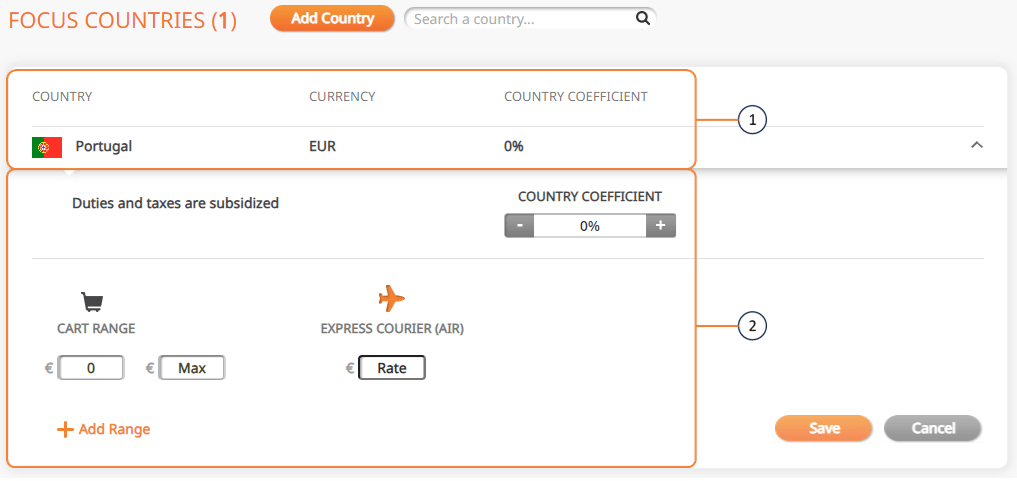 The following table describes the elements in the image above:
| No. | Element | Description |
| --- | ------------------------------------------------------------------------------------------------------------------------------------------------ | ------------------------------------------------------------------------------------------------------------------------------------------------------------------------------------------------------------------------------------------- |
| 1 | [Focus countries](/flat-shipping-rates-275522#accessing-marketing-propositions-275522) (adding a country) | View your focus countries and zone and add focus countries. The **Focus Countries** section displays a list of your focus countries. (These countries were defined as your *focus countries* during the on-boarding process with Global‑e). |
| 2 | [Country coefficient and cart range region](/flat-shipping-rates-275522#modifying-your-country-coefficient) (modifying your country coefficient) | Modify your country coefficient, existing cart ranges and add new ones. |
### Adding a Country
1. Click **Add Country**.
2. From the **ADD COUNTRY** panel, add all relevant countries.The countries you added are displayed in the Focus Countries region.
### Modifying Your Country Coefficient
1. Click the arrow corresponding to a country.The country's coefficient and cart range fields are
2. From the **Country Coefficient** slider, adjust your country coefficient using the plus and minus buttons.
3. From the **Cart Range** fields, set your minimum and maximum cart range.
4. In the **Express Courier (Air)** field, set your courier rate.
5. Repeat steps 2 through 5 for the Zones region at the bottom of the page.
### Campaigns
The Campaigns tab enables you to change the default shipping rates and cart range over a specified time period. At the end of the time period, the shipping rates and cart ranges revert back to their original prices.
### Campaign and Discount Management
From here you can do the following:
* Manage campaigns per market or region
* Assign discounted pricing or free shipping to support local market events, including creating related messaging
* View campaign names and dates for passed, pending, and running campaigns
* View the cart range and shipping rates for countries and zones included in campaigns
This page describes the following:
* Searching existing campaigns
* Adding new campaigns
The following table describes the elements in the image above:
| No. | Element | Description |
| --- | ------------------------------------------------------------------------------------------------------------------------------------------------ | ------------------------------------------------------------------------------------------------------------------------------------------------------------------------------------------------------------------------------------------- |
| 1 | [Focus countries](/flat-shipping-rates-275522#accessing-marketing-propositions-275522) (adding a country) | View your focus countries and zone and add focus countries. The **Focus Countries** section displays a list of your focus countries. (These countries were defined as your *focus countries* during the on-boarding process with Global‑e). |
| 2 | [Country coefficient and cart range region](/flat-shipping-rates-275522#modifying-your-country-coefficient) (modifying your country coefficient) | Modify your country coefficient, existing cart ranges and add new ones. |
### Adding a Country
1. Click **Add Country**.
2. From the **ADD COUNTRY** panel, add all relevant countries.The countries you added are displayed in the Focus Countries region.
### Modifying Your Country Coefficient
1. Click the arrow corresponding to a country.The country's coefficient and cart range fields are
2. From the **Country Coefficient** slider, adjust your country coefficient using the plus and minus buttons.
3. From the **Cart Range** fields, set your minimum and maximum cart range.
4. In the **Express Courier (Air)** field, set your courier rate.
5. Repeat steps 2 through 5 for the Zones region at the bottom of the page.
### Campaigns
The Campaigns tab enables you to change the default shipping rates and cart range over a specified time period. At the end of the time period, the shipping rates and cart ranges revert back to their original prices.
### Campaign and Discount Management
From here you can do the following:
* Manage campaigns per market or region
* Assign discounted pricing or free shipping to support local market events, including creating related messaging
* View campaign names and dates for passed, pending, and running campaigns
* View the cart range and shipping rates for countries and zones included in campaigns
This page describes the following:
* Searching existing campaigns
* Adding new campaigns
 ### Searching Existing Campaigns
1. From the top menu, navigate to *Configuration > Marketing Proposition*.
2. From the left menu, click **Campaigns**.The Campaigns list is displayed showing all added campaigns.
### Adding New Campaigns
1. From the top menu, navigate to *Configuration > Marketing Proposition*.
2. From the left menu, click **Campaigns**.The **Campaigns** list is displayed showing all added campaigns.
3. Click **Add Campaign**.
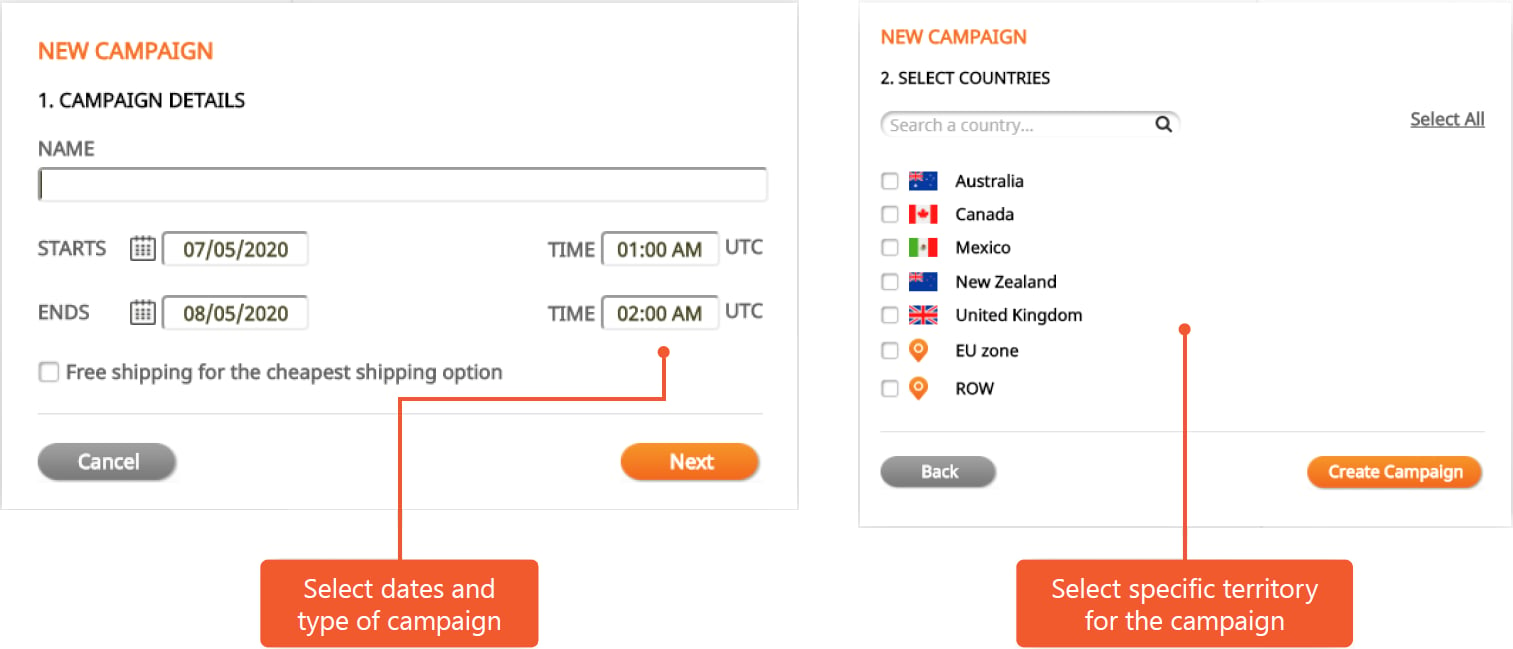
4. From the **NEW CAMPAIGN** panel, set the following information:
* Name of campaign
* Start and end date
* Start and end time
* Optional: Free shipping for the cheapest shipping option
5. Click **Cancel** or **Next**.
6. From the **SELECT COUNTRIES** panel, select all relevant countries.By default, there are no countries in newly created campaigns. Individually select a focus country or zone to include in the campaign, or click **Select All** to include all countries in the campaign. You can use the search field to search for countries by name.
7. Click **Save**.
8. Click **Create Campaign**.The campaign name, date range, and campaign countries are displayed in the Campaigns tab.
9. Define the campaign shipping rates and campaign cart range prices.
### Returns
From here you can view and manage your returns.
1. From the top menu, navigate to *Merchants > Flat Shipping Rates*.
2. From the left menu, click **Returns**.
3. From the **Merchant** menu, select a merchant.The **Focus Countries** list is displayed showing all added countries.
4. (Optional): Click **Add Country** to add a country.
5. Click a row to display the country’s cart range and express courier (air) fee.
6. (Optional): Click Trash\_Csn.png to delete rows.
7. Repeat Steps 3 through 5 for the **Zones**region at the bottom of the page.
### Change History
From the **Change History** page you can search and view records of all changes made to marketing propositions, campaigns, and returns.
1. Follow steps 1 through 3 in [Accessing Marketing Propositions](/marketing-propositions--main-screen-#accessing-marketing-propositions-331369).
2. Click Changes History from the left menu.
3. Type a country or zone in the Search a Country Zone field.
4. In the Between and And calendars, set a date range for your search.Selecting the And date activates your search.
### Searching Existing Campaigns
1. From the top menu, navigate to *Configuration > Marketing Proposition*.
2. From the left menu, click **Campaigns**.The Campaigns list is displayed showing all added campaigns.
### Adding New Campaigns
1. From the top menu, navigate to *Configuration > Marketing Proposition*.
2. From the left menu, click **Campaigns**.The **Campaigns** list is displayed showing all added campaigns.
3. Click **Add Campaign**.
4. From the **NEW CAMPAIGN** panel, set the following information:
* Name of campaign
* Start and end date
* Start and end time
* Optional: Free shipping for the cheapest shipping option
5. Click **Cancel** or **Next**.
6. From the **SELECT COUNTRIES** panel, select all relevant countries.By default, there are no countries in newly created campaigns. Individually select a focus country or zone to include in the campaign, or click **Select All** to include all countries in the campaign. You can use the search field to search for countries by name.
7. Click **Save**.
8. Click **Create Campaign**.The campaign name, date range, and campaign countries are displayed in the Campaigns tab.
9. Define the campaign shipping rates and campaign cart range prices.
### Returns
From here you can view and manage your returns.
1. From the top menu, navigate to *Merchants > Flat Shipping Rates*.
2. From the left menu, click **Returns**.
3. From the **Merchant** menu, select a merchant.The **Focus Countries** list is displayed showing all added countries.
4. (Optional): Click **Add Country** to add a country.
5. Click a row to display the country’s cart range and express courier (air) fee.
6. (Optional): Click Trash\_Csn.png to delete rows.
7. Repeat Steps 3 through 5 for the **Zones**region at the bottom of the page.
### Change History
From the **Change History** page you can search and view records of all changes made to marketing propositions, campaigns, and returns.
1. Follow steps 1 through 3 in [Accessing Marketing Propositions](/marketing-propositions--main-screen-#accessing-marketing-propositions-331369).
2. Click Changes History from the left menu.
3. Type a country or zone in the Search a Country Zone field.
4. In the Between and And calendars, set a date range for your search.Selecting the And date activates your search.