> ## Documentation Index
> Fetch the complete documentation index at: https://enterprise-docs.bglobale.com/llms.txt
> Use this file to discover all available pages before exploring further.
# Global‑e Storefront Functionality
This section provides an overview of the main features and functionality resulting from the Global-e add-on installation.
Global‑e handles:
* The currency conversion – See [Converted Prices](/global-e-storefront-functionality#converted-prices) and [Prices and Price Conversion](/prices-and-price-conversion).
* The checkout for countries managed by Global‑e – See [Global‑e Managed Checkout](/global-e-storefront-functionality#global-e-managed-checkout) and [Cart and Checkout](/cart-and-checkout).
* Order notifications for orders managed by Global-d. See [Global‑e Notifications](/global-e-storefront-functionality#global-e-notifications).
Global‑e manages the following main website components:
* The welcome pop-up: See [Welcome Pop-up](/site-customization#configuring-your-welcome-popup-page-714090).
* The country switcher: See [Configuring Your Switcher Popup Page](/site-customization#configuring-your-switcher-popup-page-714090).
* The checkout iframe: See [Global‑e Managed Checkout](/global-e-storefront-functionality#global-e-managed-checkout), [Global‑e iFrame Checkout (Example)](/cart-and-checkout#global-e-iframe-checkout--example-) and Order Creation.
**Checkout**
During the checkout, the Global‑e add-on posts the following to the Global‑e system via the API: [https://connect2.bglobale.com/Checkout/SendCartV2?merchantGUID=\{merchantGUID}](https://connect2.bglobale.com/Checkout/SendCartV2?merchantGUID=%7bmerchantGUID%7d).
The customer is redirected to a checkout page `checkoutDisplay.jsp`, in which Global‑e injects HTML via an iframe.
**Backoffice**
Use Backoffice to set up and manage pricing and Global-e Orders.
**Additional Functionality: Custom Add-on Functionality**
If required, customize the Global‑e extensions for additional functionality.
* `globaleaddon` is used for front-end changes.
* `globalecore` and `globalefacades` are used to communicate with the Global‑e API.
* `globaleendpoint` is used to receive order update notifications.
* `globalepromotions` is used for custom Global‑e promotions.
* `globalebackoffice` is used for Backoffice modifications.
For details and custom Global‑e add-on functionality, see [In Depth: Global‑e Add-on, Extensions, and Custom Functionality](/add-on-extensions-and-custom-functionality).
##### Shipping Country and Currency Indication
The shopper can view the localized Shipping country and currency indication. For example, Ship to £GB (GBP).
##### Converted Prices
The customer can view prices in local currency including current conversion rates, country coefficients, rounding rules, and currency symbols.
The `GlobaleSwitcherFindPriceStrategy` is an element of the price determination and conversion that delegates to `GlobaleFindPriceStrategy`.
`GlobaleFindPriceStrategy` delegates to `GlobaleConvertingPriceValueConverter`,
`GlobaleConvertingPriceValueConverter` delegates to `GlobalePriceConverter`.
To convert an existing OOTB SCC price row to another currency, the Global-e add-on asks Global-e for the conversion rate of the price row (without VAT) to the customer's selected currency; for example, GBP to EUR has a rate of around 1.18.
The add-on also requests a coefficient rate and tax rate. Once converted into the customer's chosen currency, Global‑e applies rounding rules (improving the appearance of customer-facing price values).
##### Global‑e Managed Checkout
When the shopper adds items to the cart and clicks the checkout button, the extension redirects from the native environment to the Global-e checkout (iFrame). The Global-e Add-on implements a Global-e API method that uses the Platform API to load the contents of the user's cart and passes it securely to the Global-e checkout through a server-to-server API call.
During the checkout, the Global‑e add-on posts the following to the Global‑e system via the `SendCartV2` API:
```
https://[Globl-e API domain]/Checkout/SendCartV2?merchantGUID={merchantGUID}
```
The customer is redirected to a checkout page `checkoutDisplay.jsp`, in which Global‑e injects HTML via an iframe.
The Global‑e iframe is implemented as its own WCMS ContentPage (`globalecheckout`).
For more information, see:
[Cart and Checkout](/cart-and-checkout)
[Checkout Flow (Technical)](/add-on-extensions-and-custom-functionality#checkout-flow--technical-)
##### Global‑e Notifications
Once the customer has been through the Global‑e checkout and finished the order - Global‑e will communicate with the merchant at a few points:
1. **Order creation:** As soon as the order is accepted on the Global‑e side, it is processed and delivered to the hybrid system.
* Endpoint:
```
/globalerest/order-update-create-url
```
* Order Status: `“Pending“`
2. **Payment creation:** After the order passes the fraud analysis successfully, Global‑e updates the order:
* Endpoint:
```
/globalerest/order-payment-only-url
```
* Order Status: “`Processing`“
3. **Shipping creation:** Once the products are shipped to the customer, Global‑e sends the shipping call to the app:
* Endpoint:
```
/globalerest/order-shipping-info-update-only-url
```
* Order Status: `“Processing“`
4. **Cancel order:** If Global‑e cancels the order (for any reason), Global‑e also sends the status update to the app:
* Endpoint:
```
/globalerest/order-status-update-only-url
```
* Order Status: `“canceled“`
Global‑e sends an email to the customer confirming that the order was placed.
##### My Account
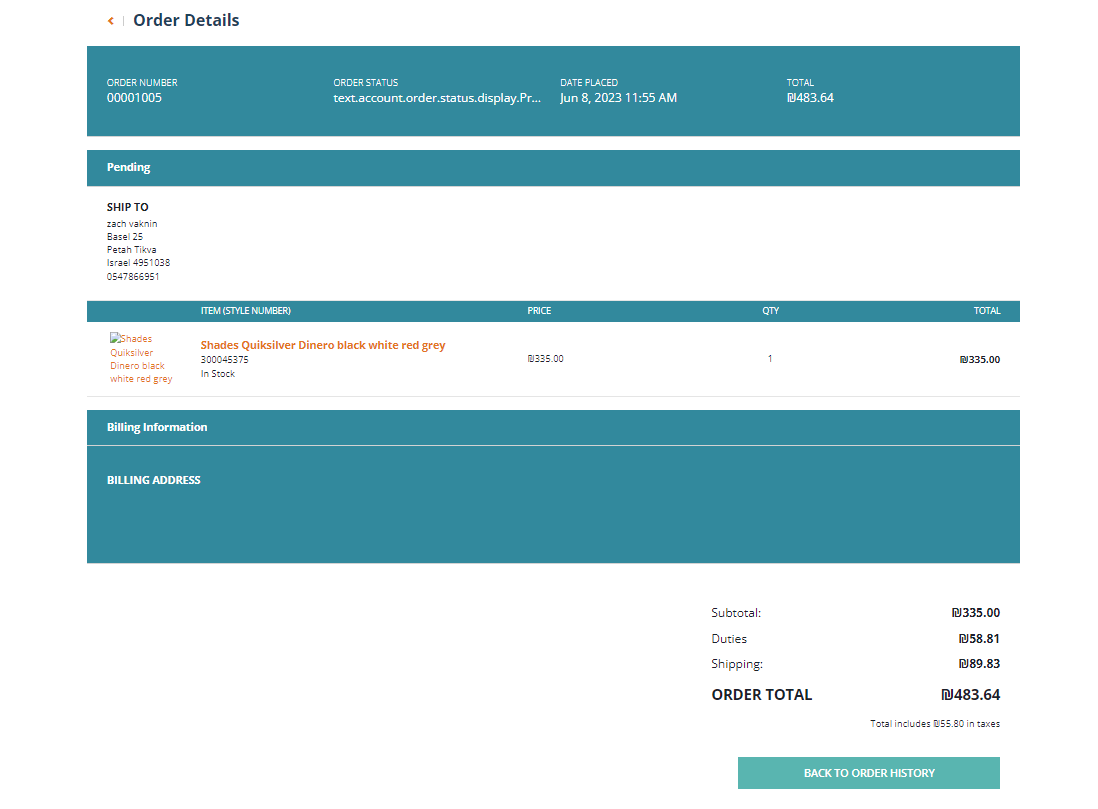
Orders created by logged-in customers are assigned to the relevant account in your merchant store and the order history section. Global‑e displays the order prices paid by the customer, in their currency.
**Example in SAP Hybris:**
 ##### Transactional Emails
All transactional emails are sent by Global‑e.
##### Transactional Emails
All transactional emails are sent by Global‑e.