> ## Documentation Index
> Fetch the complete documentation index at: https://enterprise-docs.bglobale.com/llms.txt
> Use this file to discover all available pages before exploring further.
# Installation
Global‑e provides you with a zipped file of the PrestaShop plug-in. Make sure you have your Merchant information handy to perform this installation.
**To integrate the Global-e plug-in with your store:**
1. [Install the Global‑e Module](/installation-219574#install-the-global-e-module-219574).
2. [Configure the Module](/installation-219574#configure-the-module).
## Prepare your Environment
### Prerequisites
* An administrator account for your Platform
* A Global‑e Merchant account
* Your Global-e Merchant ID and Merchant GUID (provided to you by Global-e)
### Supported Versions
The Global‑e plugin setup supports PrestaShop version 1.6.0 and up to 9
### Third-Party Support
* [All-in-one Rewards](https://addons.prestashop.com/en/referral-loyalty-programs/4414-all-in-one-rewards-loyalty-referral-affiliation.html#overview). Partially supported for generating coupons with specific cart rules (generated by the module only).
* [JPresta – Refreshes the cache of the store for greater efficiency. Page Cache Ultimate](https://addons.prestashop.com/en/website-performance/7939-page-cache-ultimate.html#overview).). Supported since 0.4.20. See [PrestaShop | JPresta Page Cache Ultimate](https://addons.prestashop.com/en/website-performance/7939-page-cache-ultimate.html).
### APIs / URLs
The following endpoints can be accessed to review the existing hooks:
**Order Shipment:** This endpoint updates the fulfilment status.
`/index.php?module=prestashop_globale&controller=UpdateParcelDispatch&fc=module`
**Cart Validation**: This endpoint returns the cart validation result. It is called by GEM before the order is placed to prevent cart modifications.
`/index.php?module=prestashop_globale&controller=ValidateCart&fc=module`
**Coupon Validation:** This endpoint returns the cart coupon validation result. It is used on Global-e checkout.
`/index.php?module=prestashop_globale&controller=ValidateCartVoucher&fc=module`
**Gift Card endpoints:**
`/index.php?module=prestashop_globale&controller=GiftCardValidate&fc=module`
`/index.php?module=prestashop_globale&controller=GiftCardRedeem&fc=module`
`/index.php?module=prestashop_globale&controller=GiftCardRefund&fc=module`
### About
This endpoint shows the PrestaShop and Global-e versions and returns a list of registered hooks related to the Global-e module.
`/index.php?module=prestashop_globale&controller=AboutInfo&fc=module [&hooks]`
### GEM
**Clear Cart**: This endpoint clears the cart after order confirmation.
\[POST] `/index.php?module=prestashop_globale&controller=ClearCart&fc=module`
```
1curl--location--request POST '[your domain URL]/index.php?module=prestashop_globale&controller=ClearCart&fc=module' \
2--header 'Content-Type: application/x-www-form-urlencoded' \
3--data - urlencode 'MerchantGUID=[your Merchant GUID]'
```
**Cart Info:** This endpoint returns the cart content.
`/index.php?module=prestashop_globale&controller=CartInfo&fc=module`
**Order Create:** This endpoint creates orders in the platform.
`/index.php?module=prestashop_globale&controller=OrderCreate&fc=module`
**Order Payment:** This endpoint updates the order payment status.
`/index.php?module=prestashop_globale&controller=OrderPayment&fc=module`
**Order Status**: This endpoint updates the order status.
`/index.php?module=prestashop_globale&controller=OrderStatus&fc=module`
**Order Shipment:** This endpoint updates the shipment status.
`/index.php?module=prestashop_globale&controller=OrderShipment&fc=module`
### Checkout
**Checkout**: The Global‑e checkout iFrame location.
`/module/prestashop_globale/Checkout`
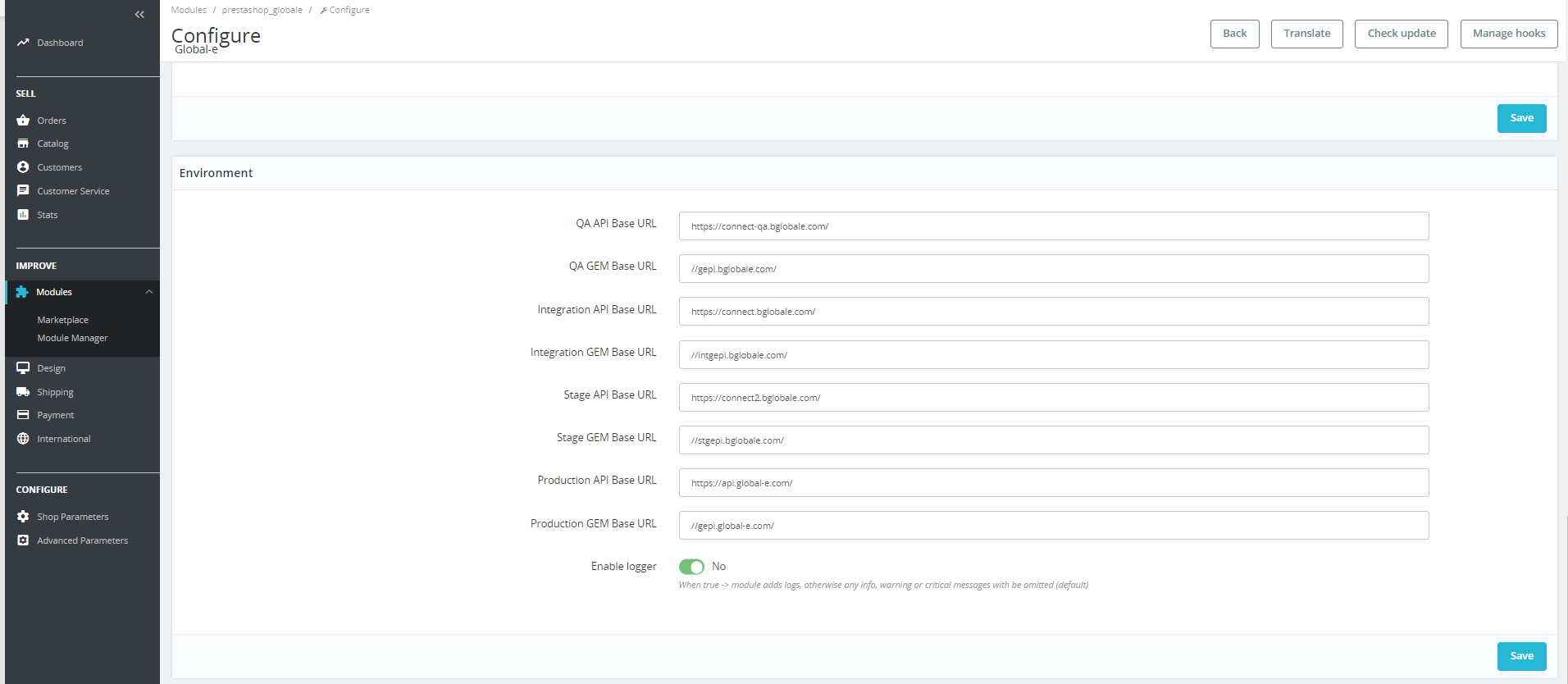
### Examples of Global‑e Server Environments URLs
 ## Install the Global‑e Module
The Global-e module for PrestaShop can be provided to you by Global-e as a zip file.
Follow one of the methods below to install the module.
**Option 1.Install the module from the server**
If you received the zip file from Global-e you can download it to the server on which PrestaShop is installed and unzip it.
1. Extract the zip file.
2. Go to the location where you extracted the file.
3. Copy: **prestashop\_globale/.** to **\/modules/prestashop\_globale/**.
**Option 2. Upload the module's zip file to PrestaShop admin**
1. Log in to PrestaShop admin.
2. Go to **Modules** → **Module Manager** and click **Upload a module**.
## Install the Global‑e Module
The Global-e module for PrestaShop can be provided to you by Global-e as a zip file.
Follow one of the methods below to install the module.
**Option 1.Install the module from the server**
If you received the zip file from Global-e you can download it to the server on which PrestaShop is installed and unzip it.
1. Extract the zip file.
2. Go to the location where you extracted the file.
3. Copy: **prestashop\_globale/.** to **\/modules/prestashop\_globale/**.
**Option 2. Upload the module's zip file to PrestaShop admin**
1. Log in to PrestaShop admin.
2. Go to **Modules** → **Module Manager** and click **Upload a module**.
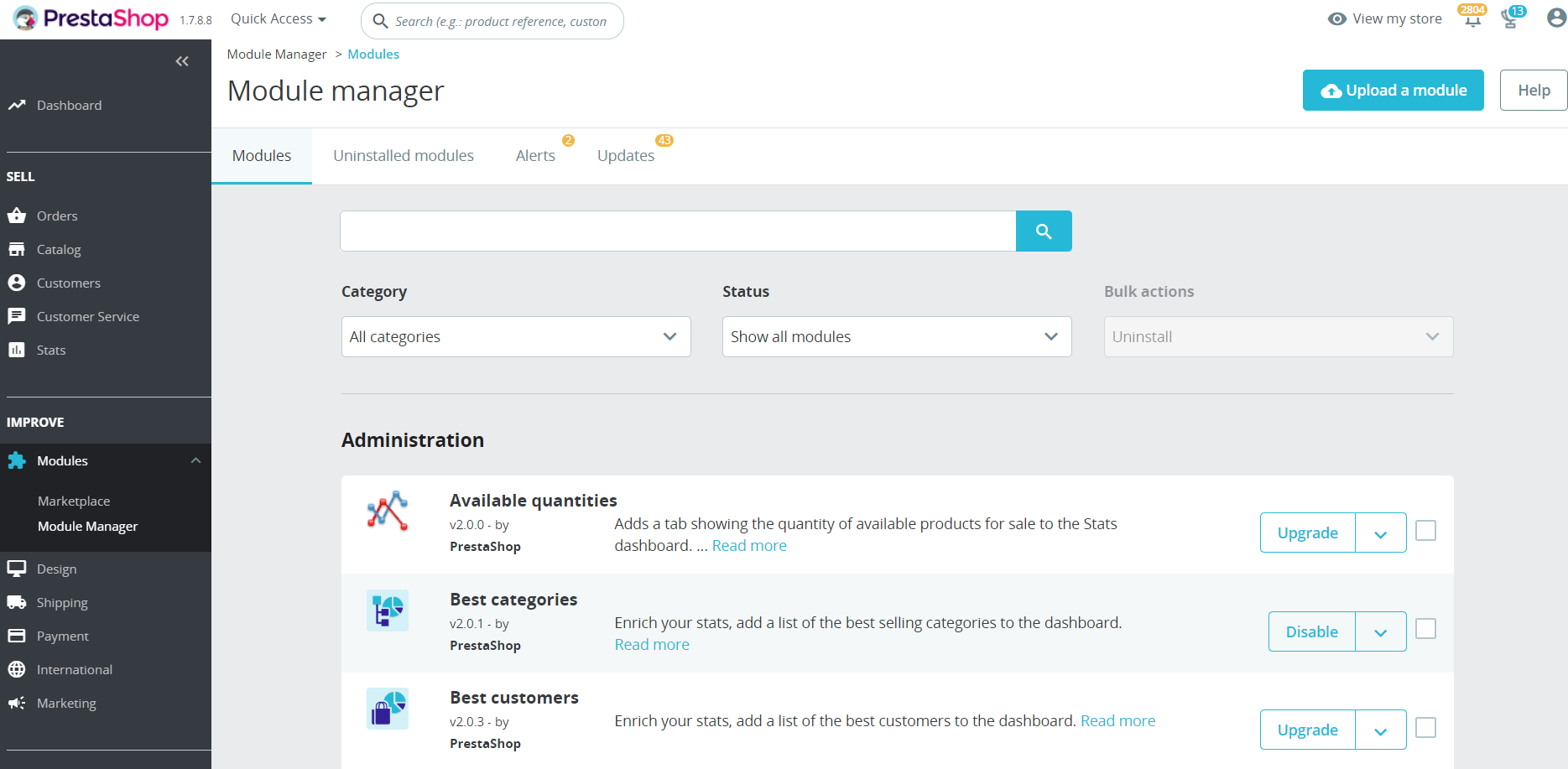 A file upload window opens.
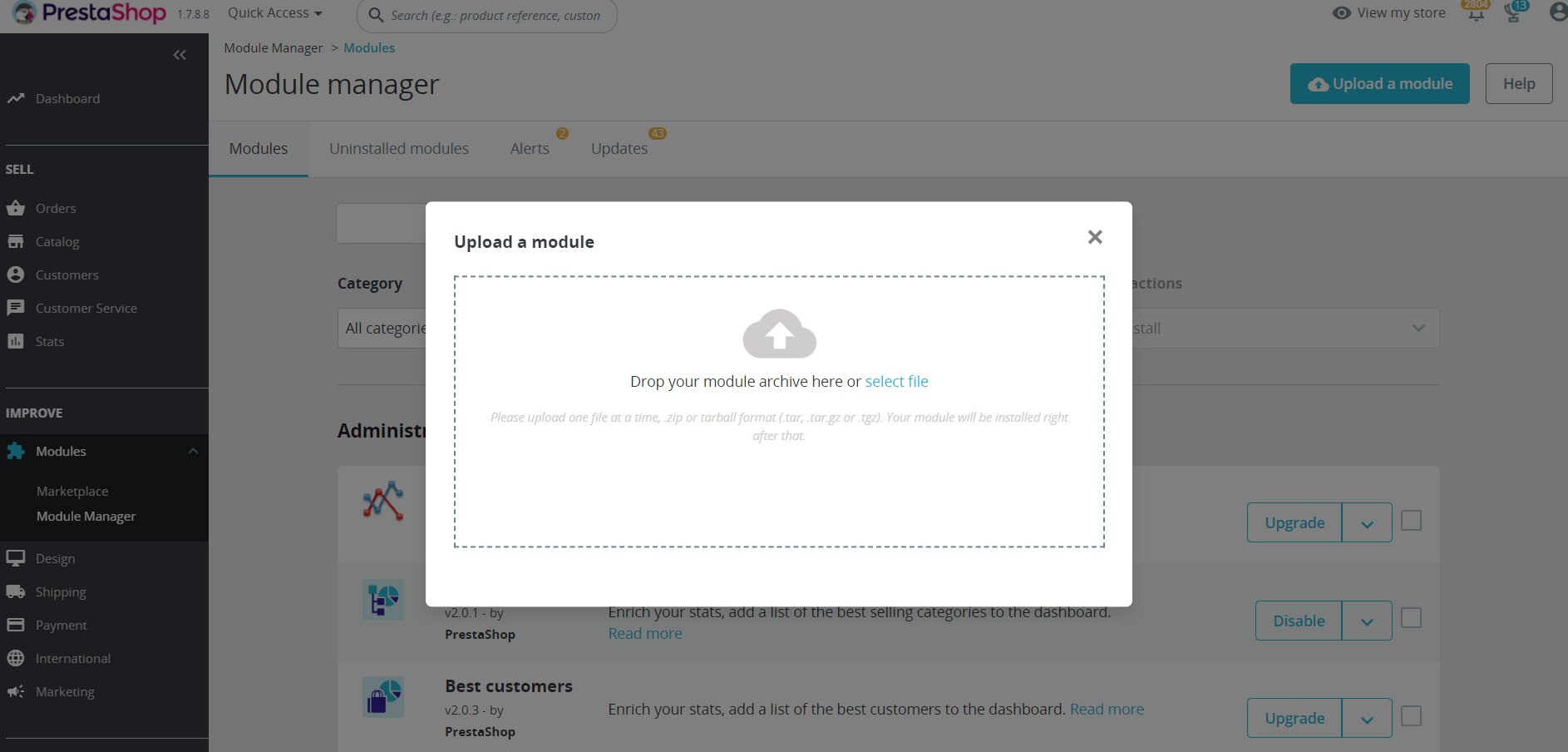 3. Click **select file** and choose the zip file to upload.
Once the file is uploaded the module is installed.
3. Click **select file** and choose the zip file to upload.
Once the file is uploaded the module is installed.
 ## Configure the Module
**To configure the Global-e module:**
1. Log in to the PrestaShop Admin with your PrestaShop Admin user credentials.
2. Go to **Modules → Module Manager**.
The Module Manager opens.
## Configure the Module
**To configure the Global-e module:**
1. Log in to the PrestaShop Admin with your PrestaShop Admin user credentials.
2. Go to **Modules → Module Manager**.
The Module Manager opens.
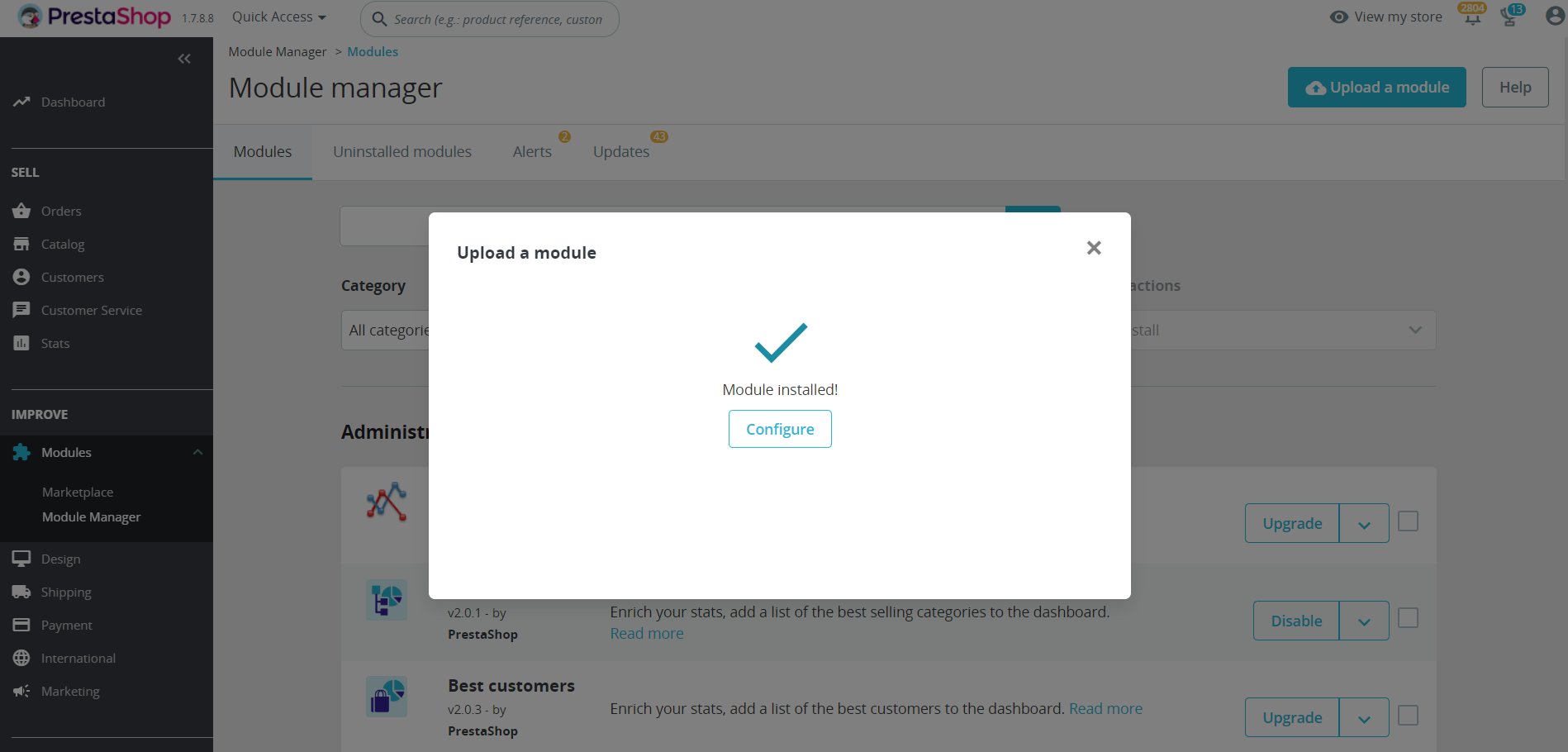
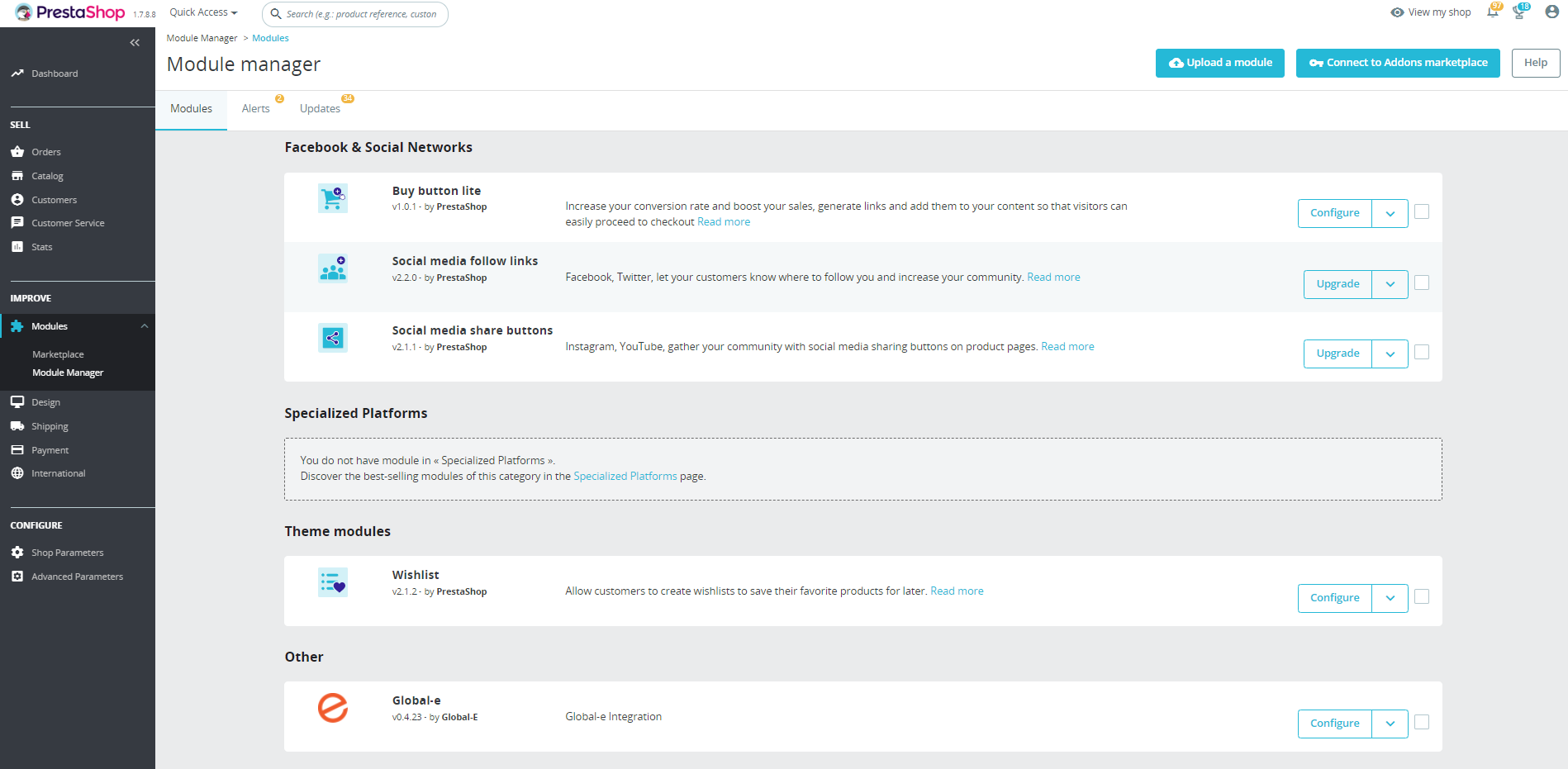 3. Scroll down to the Global‑e module and click **Configure**.
The Configure screen opens. This is where you configure the Global‑e settings in PrestaShop.
This screen is divided as follows and detailed in the relevant sections of this document:
[Configure Global‑e](/configuration-285179#configure-global-e) - Required.
[Configure Orders](/configuration-285179#configure-orders)
[Configure Products](/configuration-285179#configure-products)
[Configure the Checkout for Analytics](/configuration-285179#configure-the-checkout-for-analytics)
[Examples of Global‑e Server Environments URLs](/installation-219574#examples-of-global-e-server-environments-urls)
3. Scroll down to the Global‑e module and click **Configure**.
The Configure screen opens. This is where you configure the Global‑e settings in PrestaShop.
This screen is divided as follows and detailed in the relevant sections of this document:
[Configure Global‑e](/configuration-285179#configure-global-e) - Required.
[Configure Orders](/configuration-285179#configure-orders)
[Configure Products](/configuration-285179#configure-products)
[Configure the Checkout for Analytics](/configuration-285179#configure-the-checkout-for-analytics)
[Examples of Global‑e Server Environments URLs](/installation-219574#examples-of-global-e-server-environments-urls)