> ## Documentation Index
> Fetch the complete documentation index at: https://enterprise-docs.bglobale.com/llms.txt
> Use this file to discover all available pages before exploring further.

# Integration

When you sign up with Global-e, Global-e creates a Merchant account in the Global-e system and sends you your Global-e Merchant credentials.

* Global‑e Merchant ID: The ID of your Global‑e account
* Global‑e Merchant GUID: A GUID number for your Global‑e account. Note that Global‑e sends you a different GUID for staging and production. Make sure to use the correct GUID.
* In addition, Global‑e sends you a URL to download the installation files via Bitbucket.

**Before Getting Started**

If you have not done so yet, make sure to share the following with Global‑e:

* Your Bitbucket account.
* The features you want Global‑e to support: the list of countries and special features such as Fixed Prices, multiple sites, and more.

**Integration Steps**

|            | **Description**                                                                                                                                                                                                                                                                                                                                                                                                                                                                                                                                                                                                                                                                                                                  | **Responsibility**    |
| ---------- | -------------------------------------------------------------------------------------------------------------------------------------------------------------------------------------------------------------------------------------------------------------------------------------------------------------------------------------------------------------------------------------------------------------------------------------------------------------------------------------------------------------------------------------------------------------------------------------------------------------------------------------------------------------------------------------------------------------------------------- | --------------------- |
| **Step 1** | **Sandbox:**<br />Prepare a sandbox with your site for testing purposes.<br />Send us the URL of your sandbox.<br />Send us Admin permissions and credentials for:Your SandboxYour siteYour Backoffice: Products, Orders, and Promotions.<br />Note: You may need to whitelist Global‑e IPs.<br />**Notifications**<br />Whitelist your network notifications: Obtain Global-e's IP range and use it to configure your network security settings to accept the Global-e notifications.<br />For each merchant website, request that Global‑e configures where notifications should be sent.Note that Global‑e calls: `<merchant_site>/globalerest/*` (multiple endpoints)                                                        | Merchant              |
| **Step 2** | **Install and configure the Global‑e Add-on:**<br />Download the Global‑e Add-on and install it in your sandbox using Recipe or by performing the installation manually. See [Installation](/installation-259688).<br />Open the `local.properties` file and add your merchant credentials (GUID and Merchant ID). See [Configure the Global‑e Add-on](/installation-259688#configure-the-global-e-add-on).<br />Configure additional settings, as required. See [Additional Settings](/installation-259688#additional-settings).                                                                                                                                                                                                | Merchant              |
| **Step 3** | \*\*Storefront settings:\*\*Make sure that the order history (My Account page) displays Global‑e’s international prices correctly to customers. See [My Account](/global-e-storefront-functionality#my-account-259701).                                                                                                                                                                                                                                                                                                                                                                                                                                                                                                          | Merchant              |
| **Step 4** | Solve possible issues arising after installation.                                                                                                                                                                                                                                                                                                                                                                                                                                                                                                                                                                                                                                                                                | Global‑e and Merchant |
| **Step 5** | Global‑e enables and manages Global‑e countries, price conversion, and Global‑e checkout.<br />The Add-on runs the following APIs automatically when the relevant action is triggered:<br />**SendOrderToMerchant**: transfers new orders from Global‑e to SAP/Hybris.<br />**PerformOrderPayment**: Notifies the merchant that the payment was authorised.<br />**UpdateOrderShippingInfo**: Updates the order status and status history and updates the shipping addresses.<br />**UpdateOrderStatus**: Updates the Hybris order status according to data from Global-e to notify the merchant of any change made to an order (such as cancellation, status change, and more…)<br />You can create listeners for these events. | Global‑e              |

**What's Next:**

* Discover the Bespoke Functionality.
* Price Settings and Price Conversion
* Merchandising: Promotions, Restricted and Forbidden Products.
* Managing Orders
* Cart and Checkout
* [In-Depth: Discover the Global‑e Add-on extensions and implement custom functionality](/add-on-extensions-and-custom-functionality)
* Known Limitations

##### Integration Flows

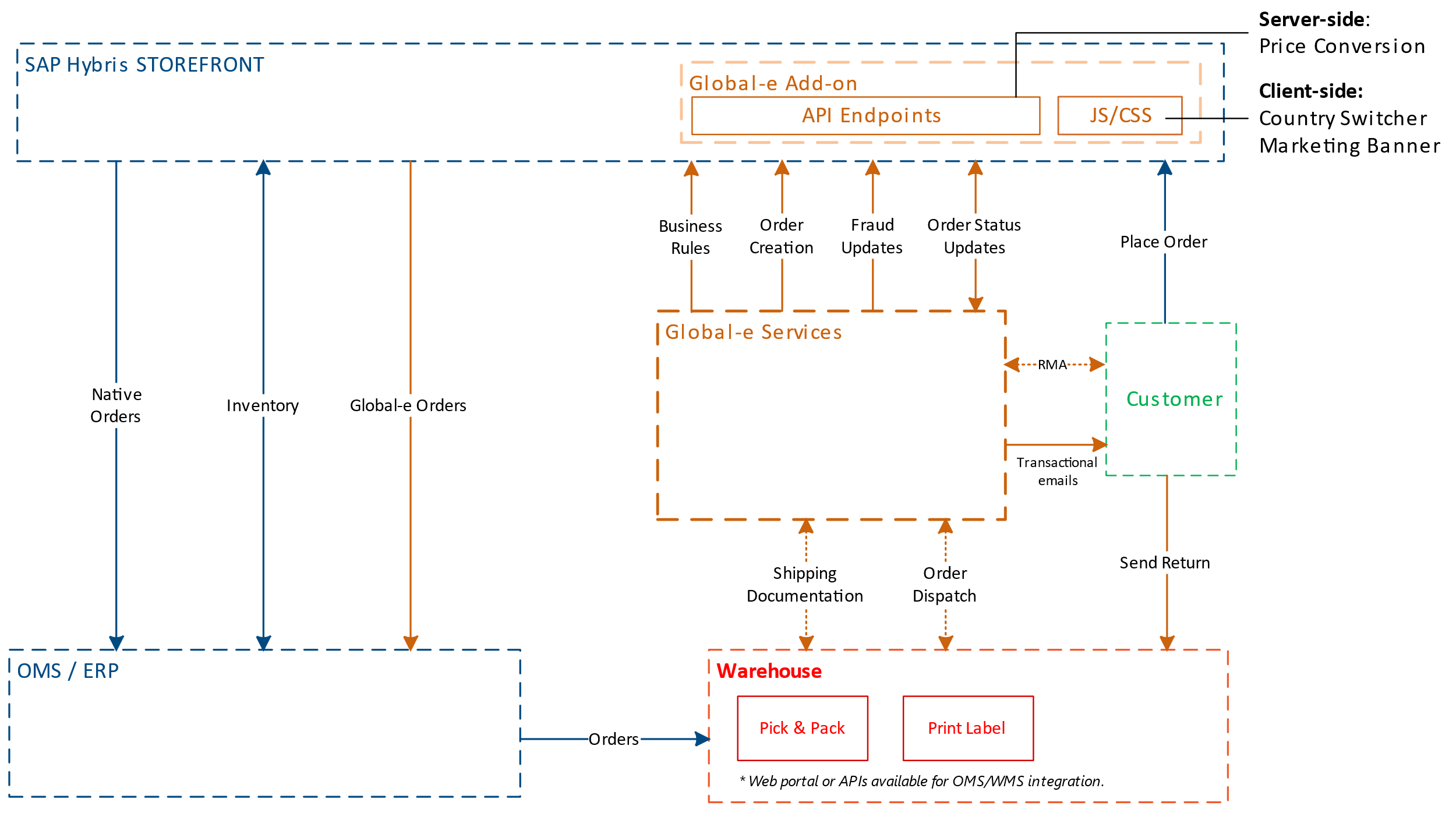
###### End-to-end Flows (High-Level)
<Frame>
  <img src="https://mintcdn.com/globale-enterprise/-95KX8vS1vYAnafZ/images/uuid-4b391b2d-d986-db54-5786-6853dce9b6b6.png?fit=max&auto=format&n=-95KX8vS1vYAnafZ&q=85&s=58809d36e749b290d783722187979714" width="2500" height="1408" data-path="images/uuid-4b391b2d-d986-db54-5786-6853dce9b6b6.png" />
</Frame>

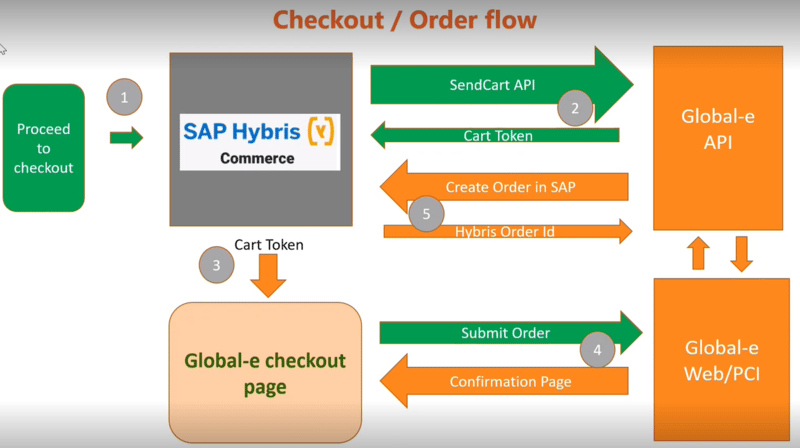
###### Global‑e Hybris Order and Checkout Flow
<Frame>
  <img src="https://mintcdn.com/globale-enterprise/83nCB7AJobthQFqb/images/uuid-acc99c59-ae7b-3e95-8c5f-063c870e3b33.png?fit=max&auto=format&n=83nCB7AJobthQFqb&q=85&s=3ac1c5df6a8479ea5ed00f7a716449f1" width="800" height="448" data-path="images/uuid-acc99c59-ae7b-3e95-8c5f-063c870e3b33.png" />
</Frame>

1. When a customer proceeds to checkout (1), Global-e verifies if the selected shipping country is operated by Global-e.
2. If operated by Global‑e, the SentCart API is used to send all relevant information about the products and customer details to Global‑e (2).
3. Subsequently, Global‑e creates a cart on the Global‑e side and returns the cart token to SAP Commerce (Hybris).
4. Global‑e uses this cart token to initiate the checkout process (3).
5. Global‑e then makes a server-to-server API call to SAP, triggering the creation of an order on the SAP Ecommerce (Hybris) side (4,5).

###### Scripts

The following Global‑e scripts are installed.

* Global‑e CSS
* The JavaScript code is installed on all site pages and the Checkout Page.
