> ## Documentation Index
> Fetch the complete documentation index at: https://enterprise-docs.bglobale.com/llms.txt
> Use this file to discover all available pages before exploring further.
# Prices and Price Conversion
## Flow
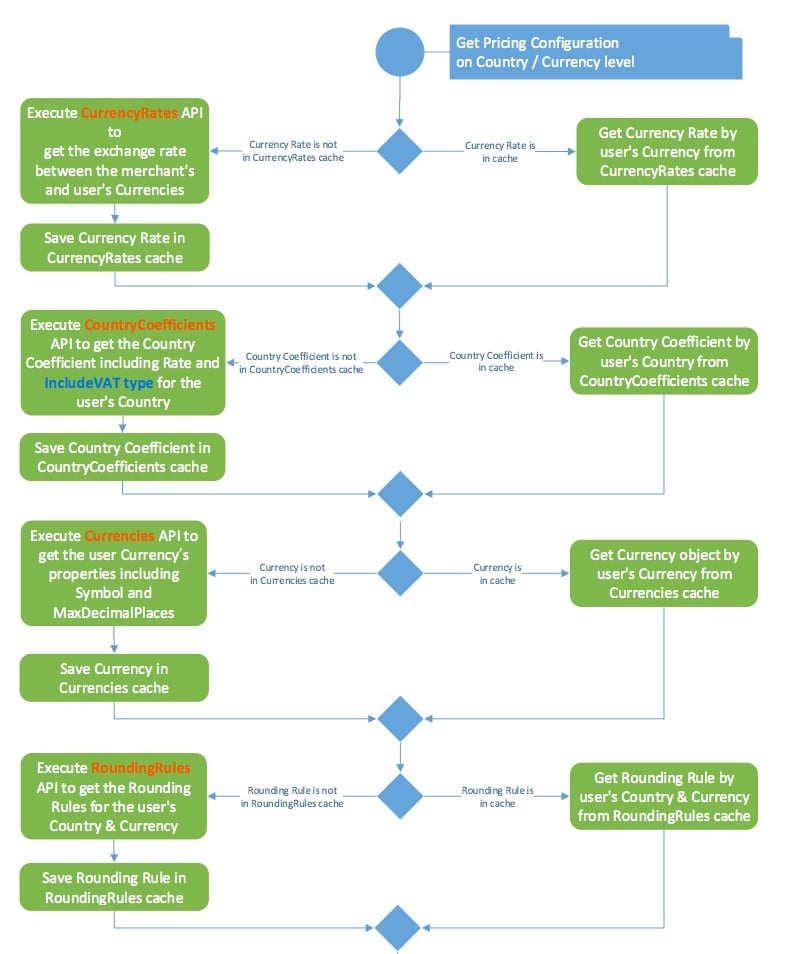
Global‑e converts prices using pricing conversion variables, including:
* Currency Rates
* Country Coefficient
* Rounding Rules
These variables are dynamic; they are stored in the Global-e database.
The process of pricing calculations including VAT is illustrated in the following Front-end Activity diagram.
 ## Fixed Prices
The Merchant uses fixed prices to fix the price for a certain product in a specific country.
Fixed prices override Global‑e conversion calculations, giving you the ability to set prices in local currency for a specific country.
The fixed prices functionality requires that:
* You request that Global-e supports fixed prices for the desired countries.
* Global‑e enables fixed prices for the specified country on the Global‑e side.
* Enable the fixed price in Backoffice. You can set a fixed price per country and Currency or only a Fixed Price per currency only.
### Fixed price per Country and Currency
**To enable fixed prices per country and currency:**
1. Log into Backoffice.
2. From the left menu, select **Price Settings > Prices > Price Rows**
3. In the main area, from the Price Row menu, type in **Global‑e PriceRow**.
## Fixed Prices
The Merchant uses fixed prices to fix the price for a certain product in a specific country.
Fixed prices override Global‑e conversion calculations, giving you the ability to set prices in local currency for a specific country.
The fixed prices functionality requires that:
* You request that Global-e supports fixed prices for the desired countries.
* Global‑e enables fixed prices for the specified country on the Global‑e side.
* Enable the fixed price in Backoffice. You can set a fixed price per country and Currency or only a Fixed Price per currency only.
### Fixed price per Country and Currency
**To enable fixed prices per country and currency:**
1. Log into Backoffice.
2. From the left menu, select **Price Settings > Prices > Price Rows**
3. In the main area, from the Price Row menu, type in **Global‑e PriceRow**.
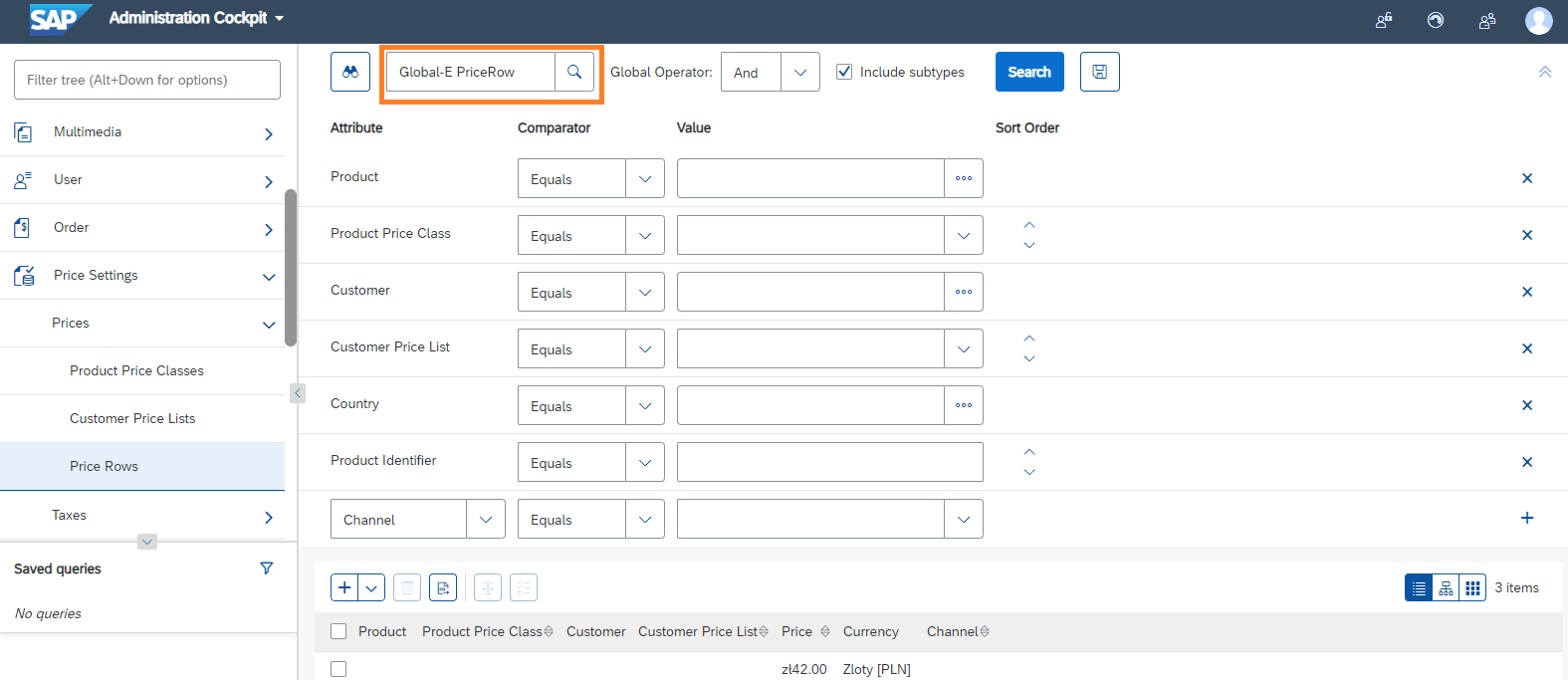 4. Click on the **+** button to create a new Global-E PriceRow.
 The Create New Global-E PriceRow dialogue opens.
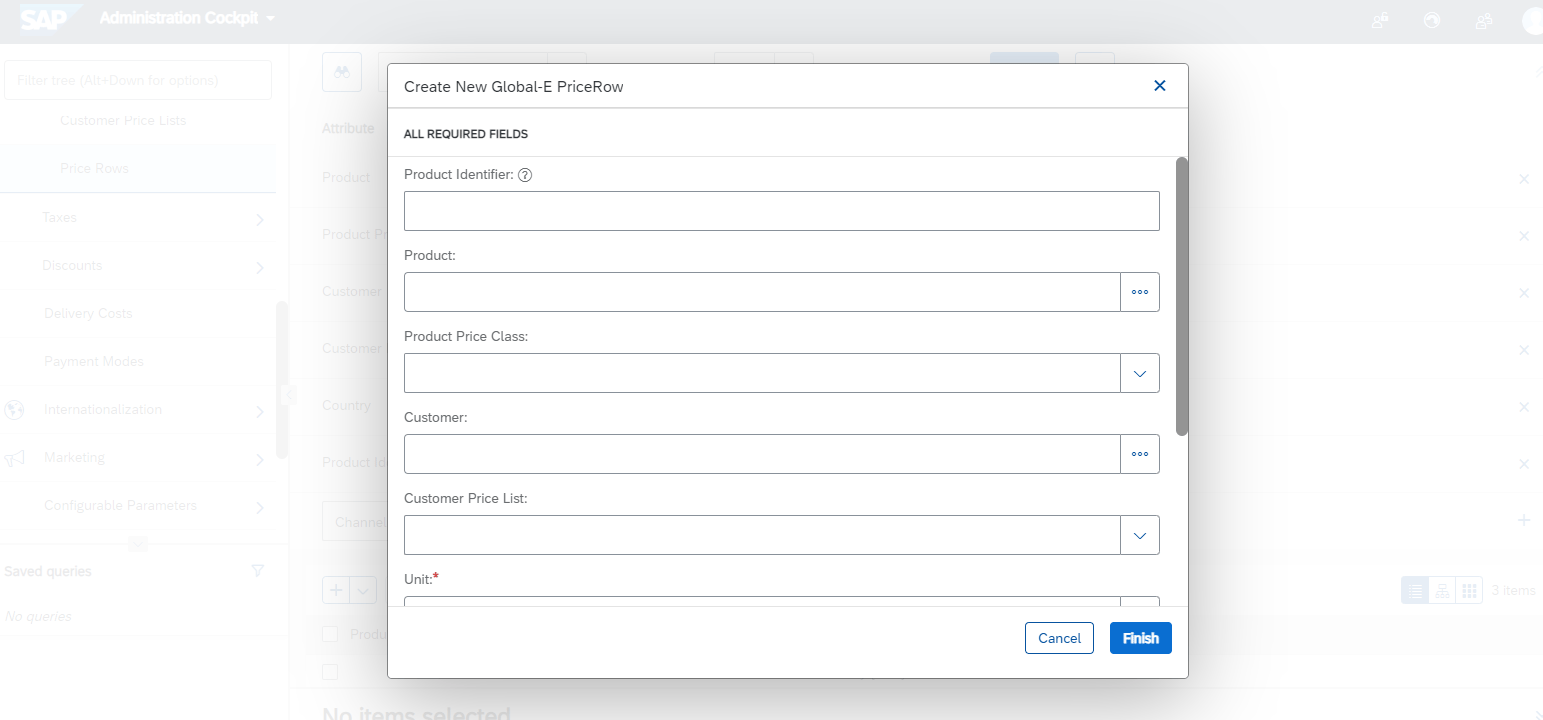 5. Fill in the following mandatory fields. then click **Done**.
* Product Identifier (this is the `ProductId`)
* Unit
* Price
* Currency
6. Click a price row to open the PriceRow properties.
5. Fill in the following mandatory fields. then click **Done**.
* Product Identifier (this is the `ProductId`)
* Unit
* Price
* Currency
6. Click a price row to open the PriceRow properties.
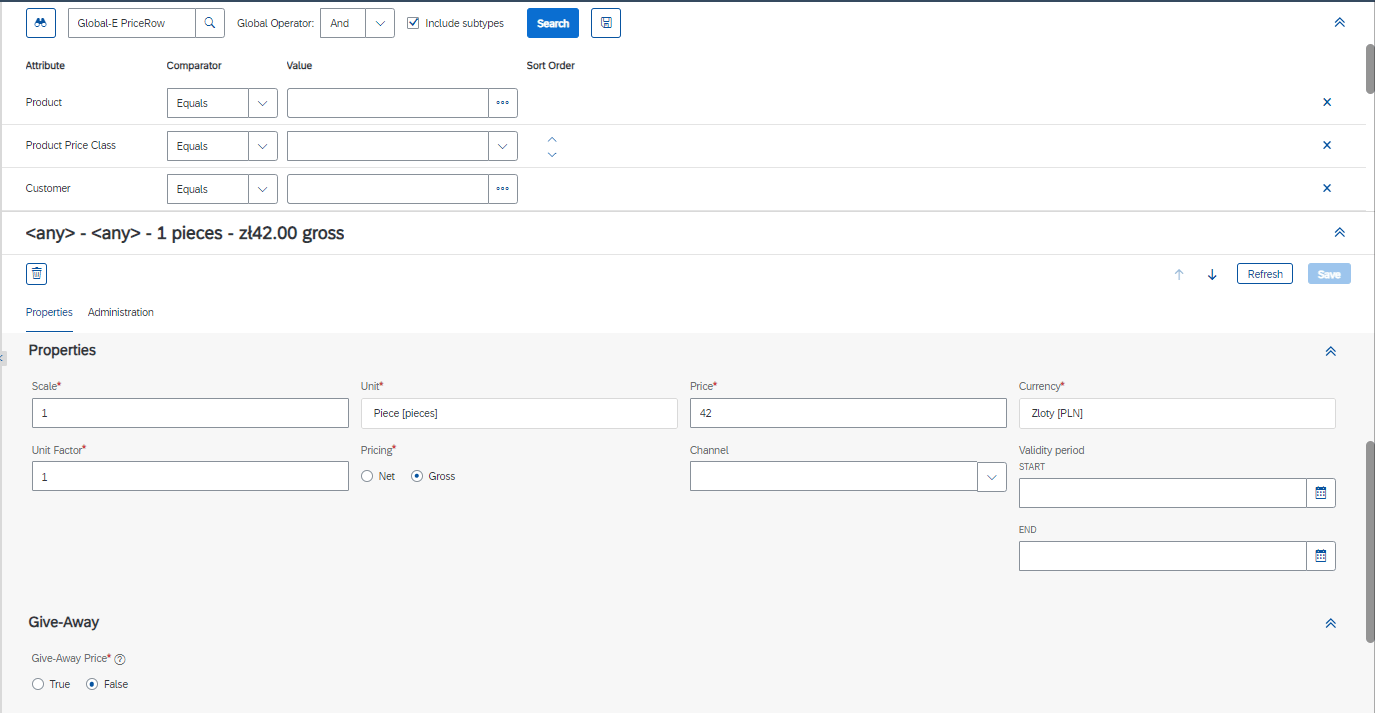 7. At the bottom of the `PriceRow` property screen, set Fixed Price enabled to **TRUE**.
The Fixed Price feature per Country and Currency is now enabled and displayed on your storefront.
Make sure that your cache is cleared.
### Fixed Price per Currency
**To enable fixed prices per currency (only):**
1. Log into Backoffice.
2. From the left menu, select**Price Settings > Prices > Price Rows**
3. In the main area, in the Price Row menu, type **Global‑e PriceRow**.
7. At the bottom of the `PriceRow` property screen, set Fixed Price enabled to **TRUE**.
The Fixed Price feature per Country and Currency is now enabled and displayed on your storefront.
Make sure that your cache is cleared.
### Fixed Price per Currency
**To enable fixed prices per currency (only):**
1. Log into Backoffice.
2. From the left menu, select**Price Settings > Prices > Price Rows**
3. In the main area, in the Price Row menu, type **Global‑e PriceRow**.
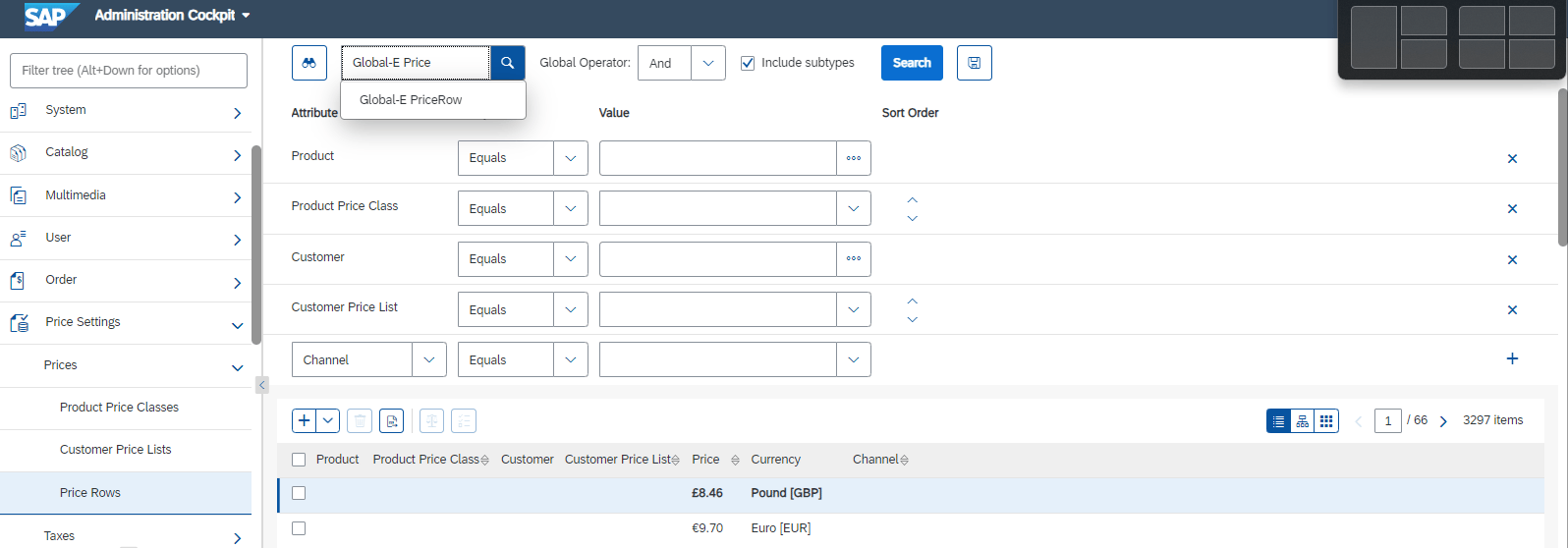 4. Click on the **+** button to create a new **+Global-E PriceRow**.
The **Create New Global-E PriceRow** dialogue opens.
5. Fill in the following mandatory fields, then click **Done**.
* Product Identifier (this is the `ProductId`)
* Unit
* Price
* Currency
6. Click a price row to open the `PriceRow` properties.
4. Click on the **+** button to create a new **+Global-E PriceRow**.
The **Create New Global-E PriceRow** dialogue opens.
5. Fill in the following mandatory fields, then click **Done**.
* Product Identifier (this is the `ProductId`)
* Unit
* Price
* Currency
6. Click a price row to open the `PriceRow` properties.
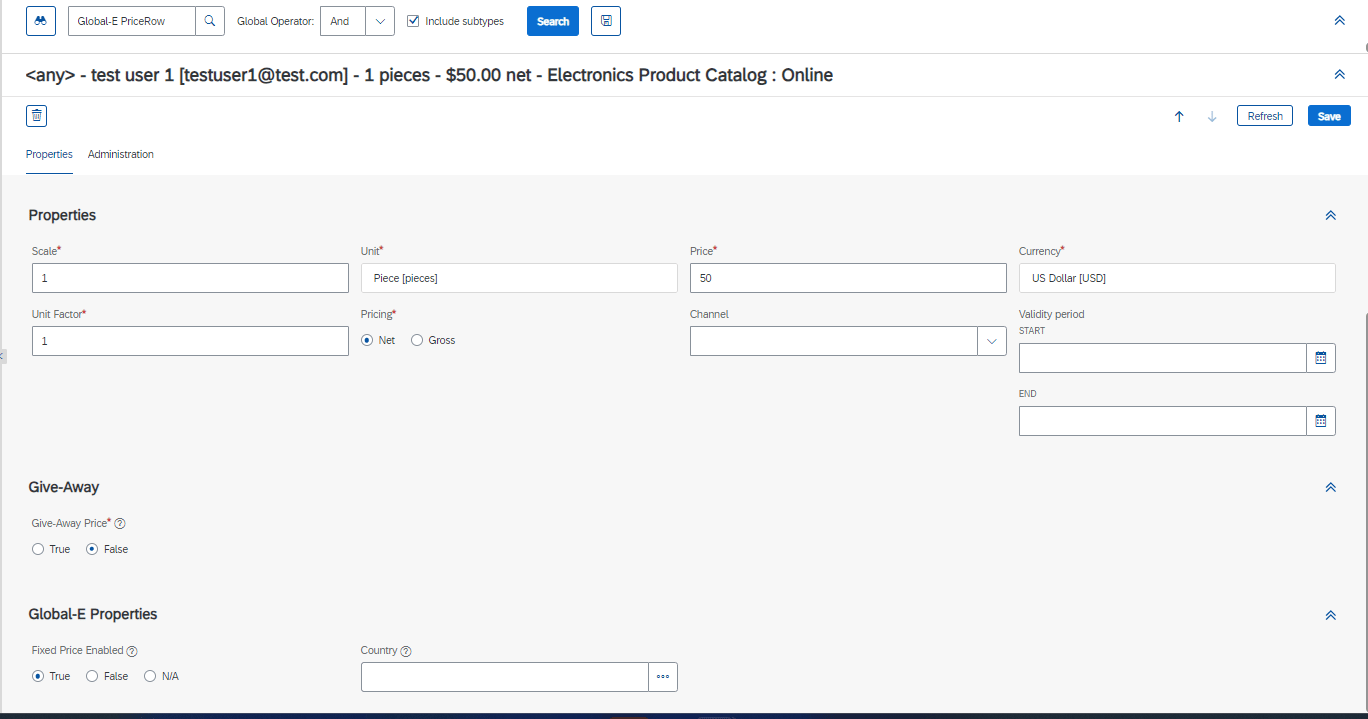 7. At the bottom of the `PriceRow` properties screen, set Fixed Price enabled to **TRUE**.
The Fixed Price feature per Currency is now enabled and is displayed on your storefront.
Make sure that your cache is cleared.
## Pricing: Sorting and Faceting
Configuring Global‑e price facets for Global‑e countries operated by Global‑e is a feature of the Add-on.
You can follow the standard Hybris approach to configuring pricing facets. However, Price facets are currency-specific rather than country-based. Therefore, we recommend the following approach to ensure accurate functionality.
The sort function, **Sort Prices High - Low** or **Sort Price Low - High**, is automatically enabled by setting the price facet for a specific currency.
**To index a currency and show the price facet:**
**Step 1. Enable Currency and faceting and select a site**
1. **Enable currency sorting and faceting:** From the Backoffice’s left menu, select **System** > **Search and Navigation** > **Solr Facet Search Configuration** > **Facet Search Config**.
7. At the bottom of the `PriceRow` properties screen, set Fixed Price enabled to **TRUE**.
The Fixed Price feature per Currency is now enabled and is displayed on your storefront.
Make sure that your cache is cleared.
## Pricing: Sorting and Faceting
Configuring Global‑e price facets for Global‑e countries operated by Global‑e is a feature of the Add-on.
You can follow the standard Hybris approach to configuring pricing facets. However, Price facets are currency-specific rather than country-based. Therefore, we recommend the following approach to ensure accurate functionality.
The sort function, **Sort Prices High - Low** or **Sort Price Low - High**, is automatically enabled by setting the price facet for a specific currency.
**To index a currency and show the price facet:**
**Step 1. Enable Currency and faceting and select a site**
1. **Enable currency sorting and faceting:** From the Backoffice’s left menu, select **System** > **Search and Navigation** > **Solr Facet Search Configuration** > **Facet Search Config**.
 2. **Select a site** (in this example, we have chosen Electronics)
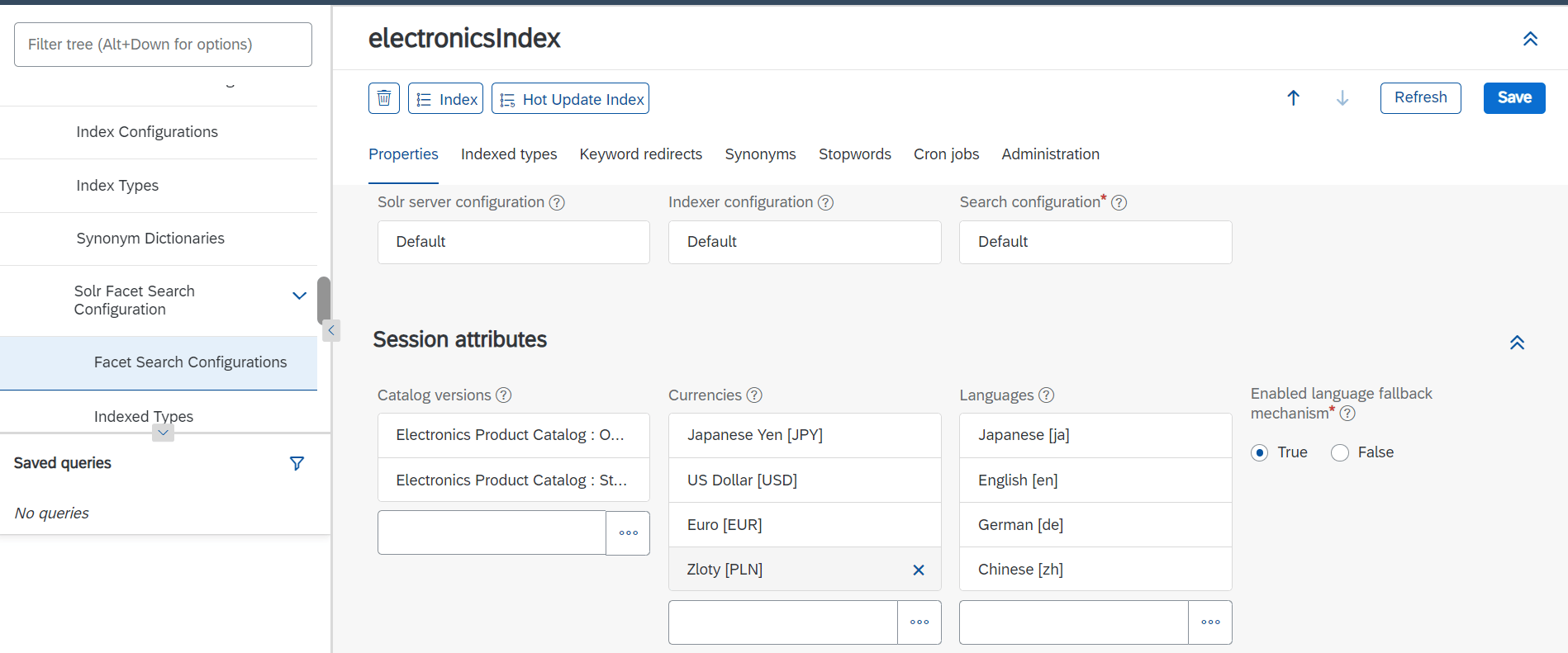 3. In the main area, under the **Properties** tab, add the currency for which to enable sorting and faceting (in this example, we have chosen Zloty).
4. Click **Save**
**Step 2: Create a New Set of ranges**.
1. From the Backoffice’s left menu, select **Ranges**.
3. In the main area, under the **Properties** tab, add the currency for which to enable sorting and faceting (in this example, we have chosen Zloty).
4. Click **Save**
**Step 2: Create a New Set of ranges**.
1. From the Backoffice’s left menu, select **Ranges**.
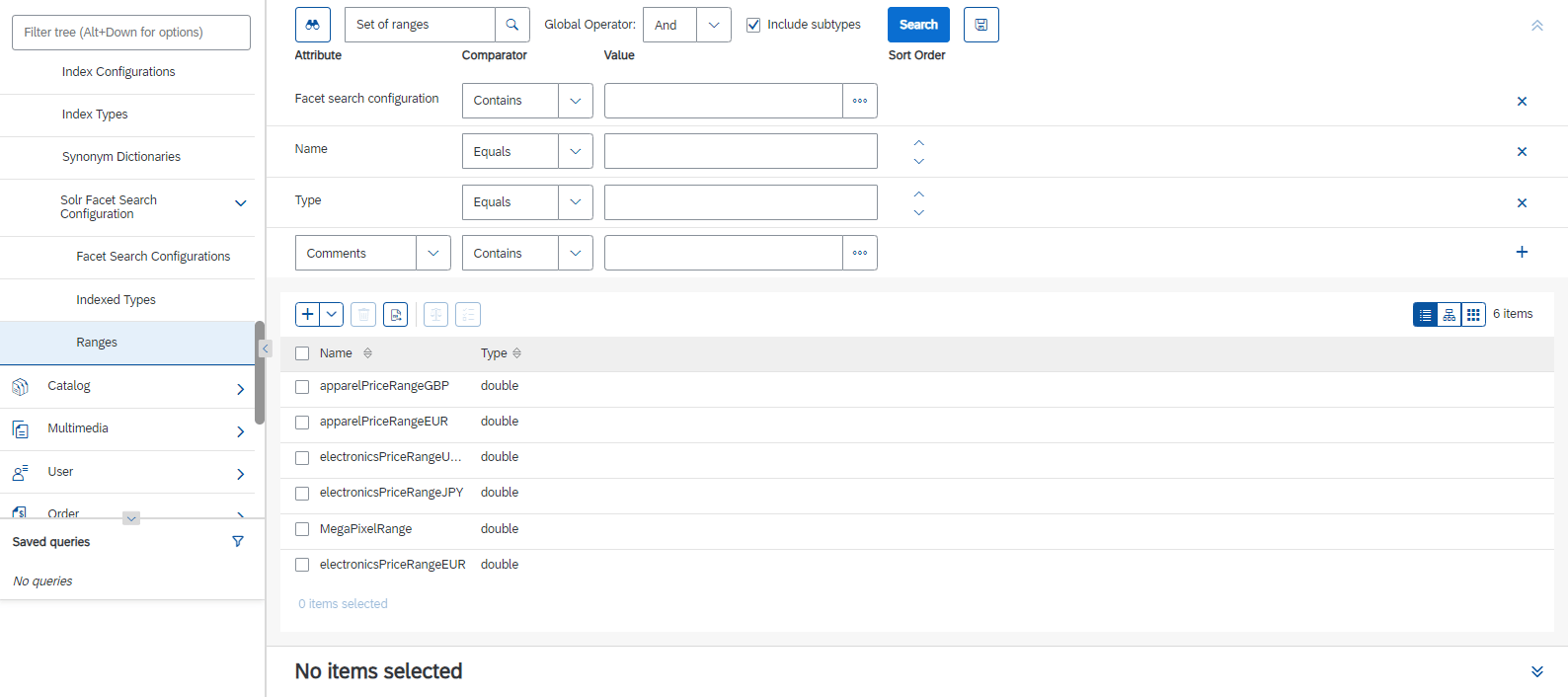 2. In the main area, click **+ Set of Ranges** to add the new ranges.
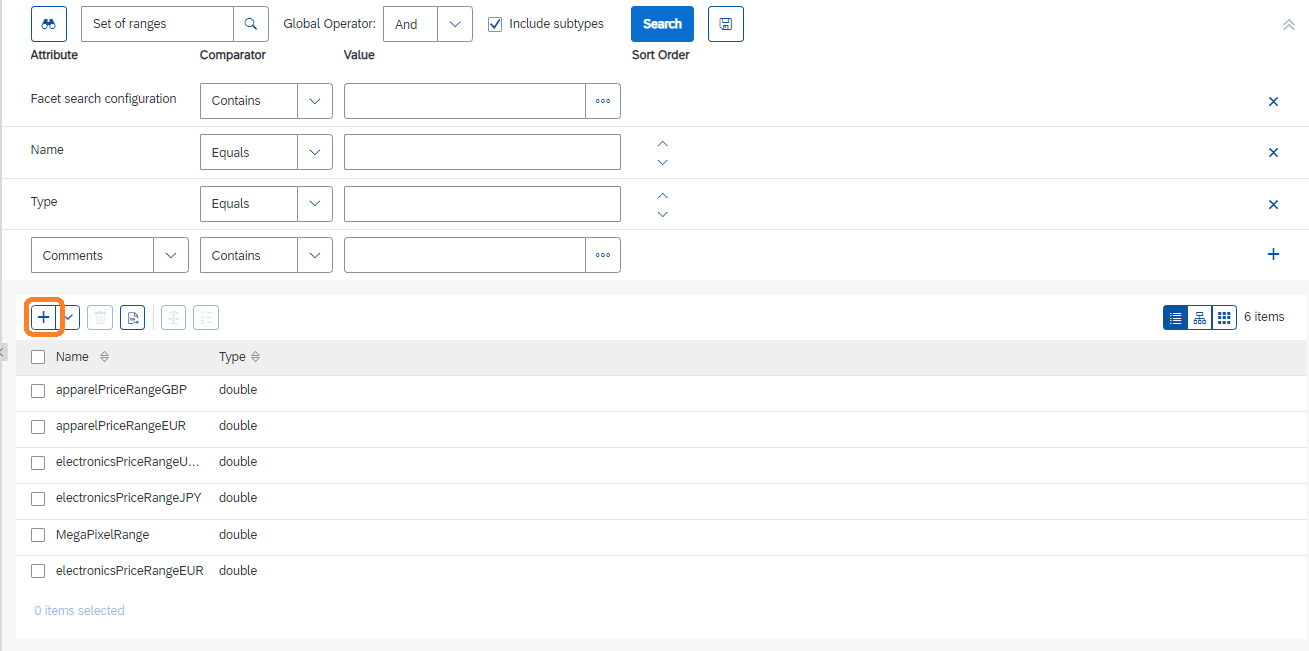 The **Create New Set of Ranges** dialogue opens.
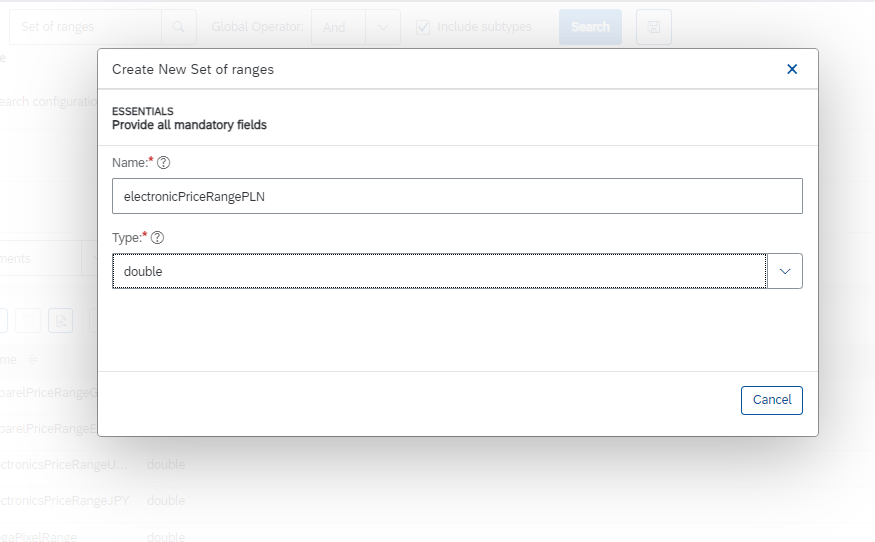 3. Under Name, give the new range a suitable name.
4. Under Type, select **Double**.
5. Click **Done**.
6. At the top of the Ranges screen, click inside the Search field.
The range that you have created appears as a row.
3. Under Name, give the new range a suitable name.
4. Under Type, select **Double**.
5. Click **Done**.
6. At the top of the Ranges screen, click inside the Search field.
The range that you have created appears as a row.
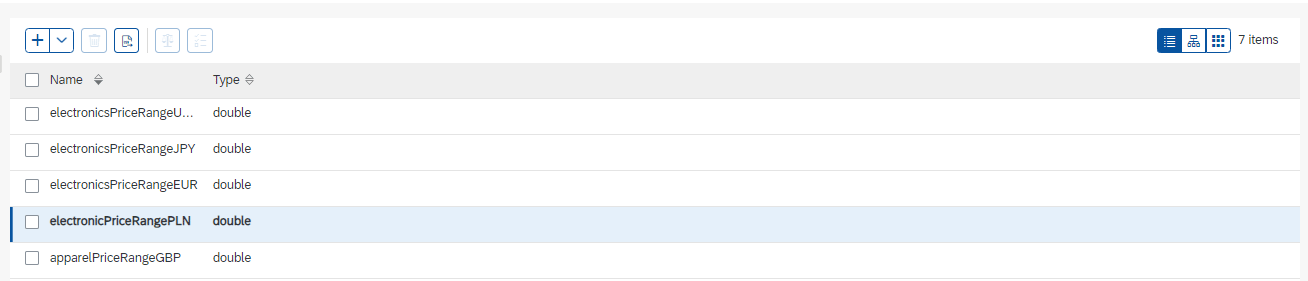 7. Click the new range row.
The Ranges tab opens.
7. Click the new range row.
The Ranges tab opens.
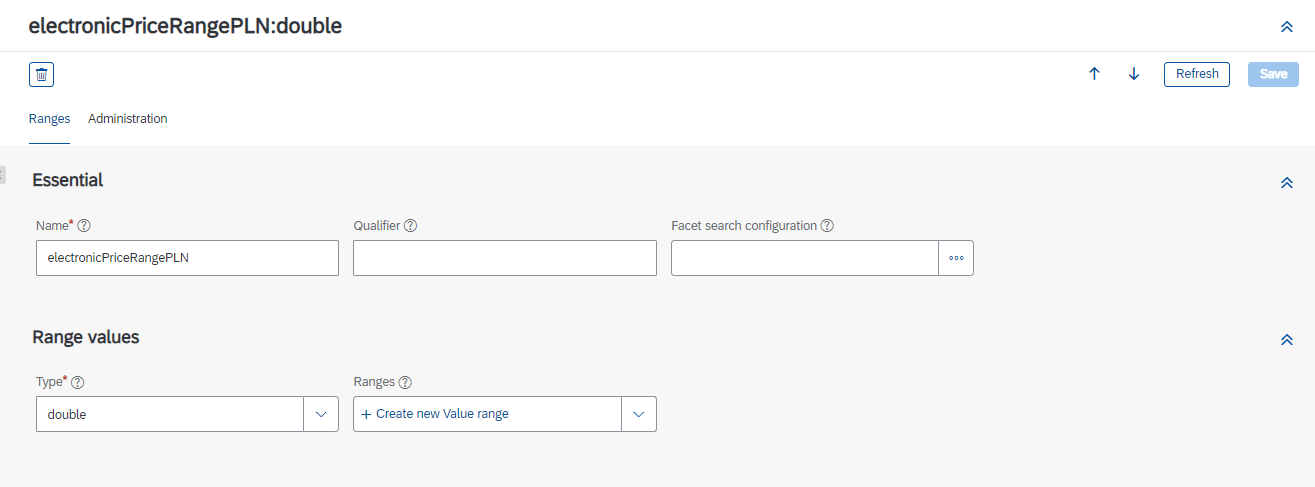 8. Under Ranges, add a new value range by clicking ‘+’.
The Create New Value range dialogue opens.
8. Under Ranges, add a new value range by clicking ‘+’.
The Create New Value range dialogue opens.
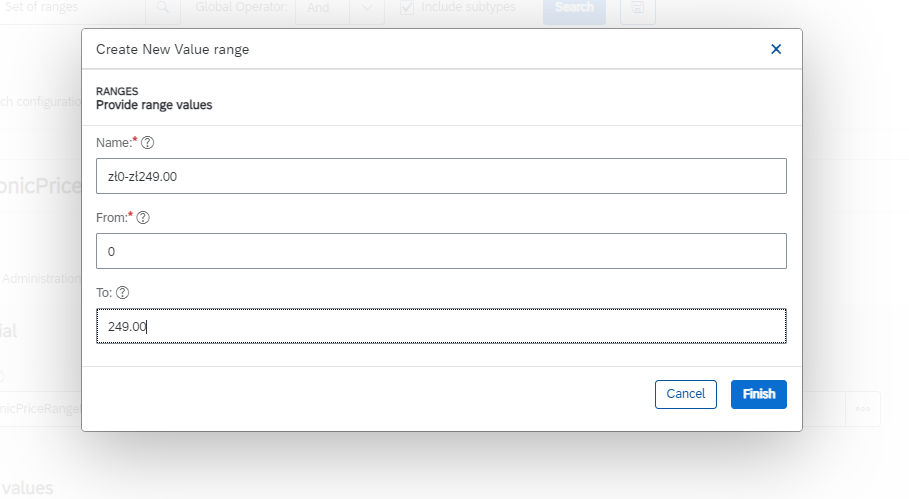 9. Fill in the required fields to create the new range.
10. Click **Done**.
11. Repeat the above steps until you have created all the required ranges.
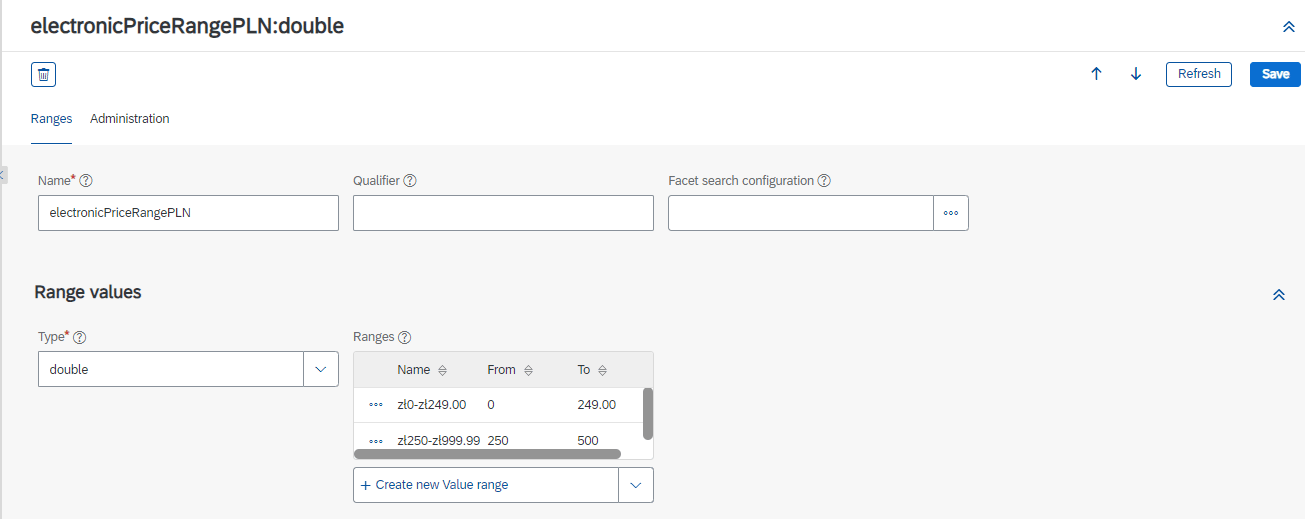
The following figure shows a list of ranges.
Make sure to save after each range has been created to avoid errors.
9. Fill in the required fields to create the new range.
10. Click **Done**.
11. Repeat the above steps until you have created all the required ranges.
The following figure shows a list of ranges.
Make sure to save after each range has been created to avoid errors.
 **Step 3: Add the currency code**
1. Select the administration tab.
**Step 3: Add the currency code**
1. Select the administration tab.
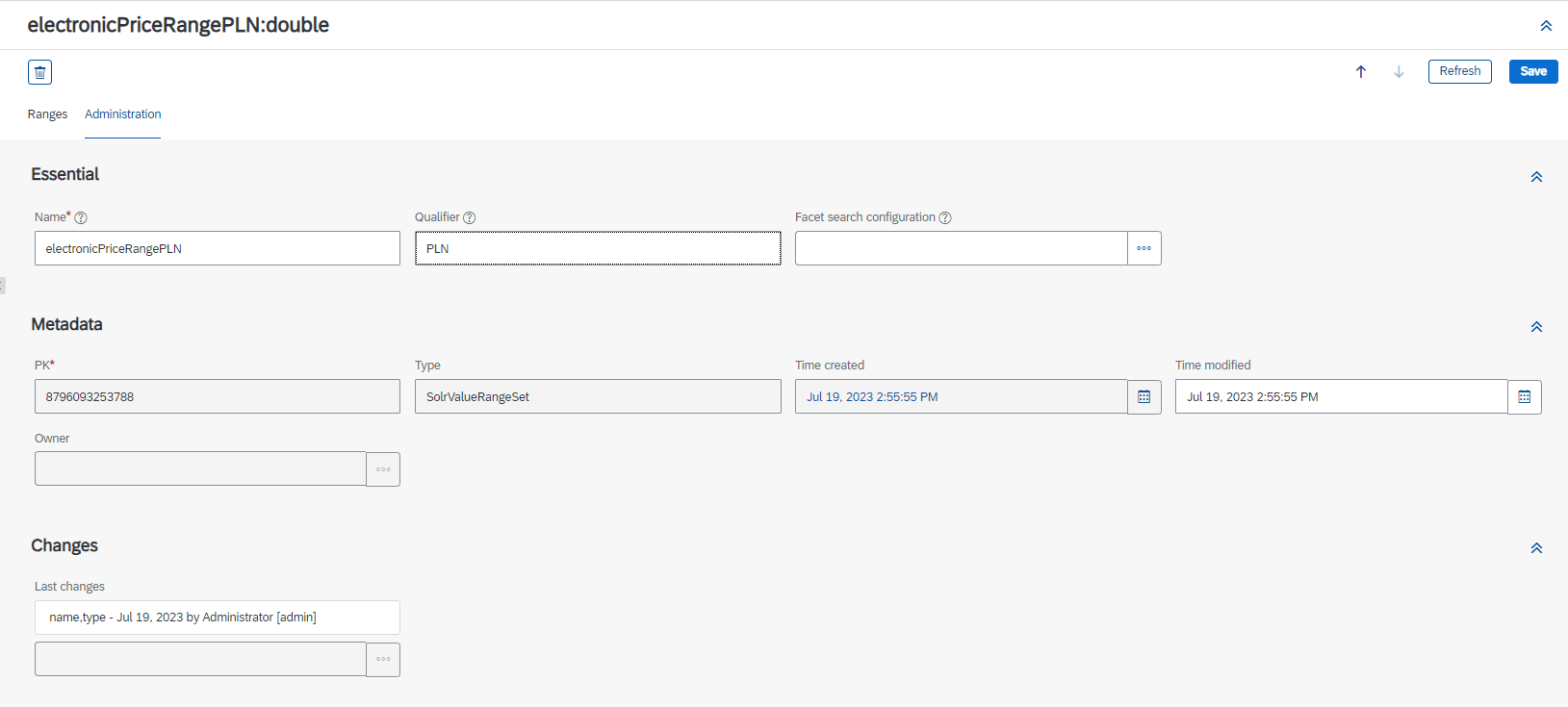 2. In the Qualifier field, add the currency code.
3. click **Save.**
**Step 4: Add a Facet**
1. Click on the site row (Electronics).
The site details screen opens.
2. Select the **Indexed Types** tab.
2. In the Qualifier field, add the currency code.
3. click **Save.**
**Step 4: Add a Facet**
1. Click on the site row (Electronics).
The site details screen opens.
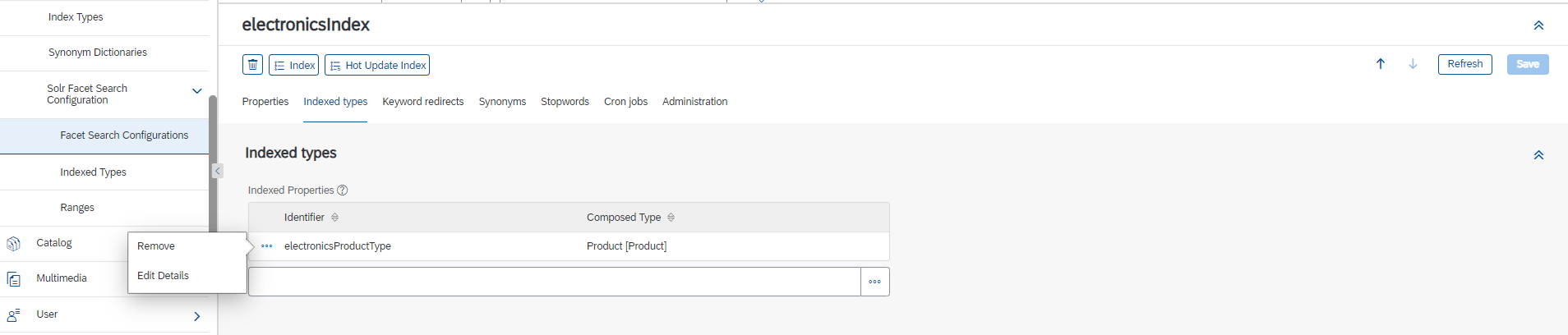
2. Select the **Indexed Types** tab.
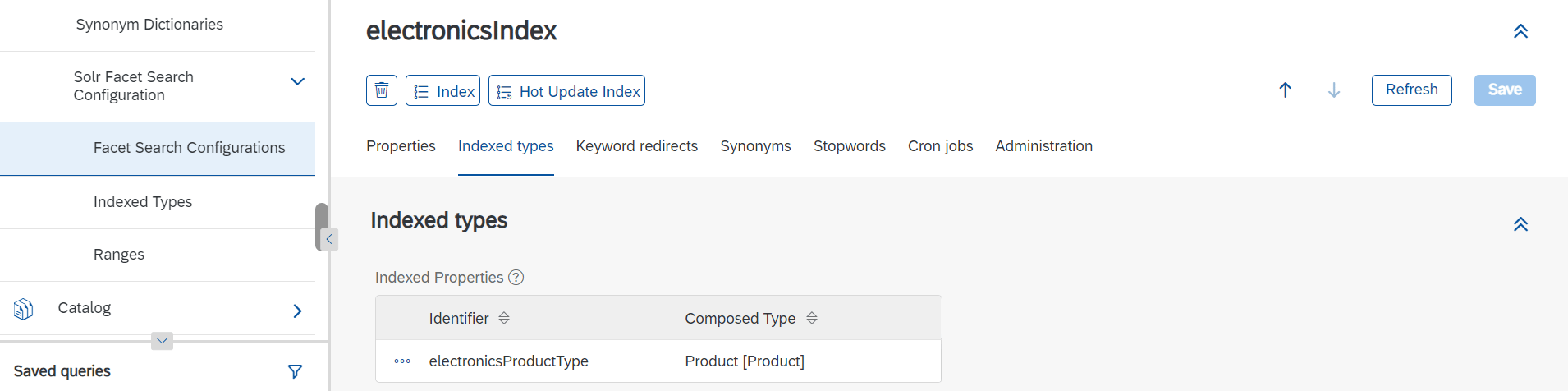 3. Click the 3 dots on the left and select **Edit Details**.
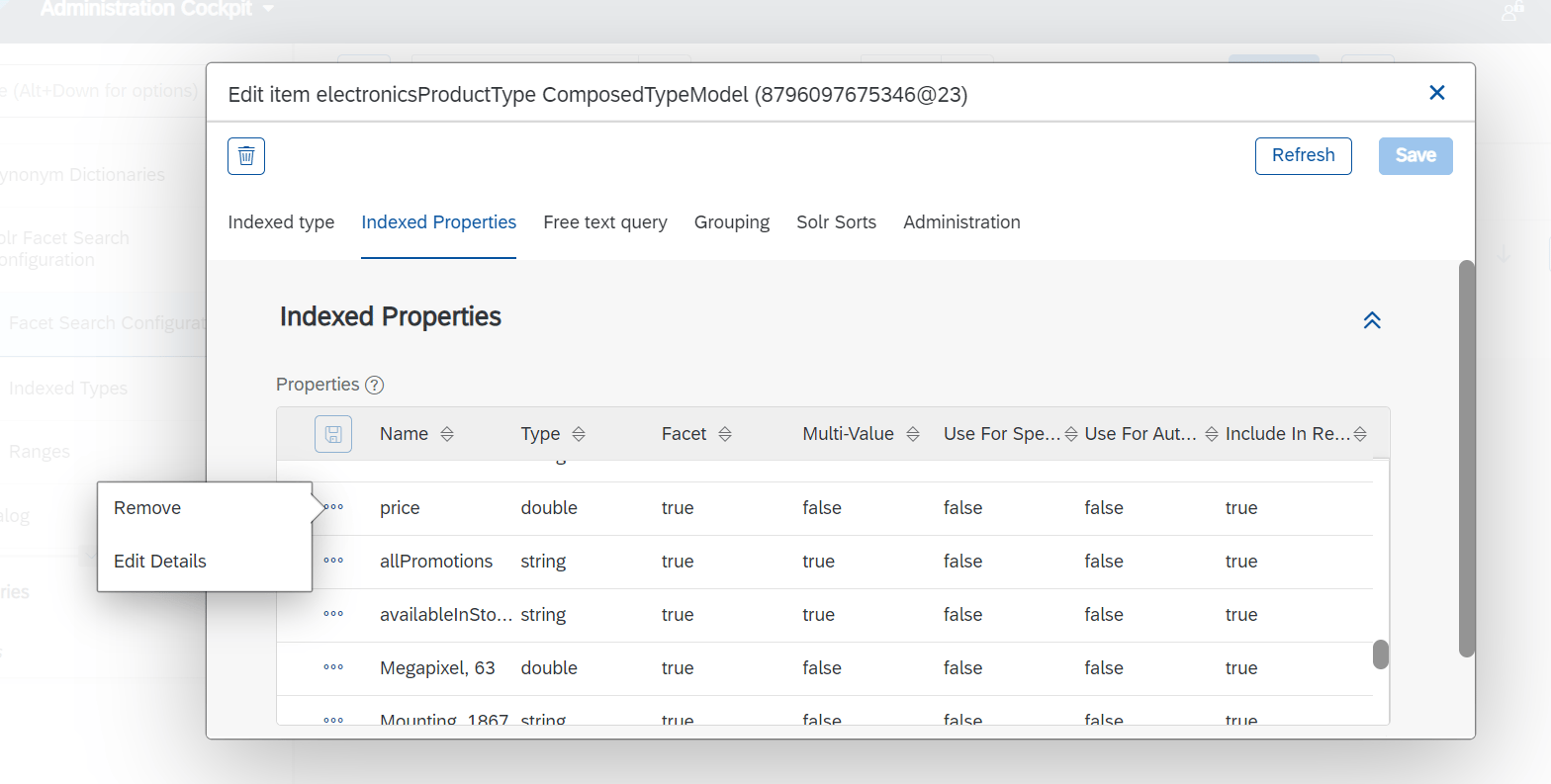
 4. In the pop-up’s Properties table click on \*\*Indexed Properties.\*\*On the price row, click the 3 dots and select **Edit Details**.
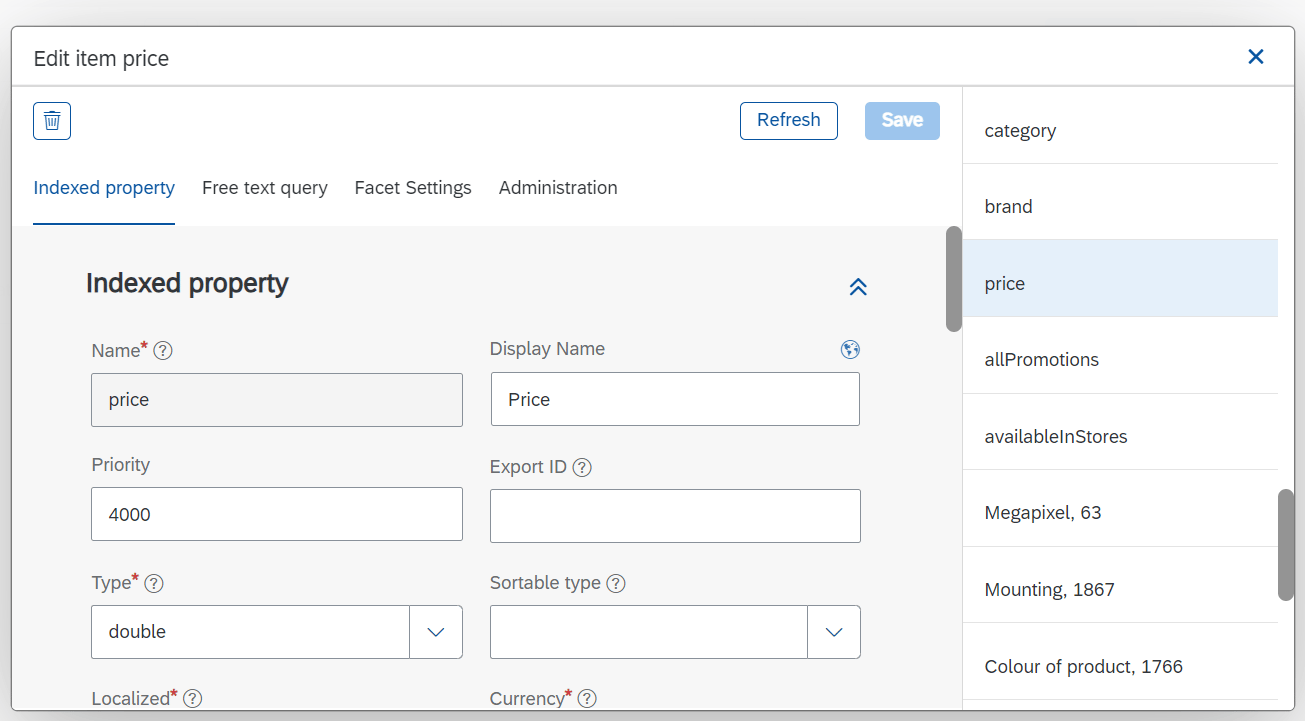
 The Edit Item price screen opens.
 5. Select the new range set you have created for Range sets.
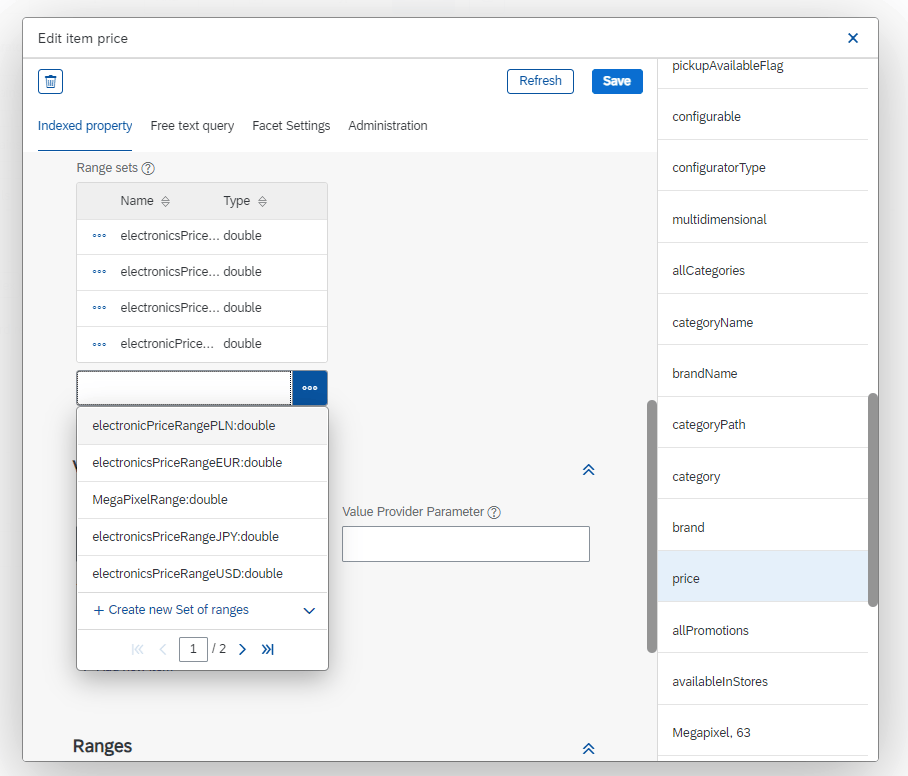 6. Click **Save.**
The 'Create new Solr indexing operation' was created successfully.
6. Click **Save.**
The 'Create new Solr indexing operation' was created successfully.
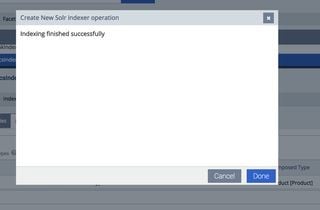 7. Click **Done**.
**Step 5: Run an index**
1. At the top of the screen, click **Index**.
7. Click **Done**.
**Step 5: Run an index**
1. At the top of the screen, click **Index**.
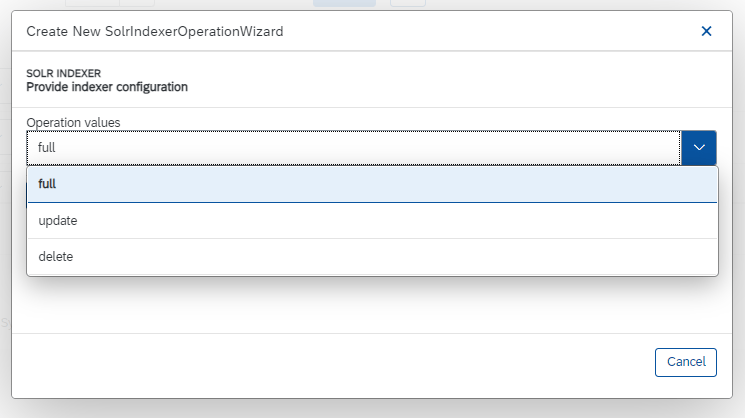
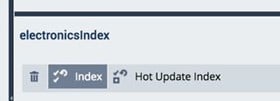 2. Under Operation Values, select '**full**'.
3. Click '**Start**.
2. Under Operation Values, select '**full**'.
3. Click '**Start**.
 Once the index is complete, the new facets appear on the front end, and the sorting by price works as expected.