> ## Documentation Index
> Fetch the complete documentation index at: https://enterprise-docs.bglobale.com/llms.txt
> Use this file to discover all available pages before exploring further.
# Printer Agent
##### Introduction
| The Printer Agent is a desktop application for printing labels and documents at shipping stations.The application runs in the background of the shipping station and listens for print job requests. These requests are sent to the locally deployed Printer Agent application via an AJAX request from the browser.Once the Printer Agent receives the print job, it uses its configuration as well as the print job type to send the print job directly to the associated printer, without requiring additional steps from the user. | printing\_agent.png | printing\_agent.png |
| -------------------------------------------------------------------------------------------------------------------------------------------------------------------------------------------------------------------------------------------------------------------------------------------------------------------------------------------------------------------------------------------------------------------------------------------------------------------------------------------------------------------------------------- | ------------------- | ------------------- |
| printing\_agent.png | | |
##### Installing the Printer Agent
Follow the instructions below to install and configure the Printer Agent.
**Step 1: Install the Printer Agent**
1. Download and unzip the Printer Agent: [Printer Agent Download](https://global-e-public-files.s3.eu-west-1.amazonaws.com/GlobalE.PrinterAgent.release-1.0.6.zip).
2. Run the **GlobalE.PrinterAgent.Web.exe** file as an Administrator.
* A new folder is created in C://GlobalE.
* A startup shortcut is generated so the Printer Agent runs automatically.
* The browser opens on the configuration page: \[http\://localhost:9001]\(http\:// [http://localhost:9001](http://localhost:9001)).
We recommend bookmarking the printer configuration page for future use.
**Step 2: Configure the local printers for both labels and A4 documents**
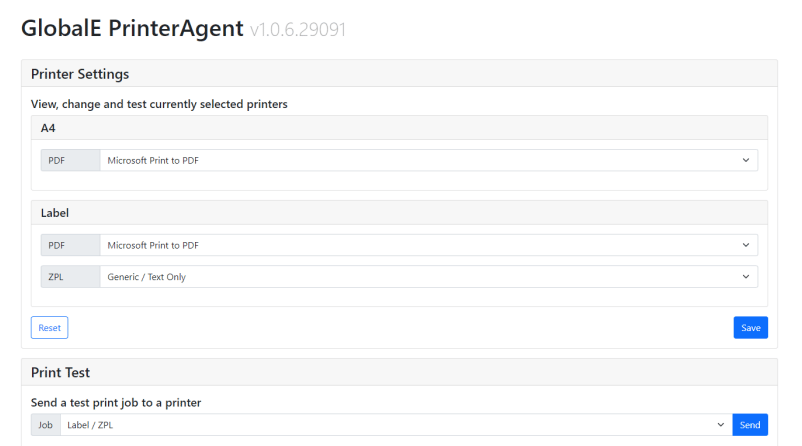 1. From the dropdown menu, select the relevant printers.
2. Test the printers by selecting the test documents in the **Print Test** menu.
3. Once the printing is confirmed, save the changes by clicking **Save**.
Note: It is not necessary to keep the configuration screen open for the Printer Agent to operate.
4. Restart the Shipping Station and check if you have access to the [configuration page](/printer-agent#UUID-c8769c42-9dc4-2c62-588f-a3ec31394603_N1702423245081) again.
If the page opens successfully, then the Printer Agent is installed.
Merchant personnel can now use these printers to generate the necessary shipping documents.
1. From the dropdown menu, select the relevant printers.
2. Test the printers by selecting the test documents in the **Print Test** menu.
3. Once the printing is confirmed, save the changes by clicking **Save**.
Note: It is not necessary to keep the configuration screen open for the Printer Agent to operate.
4. Restart the Shipping Station and check if you have access to the [configuration page](/printer-agent#UUID-c8769c42-9dc4-2c62-588f-a3ec31394603_N1702423245081) again.
If the page opens successfully, then the Printer Agent is installed.
Merchant personnel can now use these printers to generate the necessary shipping documents.