> ## Documentation Index
> Fetch the complete documentation index at: https://enterprise-docs.bglobale.com/llms.txt
> Use this file to discover all available pages before exploring further.
# Process an Order Collected by the Customer
Once all parcels in an order have been successfully checked in, the customer is notified by email that their order is ready to be picked up. When a customer picks up their order, you (the store user) must verify that you are handling the correct parcel and only then, mark the order **collected by the customer** in the Global‑e Portal screen.
For each parcel in the order, repeat the following procedure.
**To record the order as collected by the customer**:
1. From the Global‑e Merchant Portal’s Store Orders menu, select Collect Orders.
 Navigating to the Collect Orders Screen
**Optional:** If you are associated with several stores, you are prompted to select your current location. Select your current store and click **OK**.
Navigating to the Collect Orders Screen
**Optional:** If you are associated with several stores, you are prompted to select your current location. Select your current store and click **OK**.
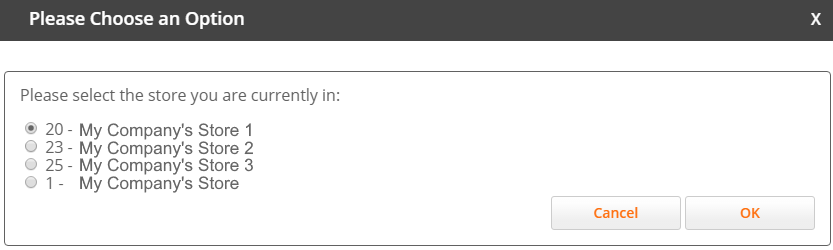 Selecting your Current Store Location
The Collect Orders Screen is displayed.
Selecting your Current Store Location
The Collect Orders Screen is displayed.
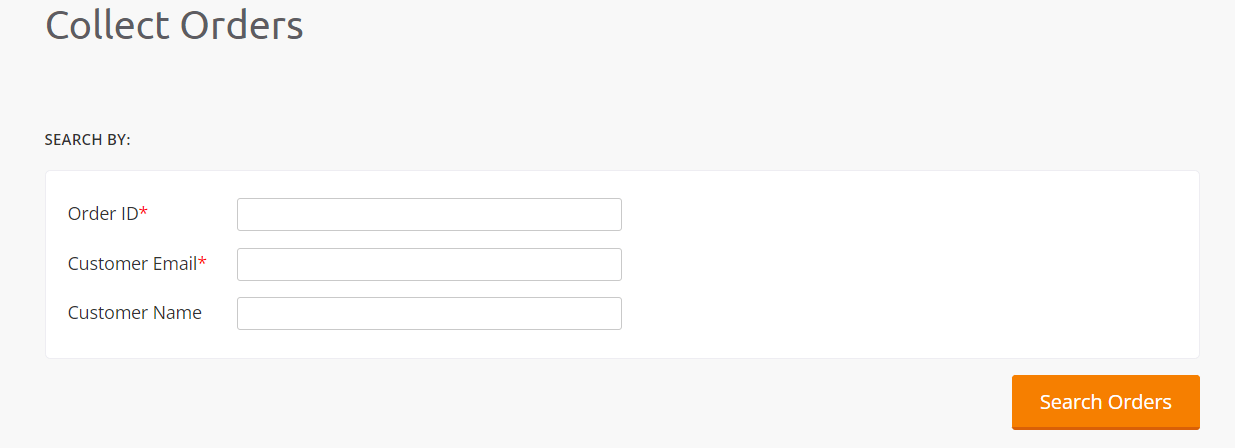 Collect Orders Screen
2. Search for the order by entering one of the following:
* The Order Number \[Global-e Order ID. Example GE23311623GB]
* The Customer Name
* The Customer Email
3. Click **Search Orders**.
The order and the number of parcels contained in the order are displayed in the Number of Parcels column.
Pay attention to the number of parcels included in the order to make sure that the customer receives all the parcels. See Figure: Collect Orders – Searching for an Order.
4. Get the relevant parcels.
5. **Verify that the Order ID on each parcel** corresponds to the order ID on your screen.
6. If the IDs match, hand over the parcels to the customer.
7. On your screen, on the order row, in the Actions column, click **Collected**.
In the Global‑e Merchant Portal, the status changes to **Delivered to Customer**. See Figure: Collect Orders – Delivered to Customer, at the end of this section.
Make sure to repeat this procedure for each order.
The following screens show how to retrieve a specific order and the order status after it was collected by the customer.
Collect Orders Screen
2. Search for the order by entering one of the following:
* The Order Number \[Global-e Order ID. Example GE23311623GB]
* The Customer Name
* The Customer Email
3. Click **Search Orders**.
The order and the number of parcels contained in the order are displayed in the Number of Parcels column.
Pay attention to the number of parcels included in the order to make sure that the customer receives all the parcels. See Figure: Collect Orders – Searching for an Order.
4. Get the relevant parcels.
5. **Verify that the Order ID on each parcel** corresponds to the order ID on your screen.
6. If the IDs match, hand over the parcels to the customer.
7. On your screen, on the order row, in the Actions column, click **Collected**.
In the Global‑e Merchant Portal, the status changes to **Delivered to Customer**. See Figure: Collect Orders – Delivered to Customer, at the end of this section.
Make sure to repeat this procedure for each order.
The following screens show how to retrieve a specific order and the order status after it was collected by the customer.
 Collect Orders – Searching for an Order
The status **Delivered to Customer** is displayed after the process is completed and the customer has collected the order.
Collect Orders – Searching for an Order
The status **Delivered to Customer** is displayed after the process is completed and the customer has collected the order.
 Collect Orders – Delivered to Customer