> ## Documentation Index
> Fetch the complete documentation index at: https://enterprise-docs.bglobale.com/llms.txt
> Use this file to discover all available pages before exploring further.
# Process Returned Orders
| A customer can return items to any store in the customer’s country, regardless of where the order was delivered (home or store delivery), with or without a Return Merchandise Authorization (RMA note). | | A customer can return items to any store in the customer’s country, regardless of where the order was delivered (home or store delivery), with or without a Return Merchandise Authorization (RMA note). | (Duration: 4:14) |
| -------------------------------------------------------------------------------------------------------------------------------------------------------------------------------------------------------- | - | -------------------------------------------------------------------------------------------------------------------------------------------------------------------------------------------------------- | ---------------- |
| | | | |
| A customer can return items to any store in the customer’s country, regardless of where the order was delivered (home or store delivery), with or without a Return Merchandise Authorization (RMA note). | | | |
##### Processing Returns - Quick Start
For each parcel, repeat the following process.
| Step 1 | Log in to the Portal. (If you are the Store Admin, select the current store). | See [Log in to the Global‑e Merchant Portal](/document/preview/33072#UUID-035b957e-6724-9cca-3a0d-28f73457d6d7)Log in to the Global‑e Merchant Portal |
| ------ | -------------------------------------------------------------------------------------------------------------------------------------------------------------------------------------------------------------------------------------------------------------------------------------------------- | ----------------------------------------------------------------------------------------------------------------------------------------------------- |
| Step 2 | Find the order associated with the items being returned. | See [Finding the Relevant Order](/process-returned-orders#find-the-relevant-order) |
| Step 3 | Process RMA or non-RMA returns, as required. | See [Processing a Return to the Store](/process-returned-orders#process-a-return-to-the-store) |
| Step 4 | Prepare the parcels for the return shipment to the merchant:
Consolidate all RMAs as consignments
Perform the EOD procedure
Print the documents and affix them to the parcel:Return Proforma Invoice – consolidated return invoiceReturn Shipping Label – one for each consignment. | See [Preparing the Parcels for Return Shipment to the Merchant](/prepare-the-parcels-for-the-return-shipment-to-the-merchant) |
##### Find the Relevant Order
**To find the order related to the items that the Customer is returning:**
1. Ask the customer for their order ID (provided in the Order Confirmation email).
2. From the Global‑e Merchant Portal, go to **Store Orders > Store Returns > Process Return**.
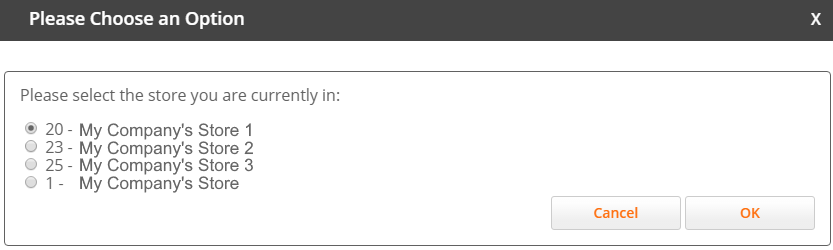
**Optional:** If you are associated with several stores, you are prompted to select your current location. Select your current store and click **OK**.
 The Store Returns screen is displayed.
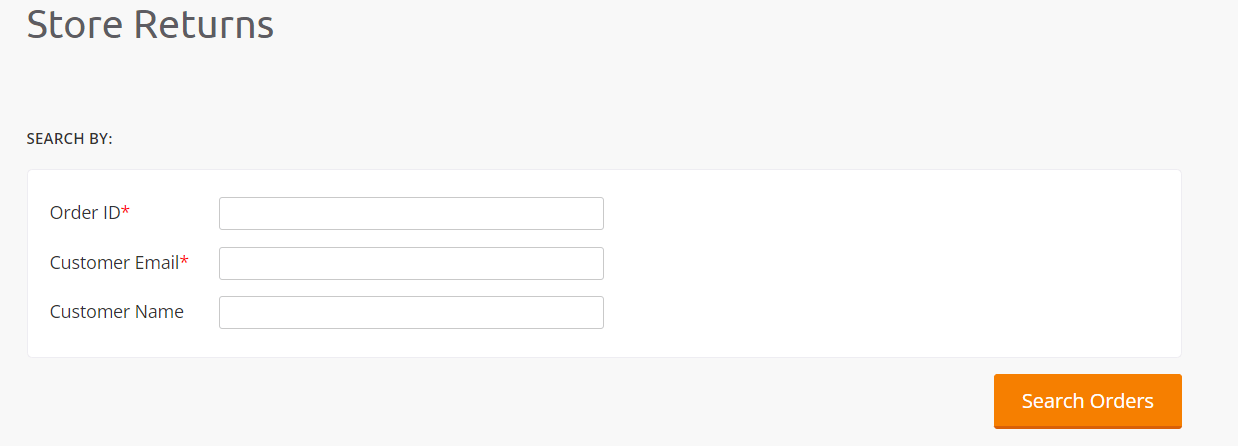 3. Find the relevant order by entering the Order Number provided in Step 1. If the customer does not have their order ID handy, search for the order by customer name or email. For more details, see [Find an Order by Name](/process-returned-orders#find-an-order-by-name) and [View the Details of an Order](/process-returned-orders#view-the-details-of-an-order).
4. Click **Search Orders**.
The order is displayed in the search results.
If using the name or email address, the order or the list of orders related to the customer is displayed. Select the order containing the items that are returned. See [Find an Order by Name](/process-returned-orders#find-an-order-by-name) and [View the Details of an Order](/process-returned-orders#view-the-details-of-an-order).
5. Process the Return, as detailed in section [Process a Return to the Store](/process-returned-orders#process-a-return-to-the-store).
###### Find an Order by Number (Order ID)
**To find an order by using the Order Number:**
* Enter the Order Number (Order ID) and click **Search**.
3. Find the relevant order by entering the Order Number provided in Step 1. If the customer does not have their order ID handy, search for the order by customer name or email. For more details, see [Find an Order by Name](/process-returned-orders#find-an-order-by-name) and [View the Details of an Order](/process-returned-orders#view-the-details-of-an-order).
4. Click **Search Orders**.
The order is displayed in the search results.
If using the name or email address, the order or the list of orders related to the customer is displayed. Select the order containing the items that are returned. See [Find an Order by Name](/process-returned-orders#find-an-order-by-name) and [View the Details of an Order](/process-returned-orders#view-the-details-of-an-order).
5. Process the Return, as detailed in section [Process a Return to the Store](/process-returned-orders#process-a-return-to-the-store).
###### Find an Order by Number (Order ID)
**To find an order by using the Order Number:**
* Enter the Order Number (Order ID) and click **Search**.
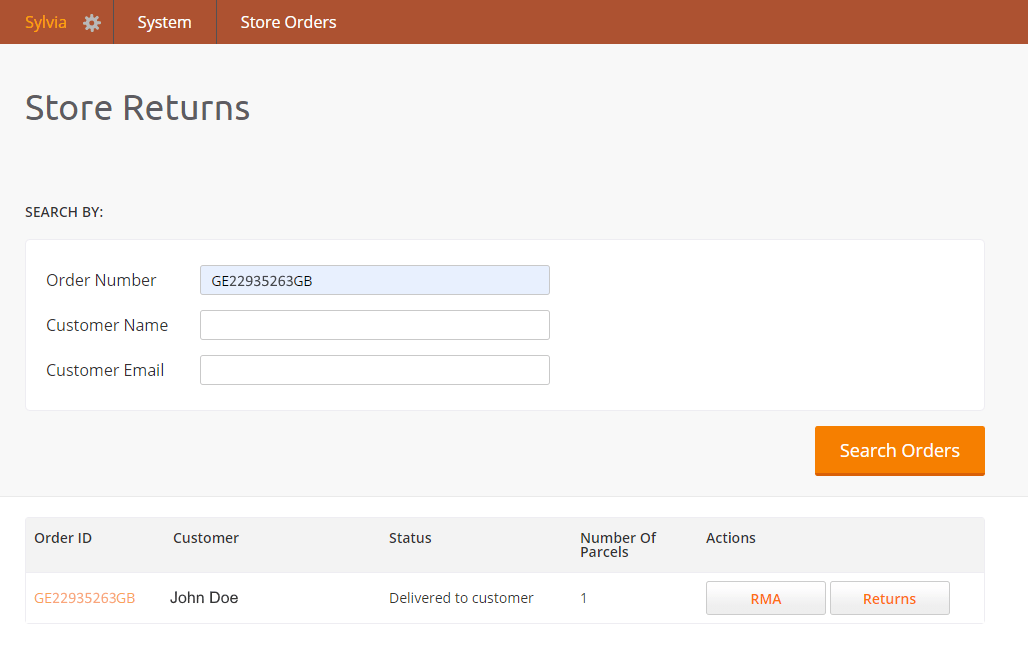 Finding an Order Using the Order ID
###### Find an Order by Name
**To find an Order by Name (or email):**
1. Enter the customer's name and click **Search**.
2. Open each order by clicking the order ID (in orange) until you find the correct order containing the items being returned. Verify that the returned items belong to the order.
Finding an Order Using the Order ID
###### Find an Order by Name
**To find an Order by Name (or email):**
1. Enter the customer's name and click **Search**.
2. Open each order by clicking the order ID (in orange) until you find the correct order containing the items being returned. Verify that the returned items belong to the order.
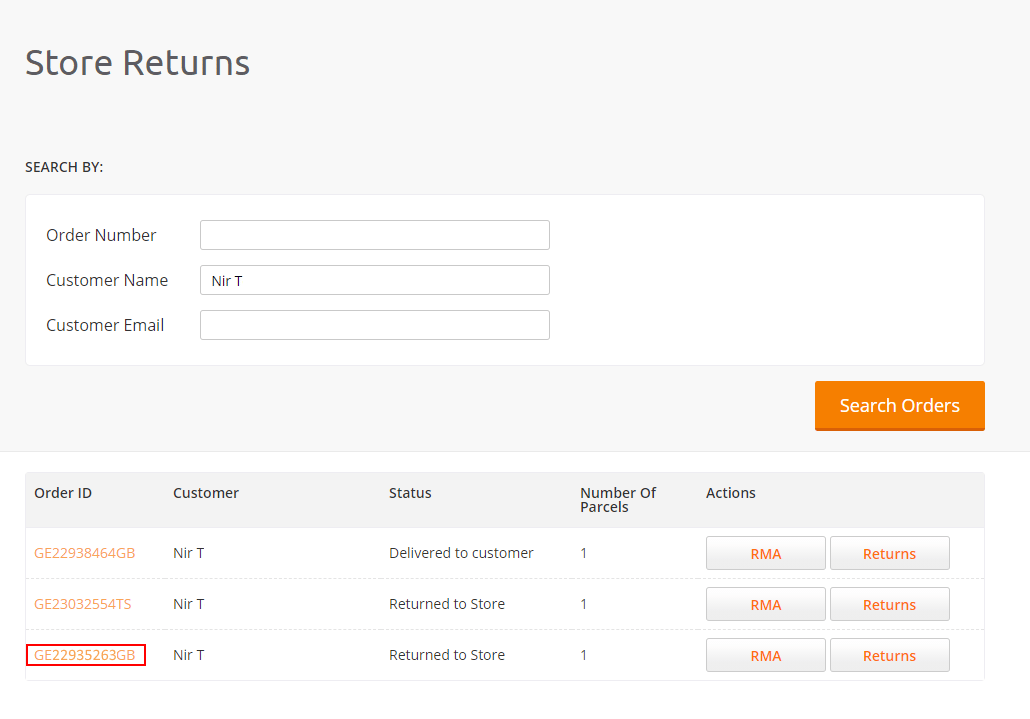 Finding an Order by Name
###### View the Details of an Order
**To view the contents of an order:**
* Click the order ID (in orange) to view the order details.
Finding an Order by Name
###### View the Details of an Order
**To view the contents of an order:**
* Click the order ID (in orange) to view the order details.
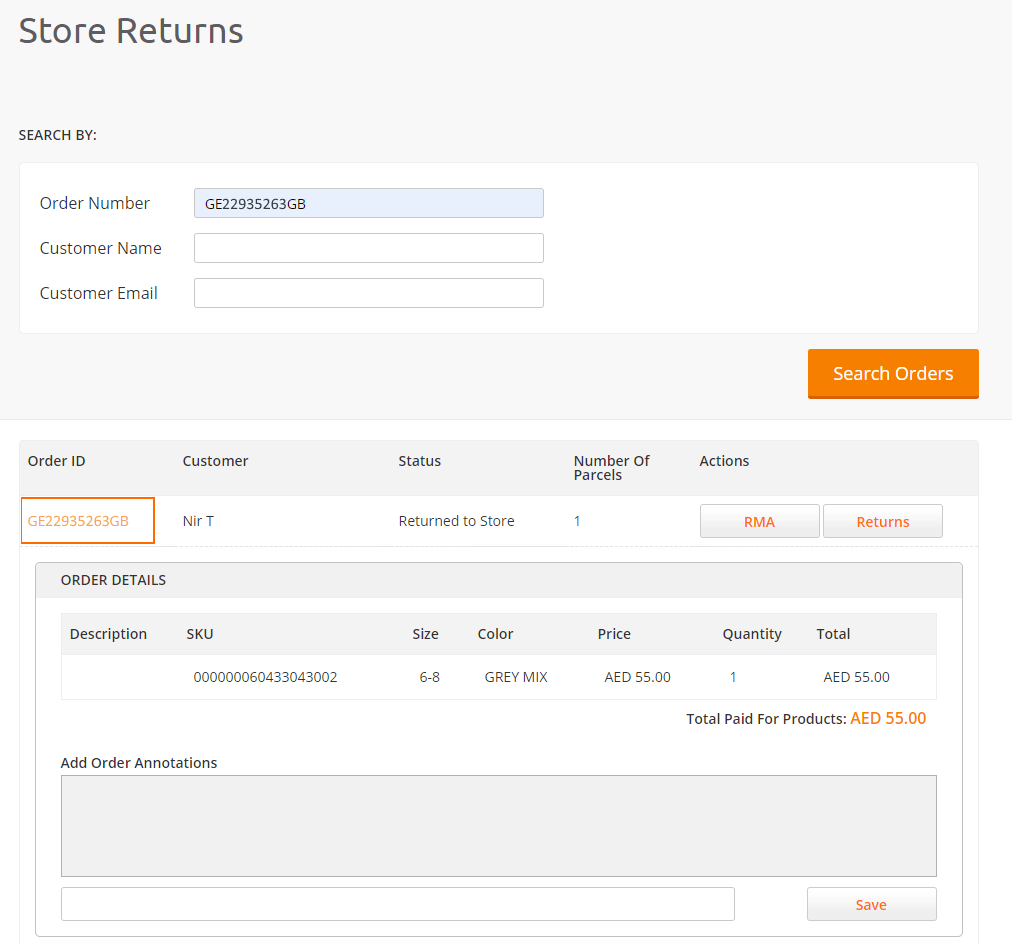 Viewing the Details of an Order
##### Process a Return to the Store
Processing a return to the store consists of preparing and printing the RMA documents. A customer can return products with or without an RMA.
* If a customer returns items without RMA documents or if in the Store Returns Screen the Returns button is not displayed, you (the store user) must create the RMA. See [Processing a Standard (Non-RMA) Return](/process-returned-orders#process-a-standard--non-rma--return).
* If a customer presents pre-printed RMA documents, they have already initiated the returns process at home. See [Processing an RMA Return](/process-returned-orders#process-an-rma-return).
###### Process a Standard (Non-RMA) Return
**To process a standard return, you must create an RMA:**
1. On the Order line, in the Actions column, click **RMA**
Viewing the Details of an Order
##### Process a Return to the Store
Processing a return to the store consists of preparing and printing the RMA documents. A customer can return products with or without an RMA.
* If a customer returns items without RMA documents or if in the Store Returns Screen the Returns button is not displayed, you (the store user) must create the RMA. See [Processing a Standard (Non-RMA) Return](/process-returned-orders#process-a-standard--non-rma--return).
* If a customer presents pre-printed RMA documents, they have already initiated the returns process at home. See [Processing an RMA Return](/process-returned-orders#process-an-rma-return).
###### Process a Standard (Non-RMA) Return
**To process a standard return, you must create an RMA:**
1. On the Order line, in the Actions column, click **RMA**
 The Returns Portal screen proceeds to step **2. Select items to return**, the current step in the Returns process.
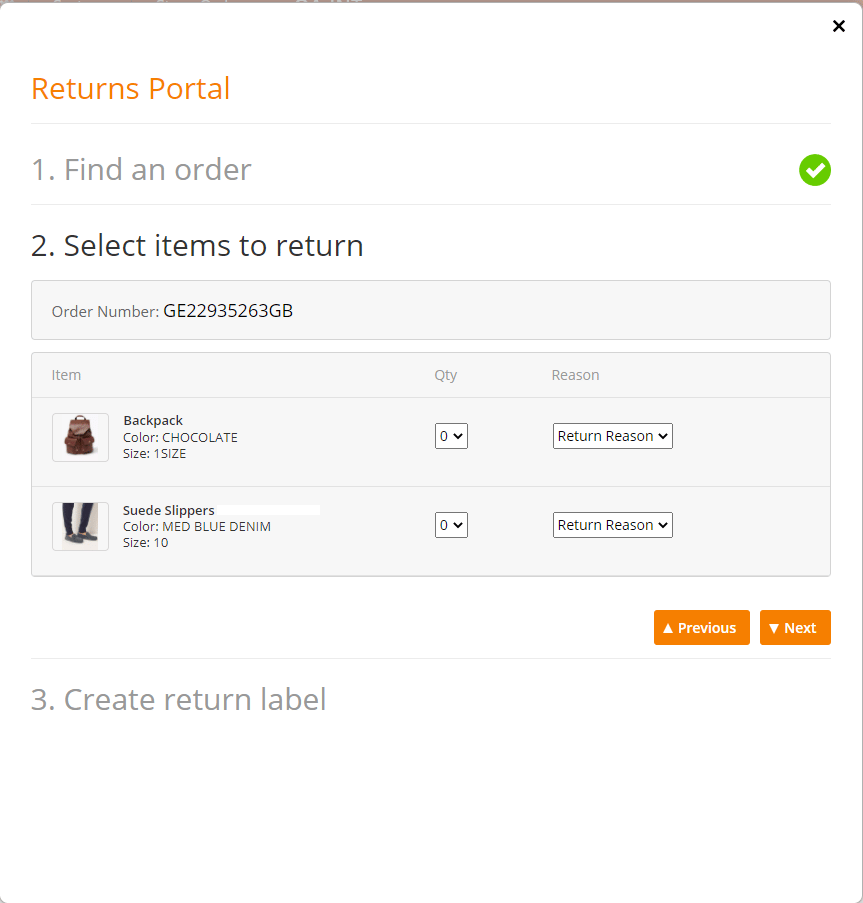 2. Select the item quantity (Qty) returned by the customer.
3. Ask the customer the reason for the return.
4. From the drop-down menu, select the reason for returning the items.
5. Click **Next**.
The Returns Portal proceeds to step **3. Create return label**.
This area shows the RMA number and provides packing, shipping, and refund information.
2. Select the item quantity (Qty) returned by the customer.
3. Ask the customer the reason for the return.
4. From the drop-down menu, select the reason for returning the items.
5. Click **Next**.
The Returns Portal proceeds to step **3. Create return label**.
This area shows the RMA number and provides packing, shipping, and refund information.
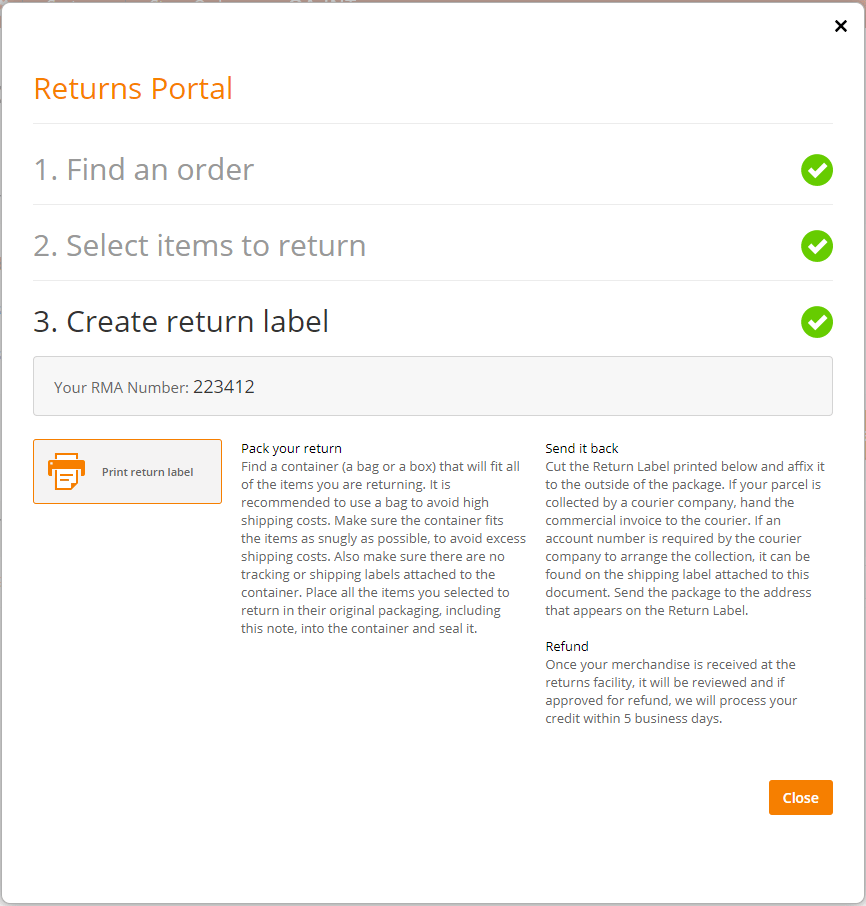 6. Click **Print return label.**
The RMA consisting of the **Return Label** and the **Return Note** is downloaded in PDF format to your computer.
Send the RMA to the printer.
**Prepare the parcel for return to the Merchant**:
1. Pack the items in a parcel together with the printed Return Note and seal it.
2. Attach the printed Return Label to the parcel.
3. Place the parcel in the consignment box.
For more information, see [Preparing the Parcels for Return Shipment to the Merchant](/prepare-the-parcels-for-the-return-shipment-to-the-merchant) (including the EOD procedure).
###### Process an RMA Return
If a customer presents the items with a pre-printed RMA, they have already initiated the returns process at home and the RMA is registered in the Global‑e system.
**To process a return with an RMA:**
1. In the Store Returns Screen, on the Order row, in the Actions column, click **Returns**.
6. Click **Print return label.**
The RMA consisting of the **Return Label** and the **Return Note** is downloaded in PDF format to your computer.
Send the RMA to the printer.
**Prepare the parcel for return to the Merchant**:
1. Pack the items in a parcel together with the printed Return Note and seal it.
2. Attach the printed Return Label to the parcel.
3. Place the parcel in the consignment box.
For more information, see [Preparing the Parcels for Return Shipment to the Merchant](/prepare-the-parcels-for-the-return-shipment-to-the-merchant) (including the EOD procedure).
###### Process an RMA Return
If a customer presents the items with a pre-printed RMA, they have already initiated the returns process at home and the RMA is registered in the Global‑e system.
**To process a return with an RMA:**
1. In the Store Returns Screen, on the Order row, in the Actions column, click **Returns**.
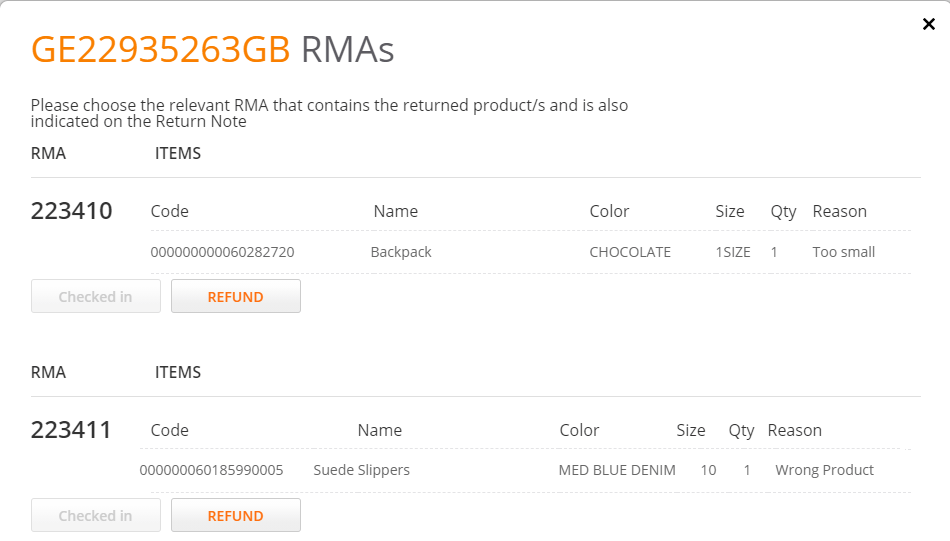
 An RMA pop-up associated with the customer opens; this pop-up shows all RMAs that the customer has created at home (after clicking **Returns**).
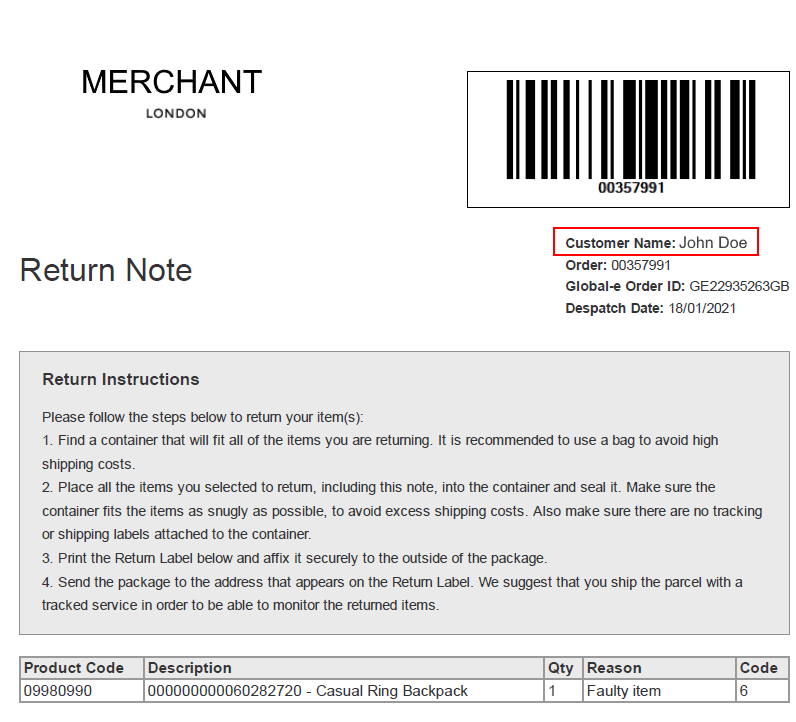
 Before checking in the return, verify that there is a match between the returned items listed on the Return Note and the RMA screen. See [Return Note](/process-returned-orders#return-note).
2. If there is a match, on your screen under the relevant RMA, click **Check in**.
The items are checked in as a returned item.
Once you checked in, a Refund option is displayed.
The refund option is enabled by default. This option can be disabled upon Merchant's request.
Before checking in the return, verify that there is a match between the returned items listed on the Return Note and the RMA screen. See [Return Note](/process-returned-orders#return-note).
2. If there is a match, on your screen under the relevant RMA, click **Check in**.
The items are checked in as a returned item.
Once you checked in, a Refund option is displayed.
The refund option is enabled by default. This option can be disabled upon Merchant's request.
 Repeat this procedure for each item that the customer returns.
**Prepare the parcel for return to the Merchant**:
1. Pack the items in a parcel together with the printed Return Note and seal it.
2. Attach the printed Return Label to the parcel.
3. Place the parcel in the consignment box.
For more information, see [Preparing the Parcels for Return Shipment to the Merchant](/prepare-the-parcels-for-the-return-shipment-to-the-merchant) and with the EOD procedure.
###### Example of an RMA
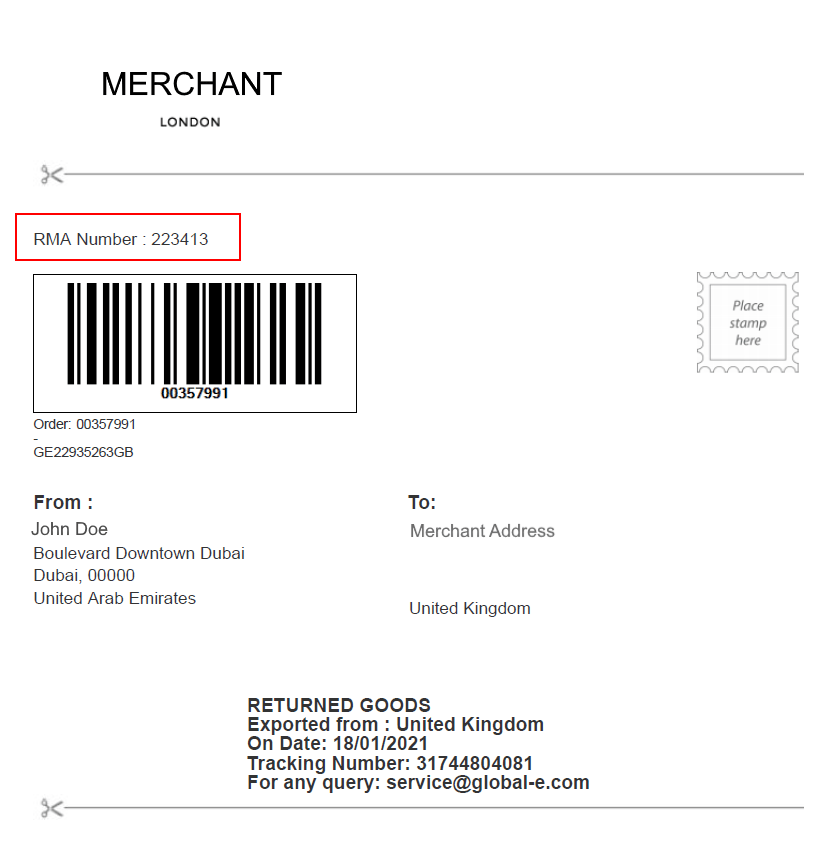
This section shows an example of an RMA for goods returned to the store. The RMA consists of an RMA Label and RMA Note.
###### Return Label
Note the RMA Number on the Return Label.
Repeat this procedure for each item that the customer returns.
**Prepare the parcel for return to the Merchant**:
1. Pack the items in a parcel together with the printed Return Note and seal it.
2. Attach the printed Return Label to the parcel.
3. Place the parcel in the consignment box.
For more information, see [Preparing the Parcels for Return Shipment to the Merchant](/prepare-the-parcels-for-the-return-shipment-to-the-merchant) and with the EOD procedure.
###### Example of an RMA
This section shows an example of an RMA for goods returned to the store. The RMA consists of an RMA Label and RMA Note.
###### Return Label
Note the RMA Number on the Return Label.
 ###### Return Note
The Return Note shows the items that the buyer selected on the Returns Portal (in this example, one casual Ring Backpack).
###### Return Note
The Return Note shows the items that the buyer selected on the Returns Portal (in this example, one casual Ring Backpack).