> ## Documentation Index
> Fetch the complete documentation index at: https://enterprise-docs.bglobale.com/llms.txt
> Use this file to discover all available pages before exploring further.
# Shop Pay on Global-e
## Overview
Shop Pay is now available for merchants in Global-e operated [countries](/countries). It delivers a fast, one-tap checkout with saved details, while Global-e ensures secure processing, duties, taxes, and shipping are calculated correctly.
* **Seamless experience:** Shoppers enjoy accelerated checkout with pre-filled details.
* **Powered by Global-e:** Transactions are processed securely through Global-e Onsite Payments.
* **Consistent flow:** Shop Pay buttons appear on product, cart, and checkout pages across domestic and cross-border purchases.
## Eligibility
Merchants must have **Shopify Payments** enabled to access Shop Pay.
## Customer Checkout Flow
* **First-time use:** Shopper selects Shop Pay, enters details once, and opts in for future accelerated checkout.
* **Returning customers:** Shopper provides email/phone, receives a verification code, and checkout details are pre-filled for one-tap confirmation.
* **Dynamic calculation:** Duties, taxes, and shipping are recalculated by Global-e with each address update.
* **Payment processing:** The payment is routed via the Global-e gateway (e.g. Stripe, Adyen, Worldpay) using vaulted card data.
* **Order completion:** Shopper is redirected to the confirmation page after successful payment.
## Entry Points for Shop Pay
* **Checkout page:** Shop Pay appears in the accelerated checkout section.
* **Cart page:** If enabled in the theme, Shop Pay appears alongside other accelerated checkout buttons.
* **Product page:** “Buy with Shop Pay” button is displayed near the Add to Cart button.
* **Shop App:** Customers can complete checkout natively within the Shop App.
* **Email/session recognition:** Returning users may be automatically recognized and routed into Shop Pay.
## Shop App Support
Once enabled, Shop Pay integrates seamlessly with the Shop App, allowing accelerated checkout and order tracking from Global-e operated countries.
## How to Enable Shop Pay
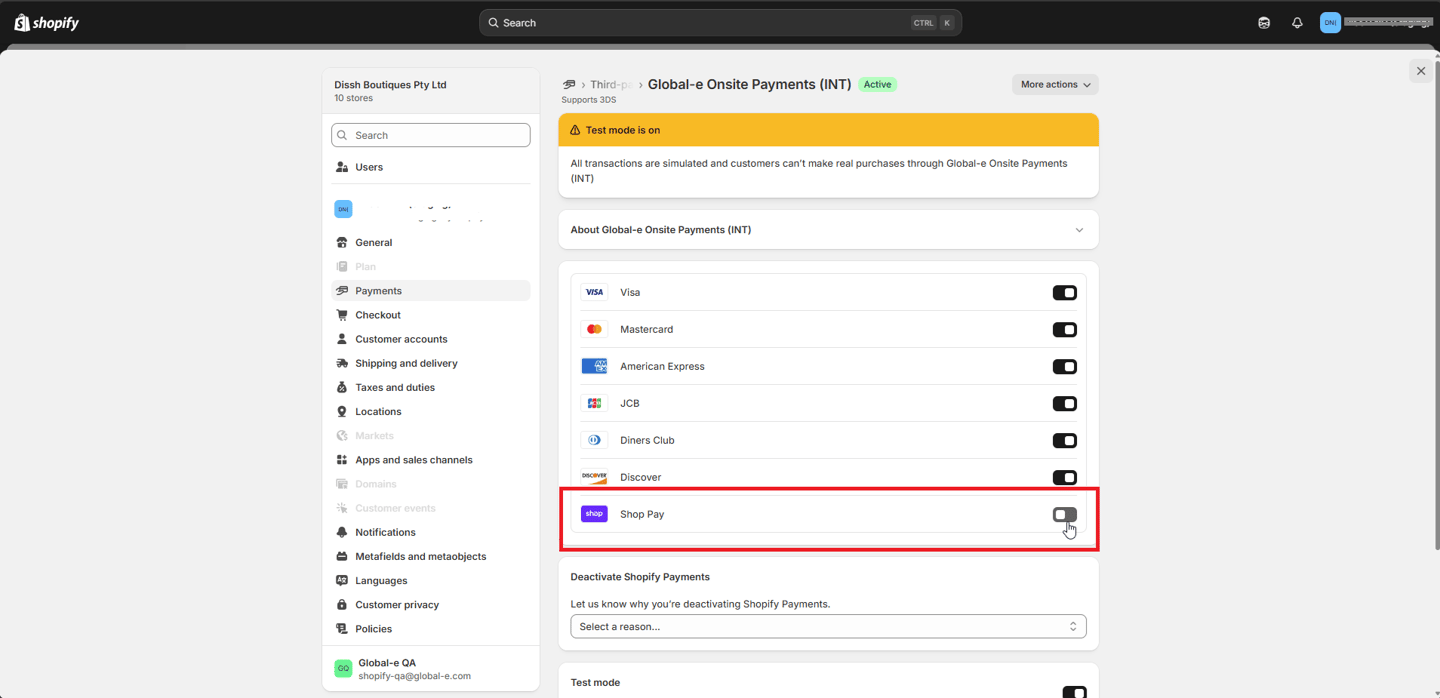
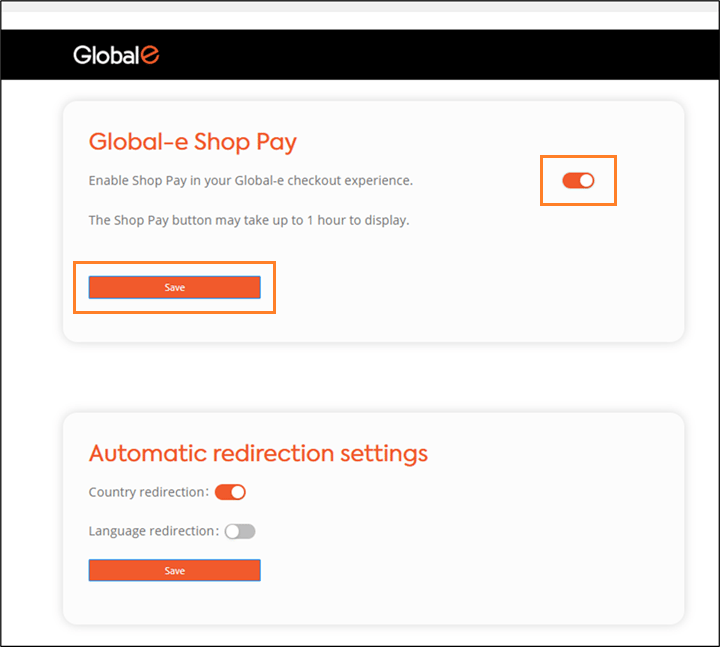
Note that **both toggles** must be opened to open Shop Pay.
1. Navigate to the Admin page.
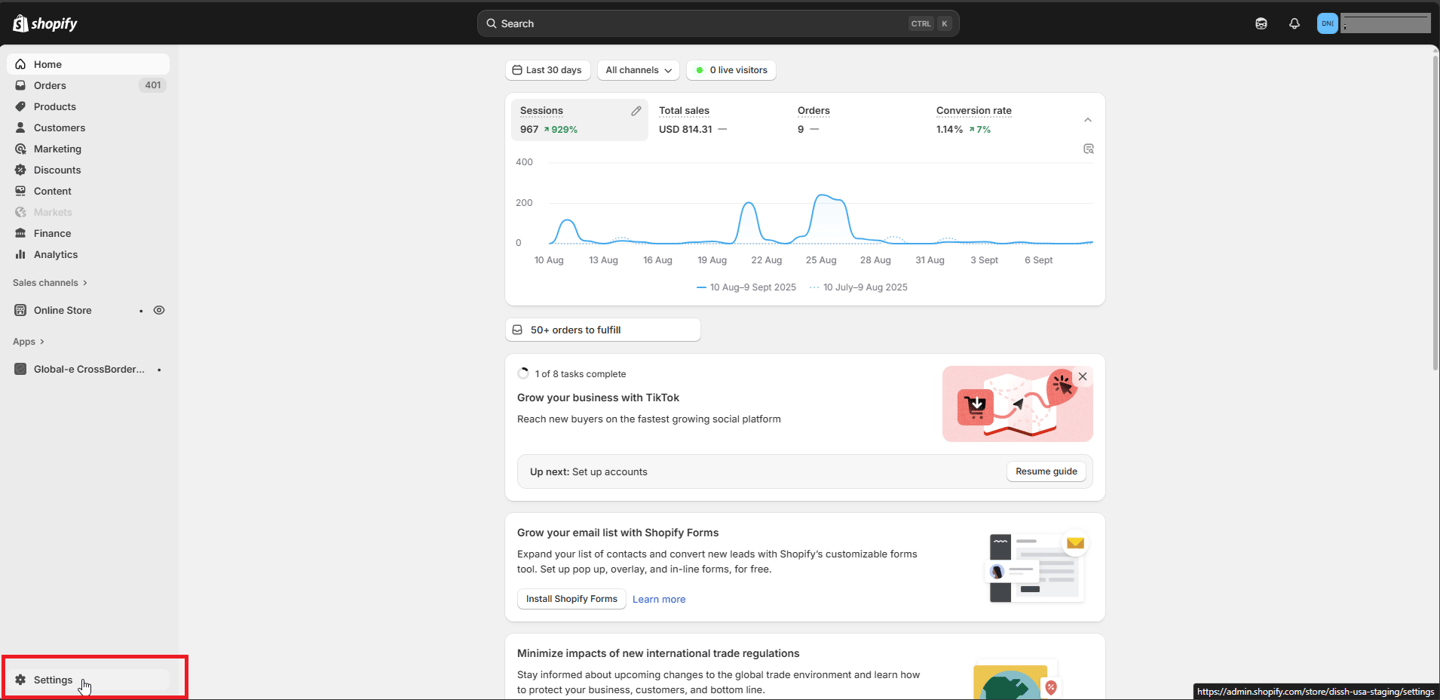
2. Click **Settings** (lower left corner).
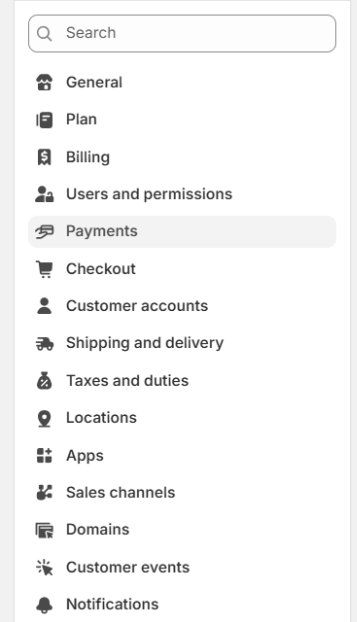
 3. Click **Payments**.
 4. Ensure Shopify Payments are installed.
5. Do one of the following:
* **If Shopify Payments is already installed and enabled** - continue with Step 8.
* **If Shopify Payments has not been installed** - complete this procedure with Account Owner privileges.
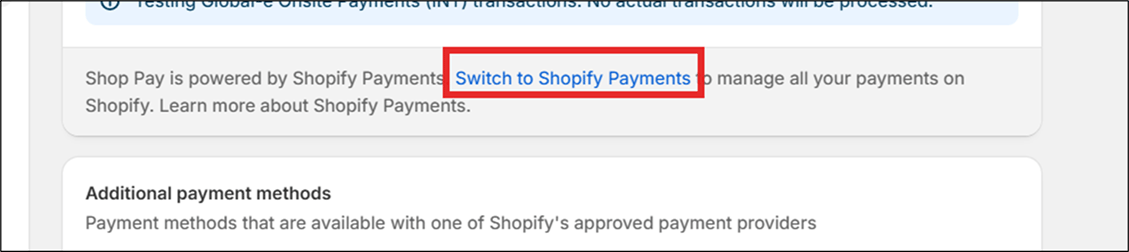
6. Click **Switch to Shopify Payments**.
4. Ensure Shopify Payments are installed.
5. Do one of the following:
* **If Shopify Payments is already installed and enabled** - continue with Step 8.
* **If Shopify Payments has not been installed** - complete this procedure with Account Owner privileges.
6. Click **Switch to Shopify Payments**.
 7. Click **Set up Shopify Payments** popup.
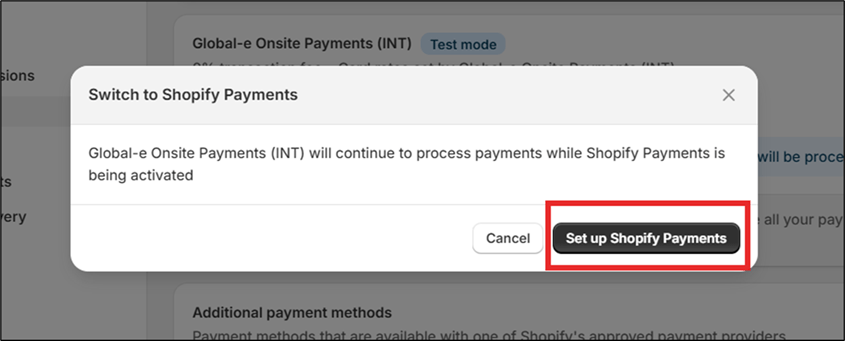 Activating **Set up Shopify Payments** does not impact ongoing Global-e payments.
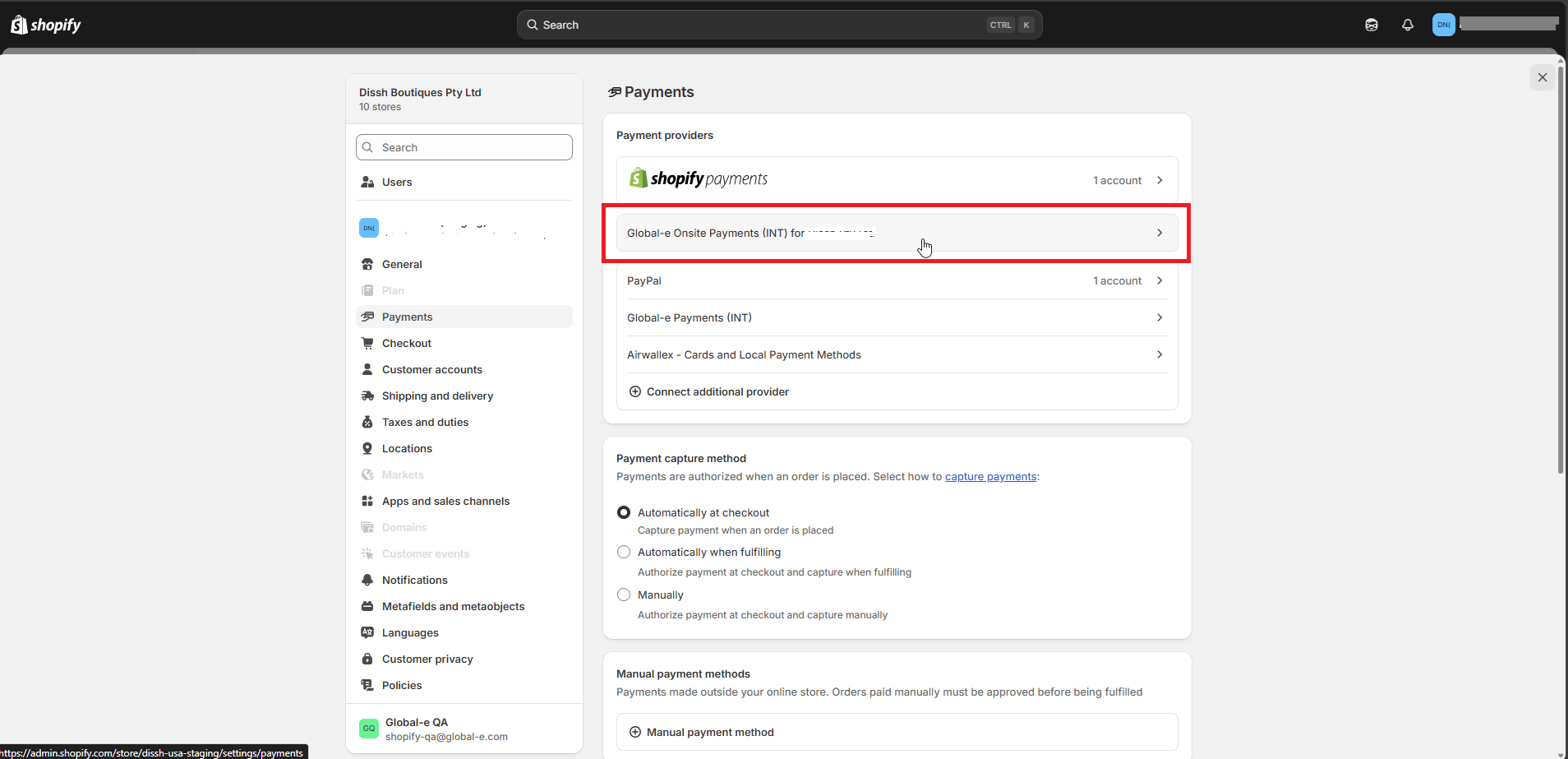
8. While in the **Payment** section, click **Global-e Onsite Payments**.
Activating **Set up Shopify Payments** does not impact ongoing Global-e payments.
8. While in the **Payment** section, click **Global-e Onsite Payments**.
 9. Enable the **Shop Pay toggle** setting and click **Save**.
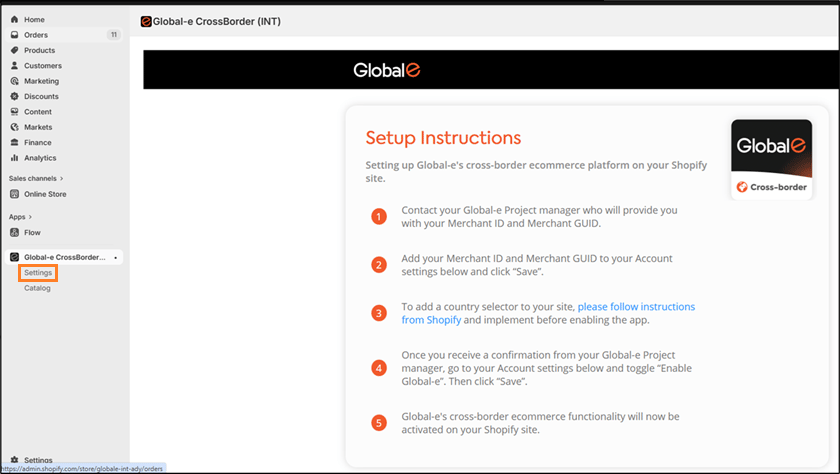
 10. In **Shopify Admin**, navigate to **Apps > Global-e CrossBorder > Settings**.
 11. Enable the **Global-e Shop Pay toggle** and click **Save**.
 It may take up to 1 hour for the Shop Pay button to appear across product, cart, and checkout pages after enabling.
To add Shop Pay buttons on product and cart pages, follow: [Shopify Help Center – Adding and removing accelerated checkout buttons](https://help.shopify.com/en/manual/online-store/dynamic-checkout/add-buttons).
## FAQ
* **Q:** Can Shop Pay be enabled in Sandbox?
**A:** Yes. The same configuration steps apply as in Production.
* **Q:** Will Shop App be supported?
**A:** Yes. Once Shop Pay is enabled, shoppers can complete purchases through the Shop App in Global-e operated countries. Merchant search will be available by EOY.
* **Q:** Will Shop Pay add extra fees?
**A:** No. Merchants pay the same Shopify Payments fees as before, with no additional charges.
* **Q:** Can Shop Pay be added to cart and product pages?
**A:** Yes. Merchants can enable accelerated checkout buttons in their Shopify Admin theme settings.
* **Q:** Is Shop Cash supported on Global-e Shop Pay?
**A:** No, at this stage we don’t support it. We are working to allow it in the coming weeks.
* **Q:** Is shop Pay finance reconciliation done on Shopify?
**A:** No, Shop Pay on Global-e is done like any other credit card order reconciliation via Global-e and not Shopify. The order is charged via Global-e Onsite Payments like any other order.
It may take up to 1 hour for the Shop Pay button to appear across product, cart, and checkout pages after enabling.
To add Shop Pay buttons on product and cart pages, follow: [Shopify Help Center – Adding and removing accelerated checkout buttons](https://help.shopify.com/en/manual/online-store/dynamic-checkout/add-buttons).
## FAQ
* **Q:** Can Shop Pay be enabled in Sandbox?
**A:** Yes. The same configuration steps apply as in Production.
* **Q:** Will Shop App be supported?
**A:** Yes. Once Shop Pay is enabled, shoppers can complete purchases through the Shop App in Global-e operated countries. Merchant search will be available by EOY.
* **Q:** Will Shop Pay add extra fees?
**A:** No. Merchants pay the same Shopify Payments fees as before, with no additional charges.
* **Q:** Can Shop Pay be added to cart and product pages?
**A:** Yes. Merchants can enable accelerated checkout buttons in their Shopify Admin theme settings.
* **Q:** Is Shop Cash supported on Global-e Shop Pay?
**A:** No, at this stage we don’t support it. We are working to allow it in the coming weeks.
* **Q:** Is shop Pay finance reconciliation done on Shopify?
**A:** No, Shop Pay on Global-e is done like any other credit card order reconciliation via Global-e and not Shopify. The order is charged via Global-e Onsite Payments like any other order.