

- Configuring Global-e Plugins
- Extra Order Attributes in Order Details
- Configuring Local Tax Groups
- Creating Orders
- Shipping Methods
- Validating Payments
- Creating Voucher Extra Attributes
- Configuring the Global-e Module
- Mandatory Developments
- Order Management
1.1 Configuring Global-e Plugins
Centra’s three main APIs and webhooks must be added from Centra and configured in Global-e. Each of these has a plug-in that must be created on each environment separately.- Navigate toStores management > Stores.
- Select a store and click View.Each store should have one entry.
- From the Store panel, scroll down to the Plugins section and click Add plugin method.
- Click GE Order API to view its configuration settings.
-
Configure the Order API settings (for managing your store):
This document only describes the required settings, and all settings that are not described can be ignored.
- Status: Active
- Plugin name: GE Order API
- Plugin: Order API
-
Configure the following Settings:
URI: ge-order-api
Secret API key: to get the secret token, generate a random token in the Encrypt section of the it-tools.tech website:Your text: GLOBAL-E INTEGRATIONYour secret key: <MERCHANT NAME>_ORDERAPIEncryption algorithm: AESYour text encrypted: <generated token>
Markets: Select all
Debug logging: Yes
Primary warehouse: Relevant warehouse specified by the merchant
Update stock updates: PhysicalLimit shipments by warehouse: No
Get Orders with Status: Select ALL
Return “waiting for payment”: Yes
Return “on hold” orders: Yes
Get orders starting with: Oldest
Get orders and shipments returns internal comment: Yes
Get orders and shipments returns Other: Yes
Get products returns cost price: Yes
Return unconfirmed allocations: No
Get products returns tax for the country: None
Bundles in shipments: Only containing items
Bundles in orders: Only containing items
Updating shipment with missing items: Keep items in order
Allow access to the following endpoints: Select ALL - Click GE Integration Webhooks to view its configuration settings.
-
Configure the following Centra Webhook settings (for integrating webhooks):
- Status: Active
- Plugin name: GE Integration Webhooks
- Plugin: Centra Webhook
-
Required Settings:
-
Webhook URL: Setting this field with the correct value requires building a dedicated URL in the following format:
https://{Global-e Environment}/webhooks/v1/Webhooks/WebhookIntegrationApi?merchantId={Merchant ID}&domain={Centra’s Merchant Domain}See the table below for the possible options to include in the webhook URL format shown above:The following is an example of the URL result based on the values above:Element Example Value Global-e Environment QA-INT - centra-int.bglobale.com
PROD - centra.global-e.comMerchantID 1808 Centra’s merchant domain sandbox.centraqa.com https://centra-int.bglobale.com/webhooks/v1/Webhooks/WebhookIntegrationApi?merchantId=1808&domain=sandbox.centraqa.com
-
Webhook URL: Setting this field with the correct value requires building a dedicated URL in the following format:
- Version: Integration API
-
Event triggers:
Order - Yes
Shipment - No
Customer - No
Account - NoCheck first - No
Allocation request - No
Return - Yes
- Navigate to System > API Tokens.
- Click Create integration API token.
-
Configure the following fields:
General Restrictions Permissions Description
Organization name
Email
Phone number
Integration nameStore types: ALL
Stores: GlobalE StoreRead permissions: Select ALL except CENTRAIP and CentraIP Details
Update permissions: Select ALL except Anonymize:write -
Copy and store the token:
- Click Show.
- Copy the token and save it locally.
1.2 Extra Order Attributes in Order Details
Once you’ve configured the required plugins and webhooks, you can configure orders to display the relevant details when an order is created. You can do this by using the mandatory extra attributes feature to enable configuring your relevant fields (Global-e order ID, tax values, discount values, etc). Centra supports several discount types that may include multiple rules and dependencies. You can specify these conditions while creating both vouchers and campaigns.- Navigate to System > Configurations.
- Click Create attribute type.
- Type the new attribute type ge_order_details in the Name field.
- Select Text from the dropdown menu.
-
Paste the following in the text field and click Save:
1.3 Configuring Local Tax Groups
Centra tax groups may consist of one or more tax rules, which set how much tax to apply to orders on the market level. While each store can have only one default tax group, merchants can configure as many as they want. During integration, a local tax group must be made on the merchant’s platform to ensure that all markets operated by Global-e include relevant VAT in orders.- Navigate to System > Tax Groups.
- Click Create tax group.TheNew tax group screen is displayed.
-
Configure the following settings:
- Status: Active
- Name: GE Local VAT
- Default in stores: <relevant default store>
- Click Save.The new tax group configuration page is displayed.
-
Click Add tax rule and set the following configurations:
Name: GE Local VAT
Tax display name: GE Local VAT
Tax code: VAT
Apply tax per: Select Ship-to country
Geolocation: Select ALL and unselect markets operate by the merchantInclude tax: Select In prices displayed before and in the checkout
Apply tax to shipping fees: Yes
Apply tax to handling fees: Yes
Tax rate: Merchant Local VAT (for example, UK = 20%)
Include shipping cost to order total: Yes - Click Save.The tax is displayed in Global-e orders.
1.4 Creating Orders
When Global-e uses theSendOrderToMerchant API, Centra’s Order API is used to create the order in Centra. During this stage we include the relevant order data natively (when available in the API) or as an extra attribute.
1.4.1 Native Order Data
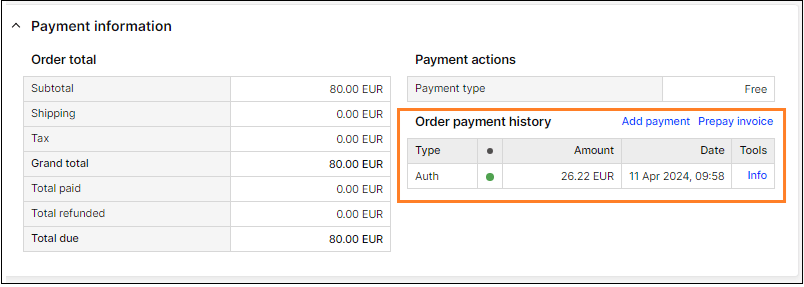
Natively added order data takes precedence and is classified along with the merchant’s domestic orders. This data is only transmitted if the Order API supports the relevant fields. The following order details are supported according to the method above:| Order date and time Shipping address Billing address Customer information Product information:Product list priceProduct price | Product Discounts (sum of all discounts) Shipping method Order transaction - When created, order payments are stored in the payment history only with the Auth indication. In this stage orders are unpaid before passing fraud validation. |
|---|
1.4.2 Extra Attributes
The data included in the Extra Attributes section must be preconfigured as described in the Integration Guide. The same Custom attribute (same name and structure) is implemented during each the QA/Staging phase of each merchant’s integration, and deployed to Production by Centra developers. For any additional attributes that we add we must add a change in the configuration. This information is visible in the Other Information section of the order. Global-e supports the following fields:| Global-e order ID Global-e order total in the consumer’s currency Global-e order shipping cost in the customer’s currency Delivery days (from-to) | Code vouchers Automatic vouchers Cart item ID mapping (storing data used in webhooks) Centra to Global-e order item mapping (storing date used in webhooks) Order Duties and Taxes in the consumer’s currency |
|---|
1.4.3 Static Information
Static information is information that includes the same values for all orders belonging to a specific merchant:- Tax (Global-e local VAT) - a tax group set up in Centra according to the base country
- Pricelist- always the default pricelist
1.5 Shipping Methods
To map the relevant shipping method to each Global-e order in Centra, the mapping must exist on both sides (in Global-e and in Centra) so that the shipping method used appears on your Global-e orders and is displayed correctly on your order form. During integration, your Global-e Solutions Engineer agrees with you on the list of shipping methods to support. For each method, we need the code (URI) you intend to use; it is critical that Global-e and Centra hold identical codes per method, so Global-e can use the shipping code to display the correct method on your order form. This list of shipping methods and their corresponding codes (URIs) must then be mapped on both sides - in Global-e and in Centra. In addition, you must create a default Global-e shipping method (GESHIPPING) that acts as a fallback whenever Global-e sends an order with an unmapped shipping method code: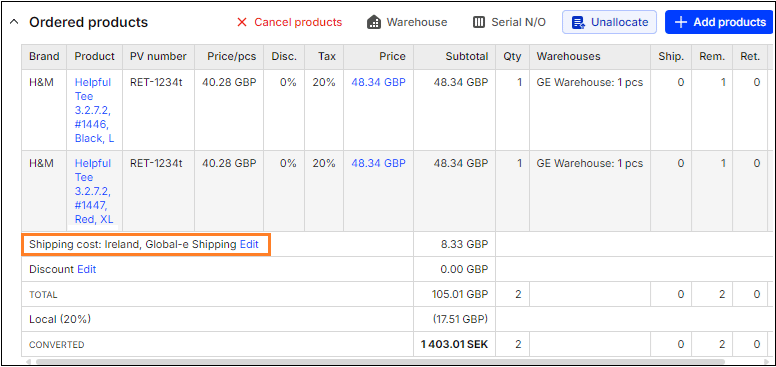
-
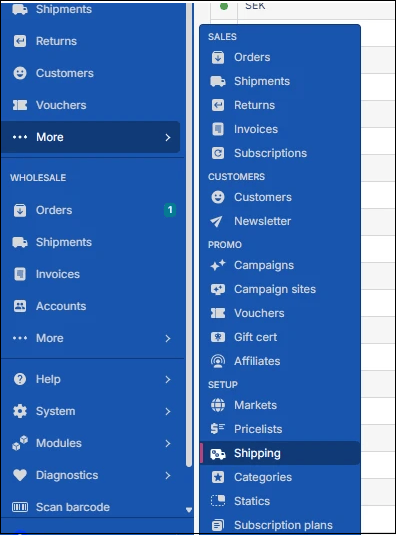
Navigate to More (DTC) > Shipping:
-
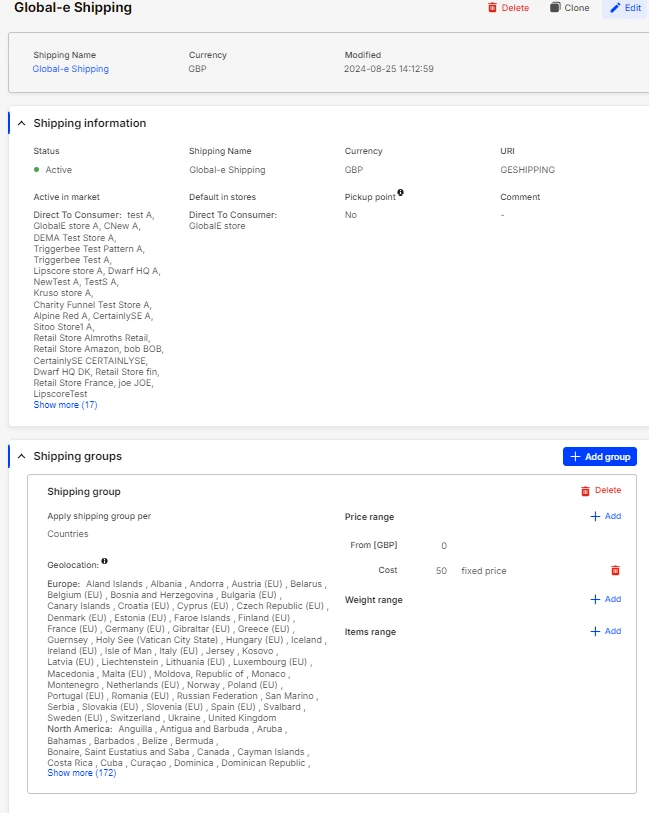
Click on Create range on the top right side of the screen and set the following:
- Status: Active
- Shipping Name: Global-e Shipping
- Currency: Merchant Base Currency
- URI: GESHIPPING
- Active in market: relevant GE operated markets
- Default in stores: relevant stores
- Pickup point: No
-
Click on Add group:
- Apply shipping group per: Select Countries
- Geolocation: Select ALL
- Add Price Range: From 0 to 0 - fixed price
-
Click Save:
Repeat the same procedure for every other shipping method agreed with your Global-e Solutions Engineer, substituting the relevant Shipping Name and URI for each one. The URIs in Centra must match the codes mapped in Global-e exactly.
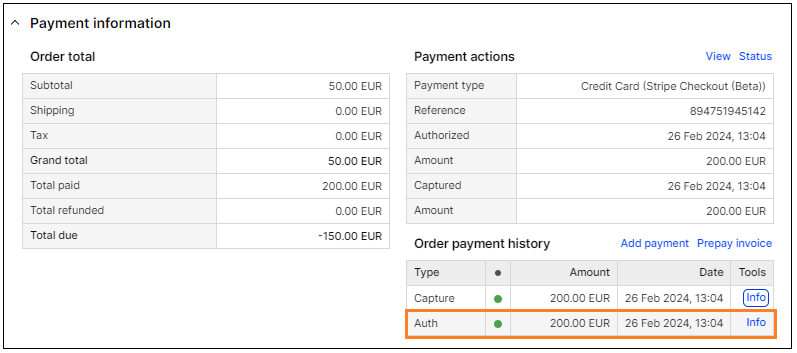
1.6 Validating Payments
When an order is created in Centra, Global-e does the following:- Validates that payment has been received for the order.
- Notifies the platform when the fraud check passes. Failed fraud checks cancel the order.
-
Adds a new row in the Order payment history region:
1.7 Creating Voucher Extra Attributes
You can store vouchers in Centra’s back-office. Storing these vouchers requires adding two extra attributes.-
Configure the customer voucher usage:
- Navigate to System > Configurations.
- Click Create Attribute Type.
- Define the Name as ge_customer_coupon.
- In the Copy values form dropdown menu, select text.
-
Copy and paste the following in the text field:
-
Configure the number of usages:
- Navigate to System > Configurations.
- Click Create Attribute Type.
- Define the Name as ge_voucher_details.
- In the Copy values form dropdown menu, select text.
-
Copy and paste the following in the text field:
1.8 Configuring the Global-e Module
After completing a merchant’s integration, we must list the following relevant configurations that require specific values (in contrast to using the default template values):- Cart data on the front-end
- Checkout tokens
- Storefront attributes
- Dedicated international Checkout page
- Directing merchants to the Checkout page
- Clearing the front-end cart
Mandatory Developments
The following table shows the mandatory developments:| Feature | Description |
|---|---|
| Pricelist | You must be able to retrieve the country from the Global-e Module cookie to use the relevant pricelist on the front-end |
| My account currency conversion | The following parameters are required to correctly convert currencies in the My Account or My Orders sections: Customer ID: dedicated cookie Global-e order ID: in the Document Object Model (DOM) of the relevant pages in the section |
| Client analytics | See the GEM client snippet. |
| Google Shopping feed | See the Marketing Feeds and Tax/Shipping Rates. |
| Cookies | Global-e uses cookies in API requests between your client, our servers, and Centra. These cookies help identify the active cart and customer so that data stays consistent across the checkout flow:token – Identifies the shopping cart. It allows you to retrieve cart details on the client side (for showing prices on the cart page) and on the server side (when sending the cart to checkout).Customer_id – Identifies the logged-in customer. It is used on the My Account page to fetch their past orders and to display prices based on the international rates they paid.Bothcookies should match the cart and customer identifiers stored in Centra. You can store them as one combined cookie or as two separate cookies, depending on your implementation. The cookie must follow this structure so Global-e can extract the token and customer_id: ge_frontend_data = {“token”:”asfd444ggv44677870jhv”,”customer_id”:”123456”}Requirements: The cookie must be classified as Essential. The cookie must not be set as httpOnly (Global-e’s client-side scripts need to read it). |