

For details about refunding an order in Shopify, refer to the Shopify Native Refund section.
Overview
Users with Merchant CS Admin permissions can create refunds. Global‑e monitors and rectifies all refunds that failed or are in pending status.Issuing a Refund
To refund an order:- From the Global‑e Merchant Admin, go to Orders**> View Orders**.
- Find the relevant order (enter the order information and click Find and View) and open it.
- Make sure the order is in Dispatched Status.
-
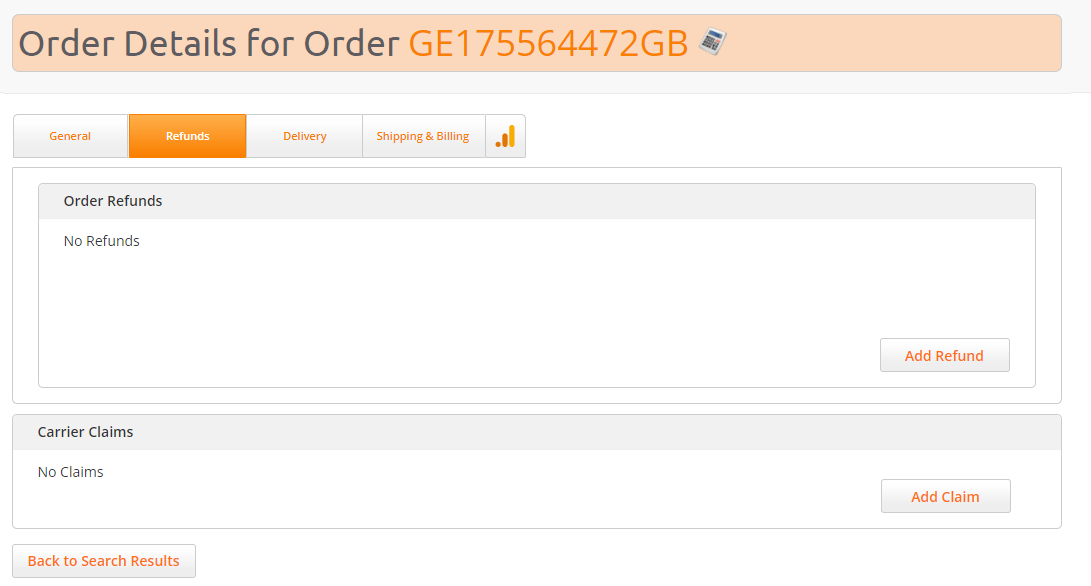
On the Order Details screen, click the Refunds tab.
-
Click Add Refund.
The Refunds screen opens.
The following information is displayed:
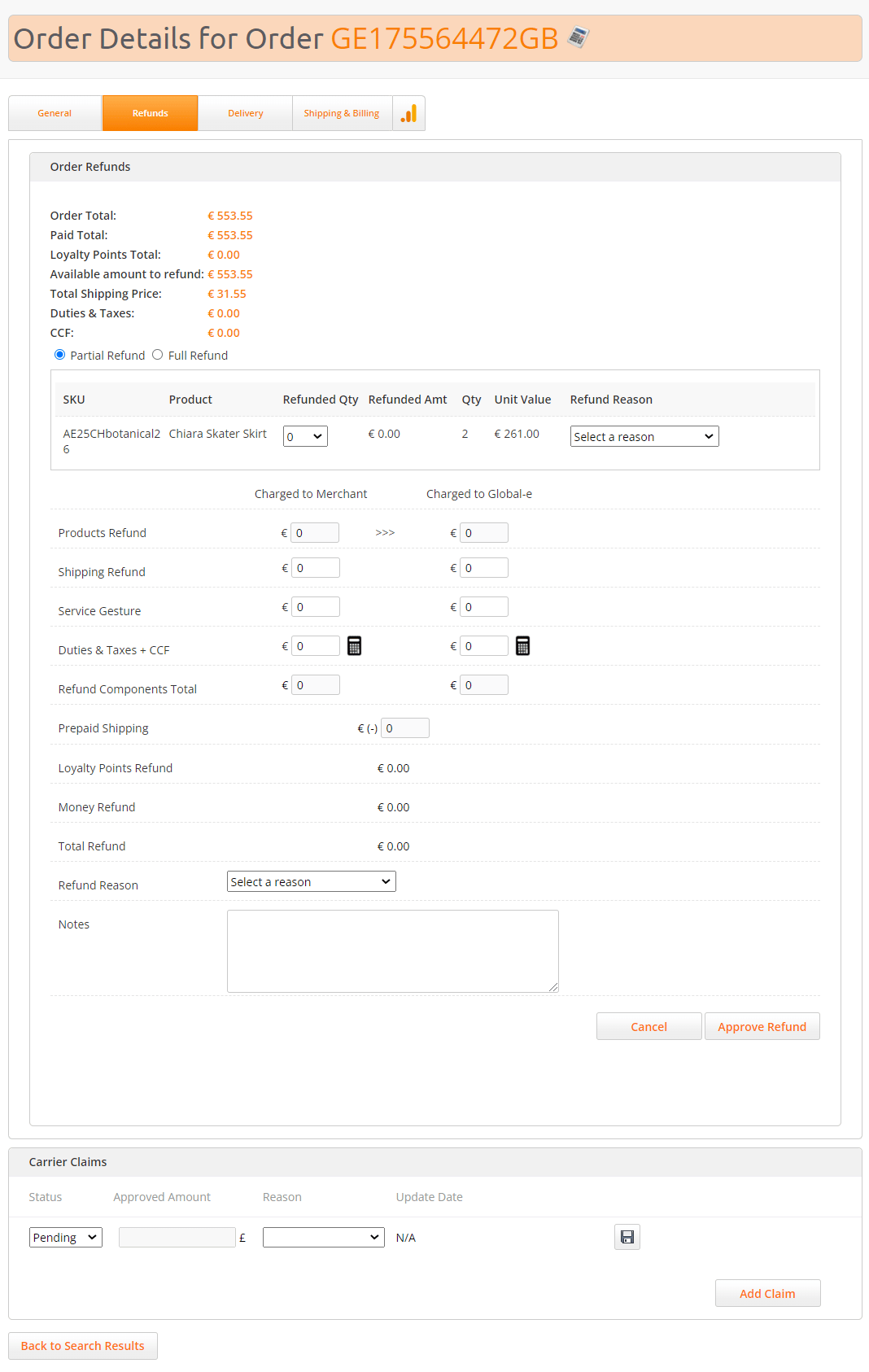
Field Description Order Total The total amount that the customer paid for the order Paid Total TBD Loyalty Points Total TBD Available amount to refund The amount that can be refunded. If previous refunds were performed for that order, the amount to be refunded will be lower than the order total. Total Shipping Price The total shipping price paid by the customer Duties & Taxes The duties paid by the customer CCF The customs clearance fees paid by the customer - Select the type of refund: Full Refund or Partial Refund.
- Click Approve Refund.
Full Refund
If you select Full Refund, all the fields in the Refunds screen are automatically populated.Partial Refund
To perform a Partial Refund, enter the following information.| Field | Steps |
|---|---|
| Products Refund | Create a refund for products: in the products list, select the Refunded Qty and the Refund Reason. The Products Refund field is populated according to the chosen quantities. |
| Shipping Refund | To create a full or partial refund for shipping, enter the amount in this field. |
| Service Gesture | Use this field to refund customers amounts that are not associated with products, shipping fees, or duties & taxes. |
| Duties and Taxes + CCF | To refund duties & taxes, enter the amount in the Duties & Taxes + CCF field. Generally, customs authorities do not refund duties and taxes that have been paid. Refunding these fees to customers is at the merchant’s sole discretion and expense. |
| Refund Components total | This field calculates automatically and shows all refund components listed above. |
| Prepaid Shipping | To deduct the cost of prepaid return shipping, enter the amount here. The refund cost shown to the customer on the Returns Portal is also listed under Return Requests: Merchant Portal > Orders > Returns. |
| Loyalty Points Refund | |
| Money Refund | |
| Total Refund | This field shows the total refund amount to be transferred to the customer’s original payment method |
| Refund Reason | Use this drop-down to define the reason for the refund |
| Notes | Enter refund note if applicable |