
Overview
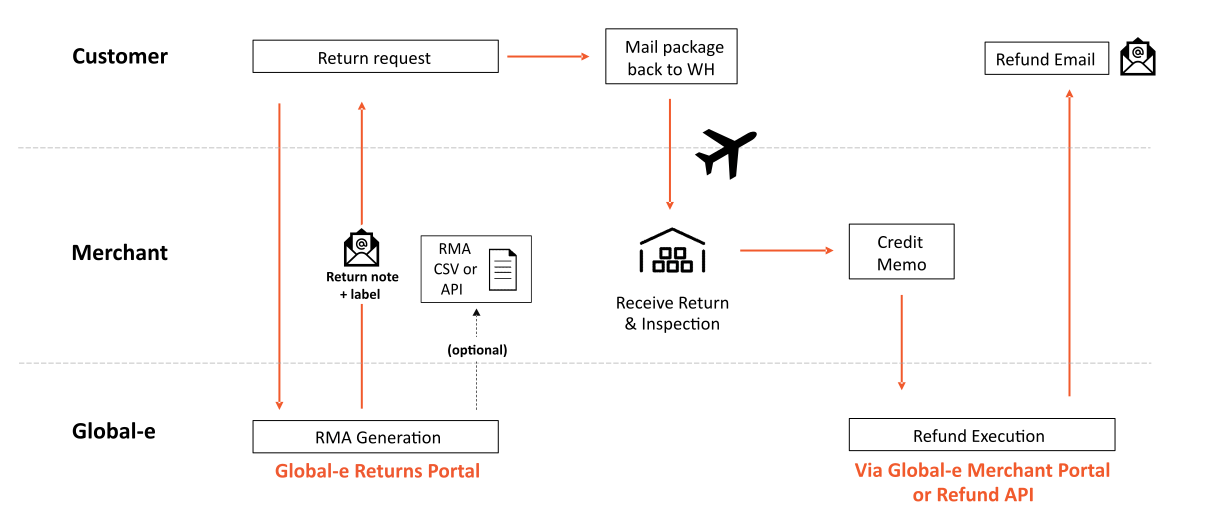
This article describes how a shopper or customer support representative starts a return and creates an RMA/return shipping documents. For information about using the Merchant Portal to search for returns that have already been started, see Returns.
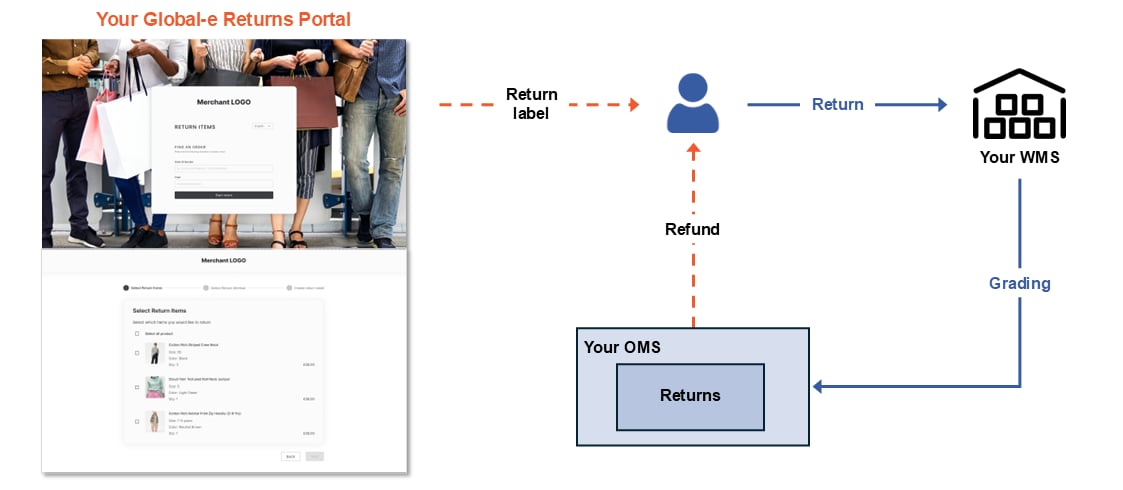
- Self-service: If you support self-service returns, the shopper uses the Returns Portal to access their order, initiate a return, and create an RMA and required shipping documents.
-
Merchant-assisted: A customer support representative (“CS rep”) uses the Global-e Merchant Portal to access the order and initiate a return. They are then automatically forwarded to the Returns Portal to create an RMA and required shipping documents.
- The CS rep must have the appropriate user role and permissions for initiating returns (Merchant CS or Merchant CS Admin).
Returns Portal Design
As part of the integration process, Global‑e provides you a branded Returns Portal and a unique URL for your shoppers to access it. You can choose one of 4 customizable templates for your Returns Portal:If your Returns Portal doesn’t yet look like one of these, it’s easy to make that happen! Just contact the Global-e Customer Success team.
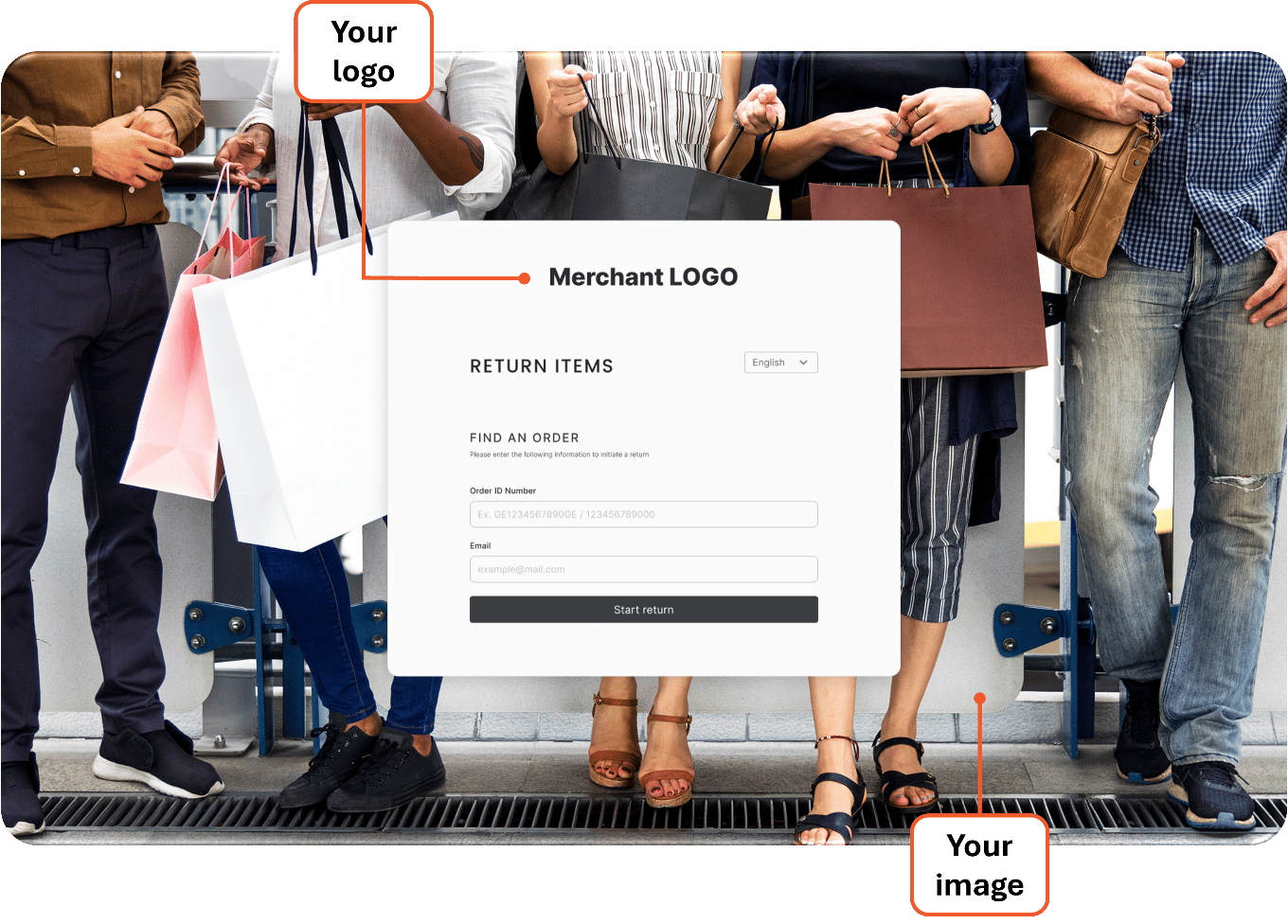
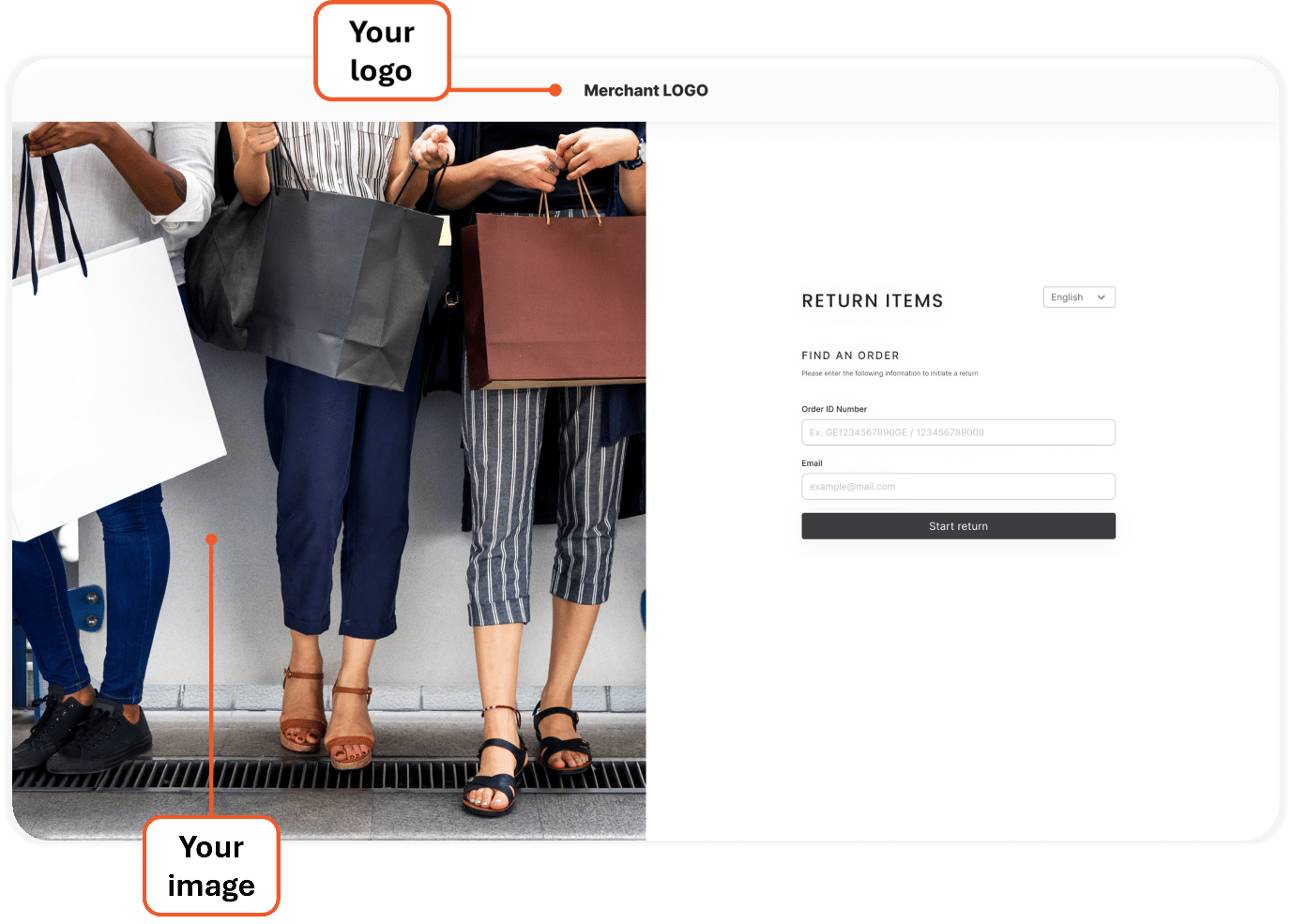
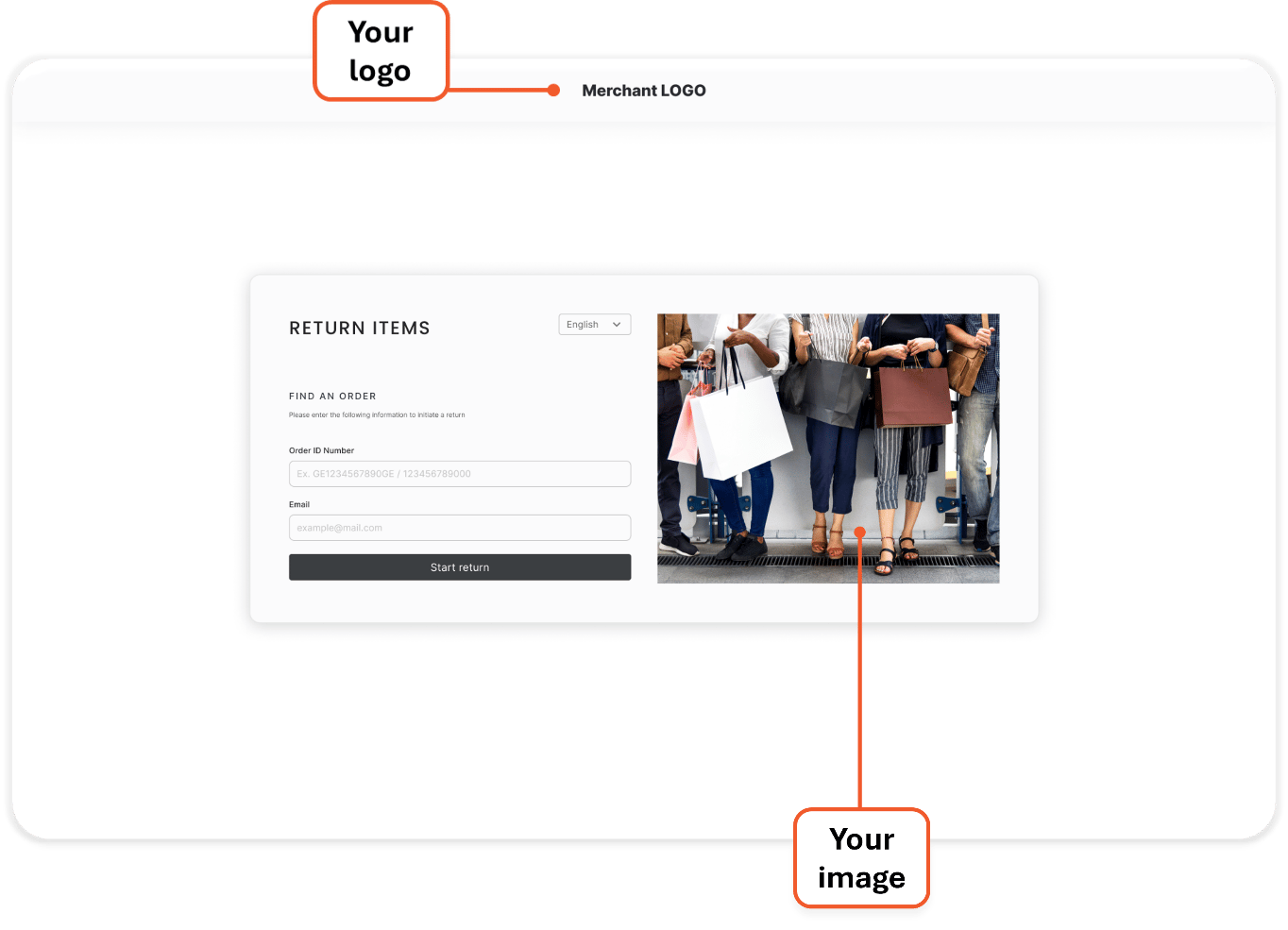
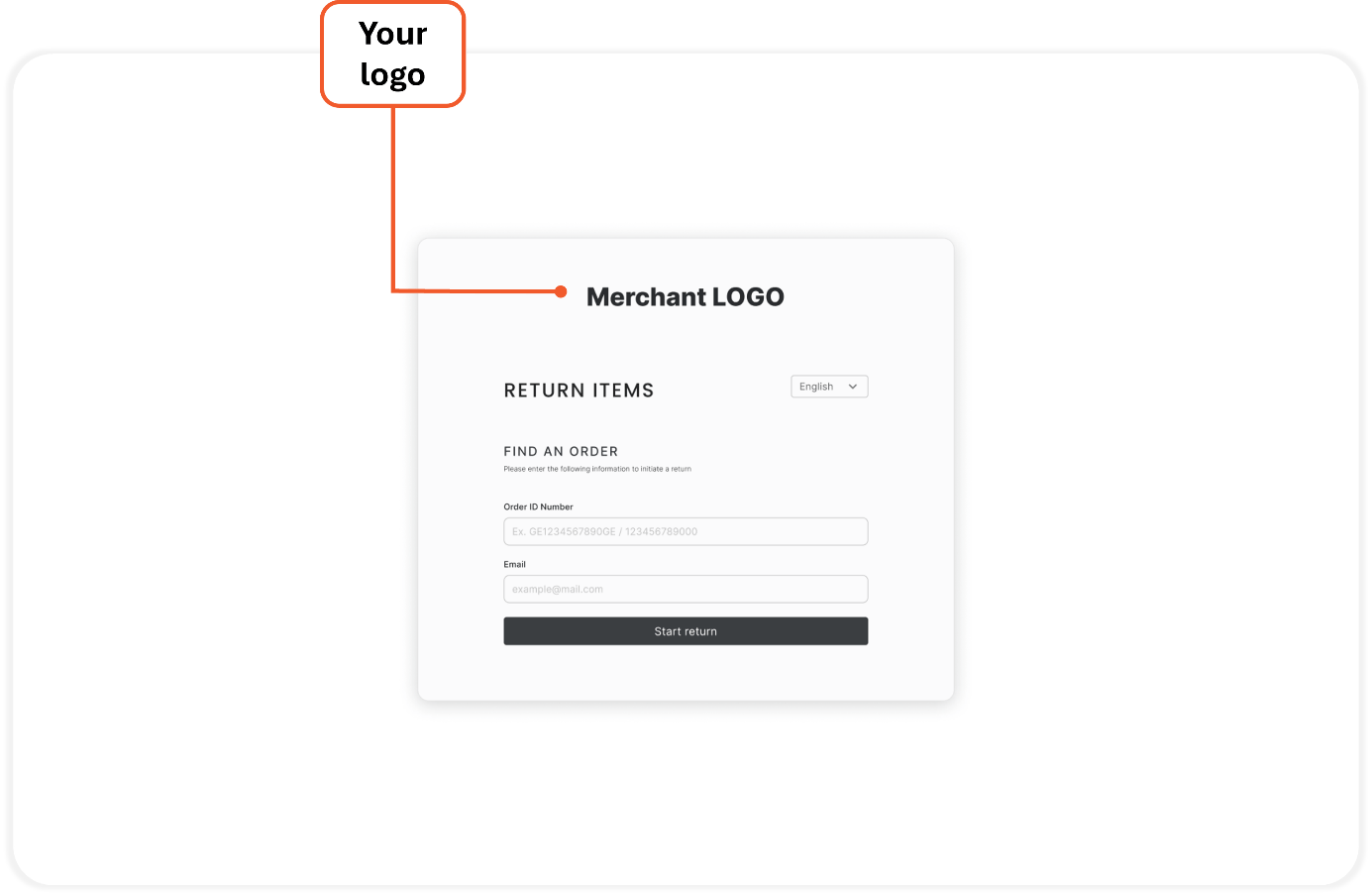
- Button and text color
- Text font and size
- CTA text
- Header text
Returns Portal Translation
- The Returns Portal and return instructions are fully translated and support multiple languages.
- The Standard Shipping Label (self-postage) supports English only.
- The Return Note is partially translated.
Returns Process
The following instructions detail the steps for initiating a return and creating an RMA, shipping label, and required shipping documents.Access the Order
The returns process begins with finding and accessing the order. This step is different for shoppers (self-service returns) and CS reps (merchant-assisted returns). The shopper accesses their order as follows:-
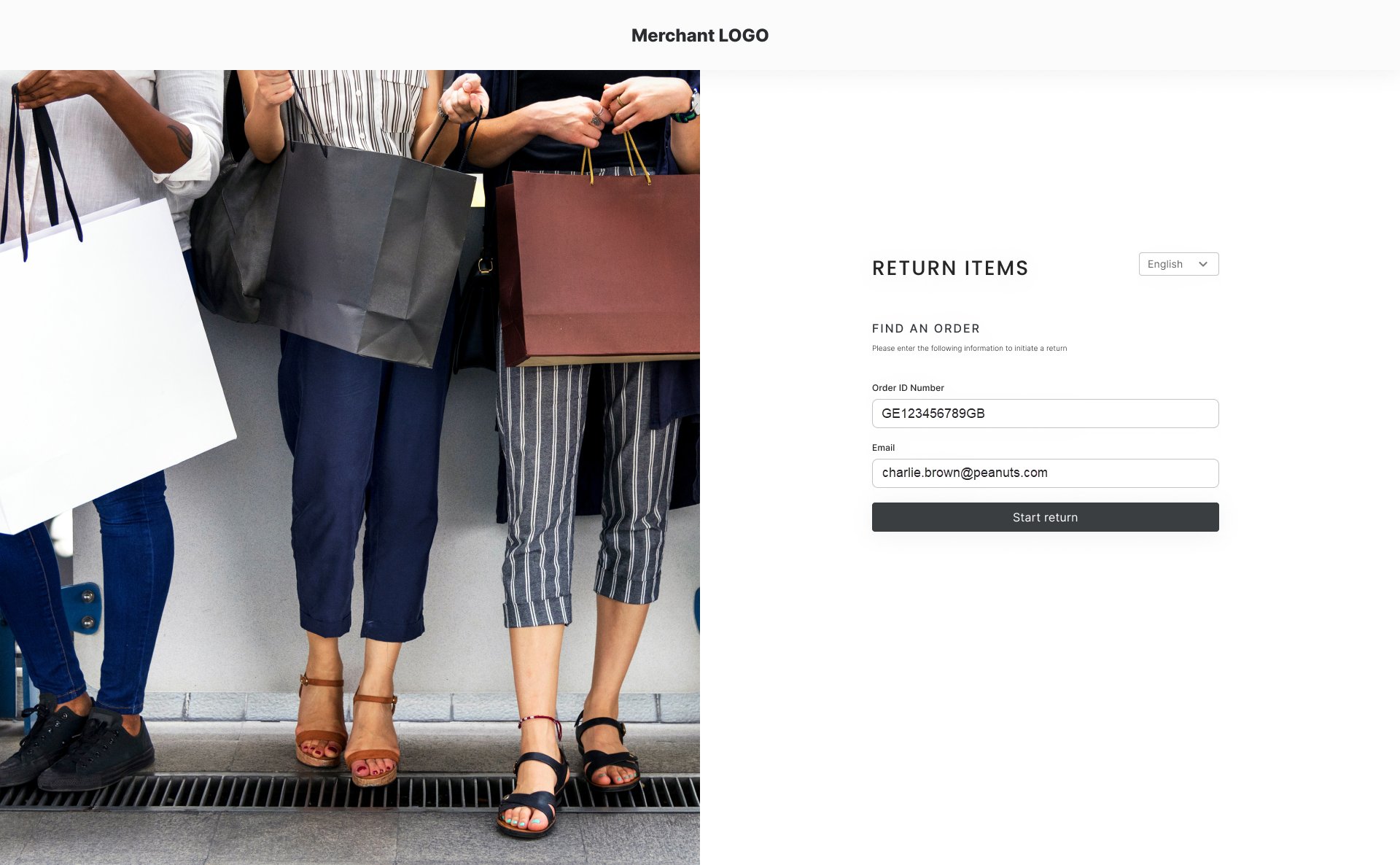
The shopper goes to your Returns Portal link.
- As a merchant, it’s up to you to share this URL with shoppers.
-
[Optional] If the shopper wants to continue in a language other than English, they can select it here.
- By default, the language is set to English (regardless of the language in which they made their purchase).
-
The shopper enters the Global‑e Order ID or Merchant Order ID and the email address used to place the order, then clicks Start return.
- From the Global-e Merchant Portal, go to Orders > View Orders. The Merchant Orders screen opens.
- Search for and open the order with items to be returned. (For additional details about how to search for and view orders, see View Orders.) The Order Details screen opens.
-
At the bottom of the screen, under Items Ordered, click Create Return.
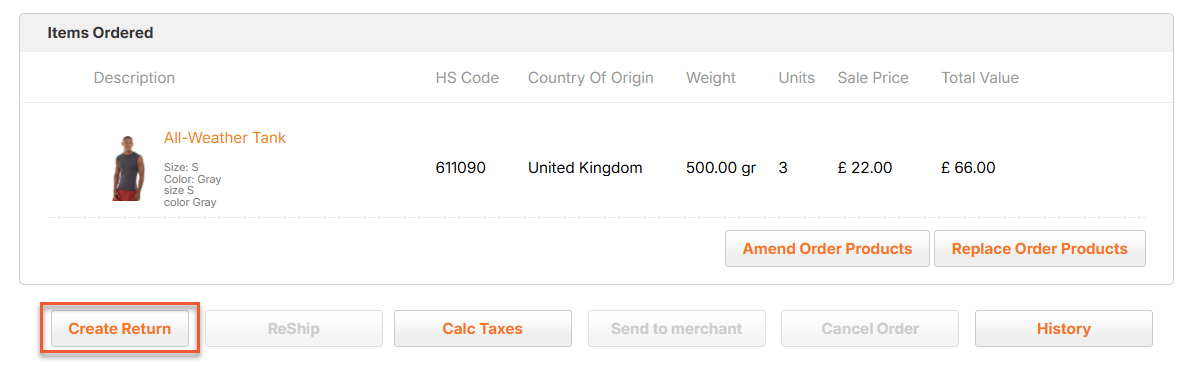
- TheReturns Portal homepage opens with the Order ID and Email prefilled, so just click Start return.
Complete the Returns Process on the Returns Portal
From this point on, the returns process is essentially the same for both shoppers and CS reps, with the Returns Portal leading them step-by step through the process:
For the remainder of this article:
- Instructions are written as if speaking directly to the shopper or CS rep.
- Any options available to CS reps but not to shoppers are identified.
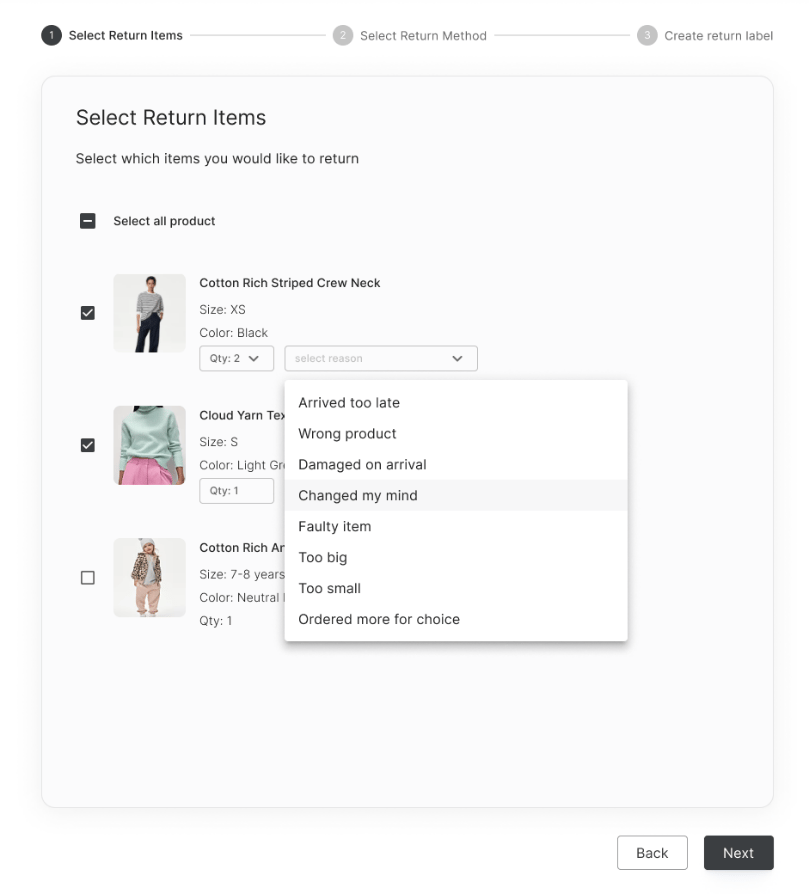
- For each item you want to return, select the number to return and the return reason.
- [CS reps only] At the bottom of this screen, you see an option that shoppers don’t see: Make this return free shipping for customers. Tick this box to grant the shopper a free prepaid return.
- Click Next to continue to Step 2.
Additional information
-
Return requirements: If the order does not meet the following requirements, you will receive an error message, and you won’t be able to continue the returns process:
- Return policy: The order must meet the merchant’s return policy. (In certain cases, the CS rep may be able to create a return after the return period has expired.) For more details, see Return Policy.
- Parcel status: The parcel status must be Delivered to customer, Delivered to Store, or Dispatched. For more details, see Order Status.
-
Multiple shipments: If the order was shipped in multiple shipments:
- Items are displayed separated by shipment.
- Items from different shipments must be returned in separate packaging with separate shipping labels/documents; therefore, you can select items from only one shipment at a time.
- After completing the returns process for items from one shipment, you can create an additional return for items from a different shipment.
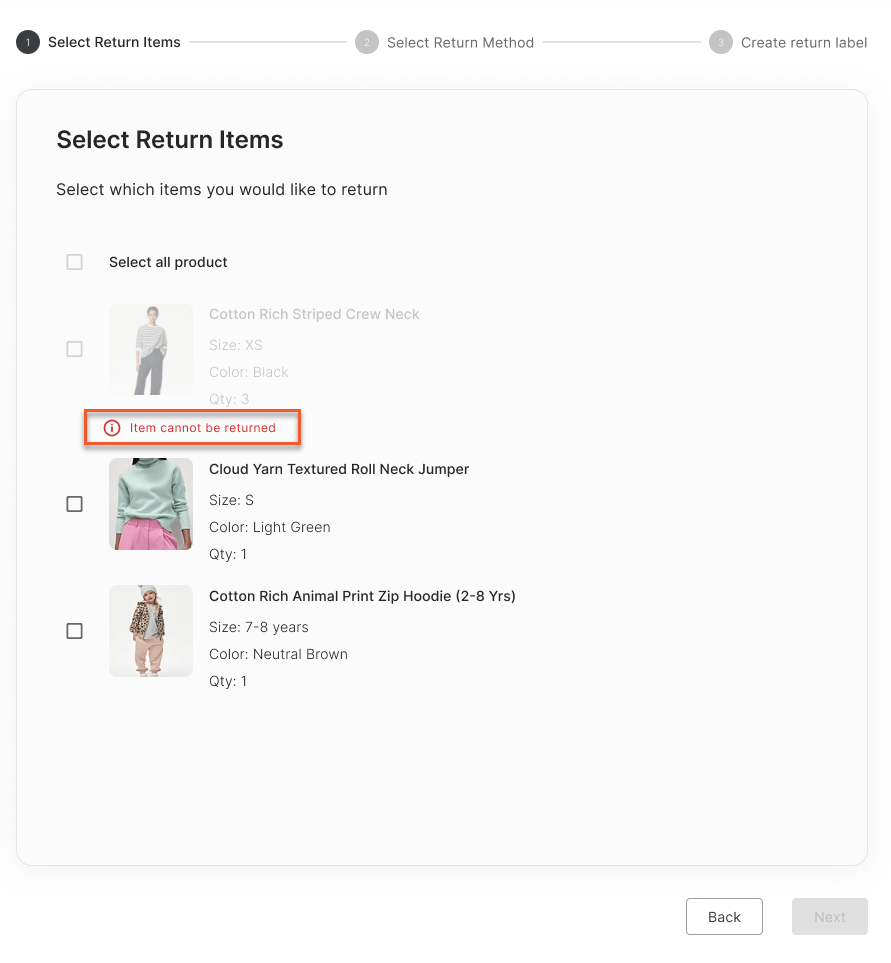
- Non-returnable items: In most cases, non-returnable items are also displayed, but you cannot select them. For more details, see Non-returnable Items.
- [Merchants] List of return reasons: For more details about the default list of return reasons and how to customize them, see Return Reasons.
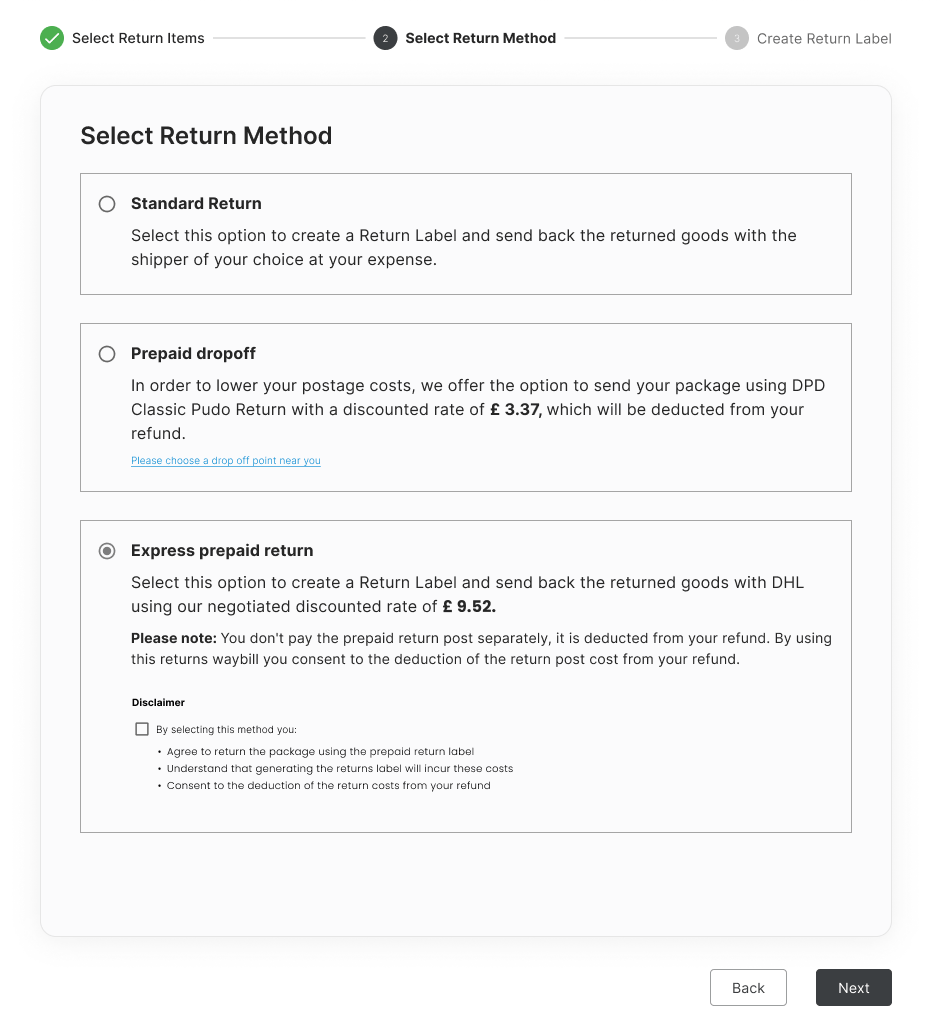
- Select the return shipping method to use. For more details about available methods, see Return Shipping Methods.
- If there is a disclaimer relevant to the selected return method, tick the box to acknowledge it.
- Click Next to continue to Step 3.
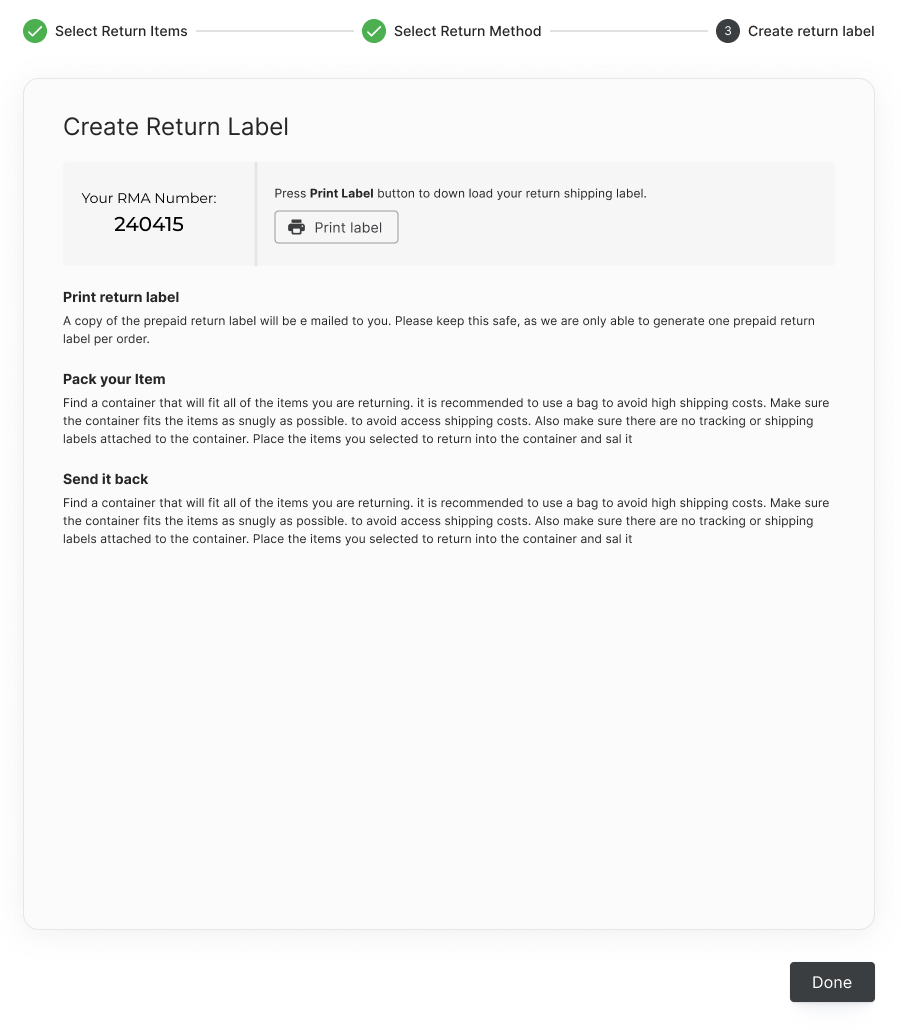
- The RMA number and return instructions relevant to the selected return method are displayed.
-
An RMA email is sent directly to the email address used when placing the order.
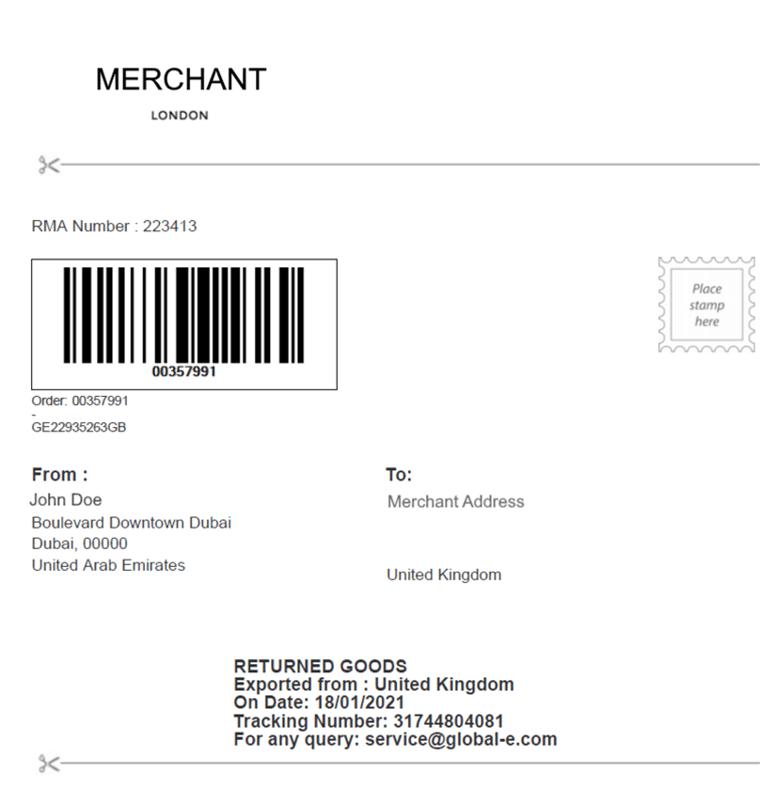
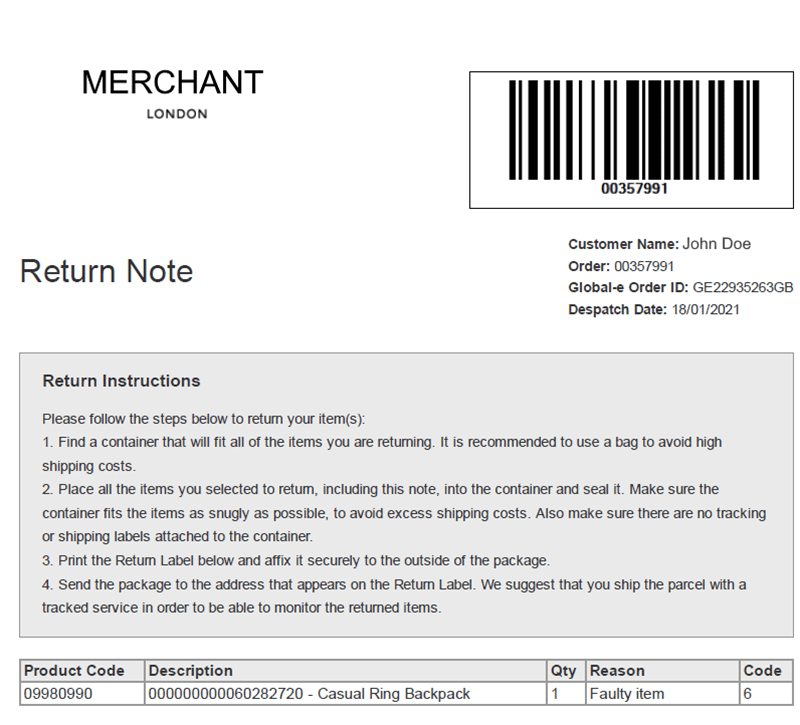
- This email includes the RMA number, return instructions, and the return label and the required documents for the selected return method. For example documents, see Example Return Shipping Labels/Documents.
- You also have the option to download the return label/documents by clicking Print label.
A shopper can create only one prepaid return label per shipment. A CS rep can create additional prepaid return labels if necessary (for example, if a shopper wants to change the prepaid return method after creating the label).
Reference
The returns process can be initiated only for orders that meet the merchant’s return policy.Merchant settings customized during integration:
- Number of days during which a return is permitted (calculated from the time a parcel is placed in Dispatched status).
-
Ability of a CS rep to create a return after the return period has expired.
- By default, this is not permitted
- Delivered to customer
- Delivered to store
- Dispatched to customer
- Returned to store
- [Split orders only] Part dispatched (rest to follow) and payment received
- [Split orders only] Part dispatched and part refunded
- Delivered to customer
- Delivered to store
- Dispatched
-
Dangerous goods
- [Merchants] Global-e can change this setting at your request. When dangerous goods are displayed, they cannot be selected for return and are displayed with an exclamation mark image14.png icon.
- Items with a price of 0 before discount
-
Virtual products
- These are products that are delivered electronically, without the need for physical shipping (for example, gift cards and vouchers).
At merchant request, Global‑e can customize the return reasons and the order in which they are displayed.
- Arrived too late
- Wrong Size
- Wrong Product
- Damaged on arrival
- Changed my mind
- Faulty item
- Too big
- Too small
- Ordered more for choice
- Not as photo
- Not as described
- Undeliverable
- Replacement
- Does not fit what I saw on the web
- I don’t like
- It does not suit me
- Item is defective
- The item is wrong, I did not request it
- The size is wrong
- Other
During integration, return shipping methods are customized per merchant requirements.
-
Standard Return (self-postage): The shopper creates a return label/documents and ships the returned items with the carrier of their choice at their expense.
- [Merchants] This option is available by default unless you request that Global-e remove it.
- Prepaid Return: The shopper creates a prepaid return label/documents for the carrier designated by the merchant’s settings. The return cost is deducted from the shopper’s refund.
- Prepaid Dropoff: The shopper selects a local drop-off point, creates a prepaid return label/documents, and drops the package off at the selected location. The return cost is deducted from the shopper’s refund.
- Express Prepaid: The shopper creates a prepaid return label/shipping documents for the express carrier designated by the merchant’s settings. The return cost is deducted from the shopper’s refund.
| Example 1 | Example 2 | ||
|---|---|---|---|
| image15.png | image15.png | image16.png | image16.png |
| image15.png | |||
| image16.png |