

Overview
Use the Admin Dashboard home page and the Manage Returns page to monitor and process return and exchange requests (RMAs). The home page highlights what needs action, and Manage Returns is the main workspace for searching, filtering, reviewing, and completing RMA workflows. Manage Your Returns shows your status counts and shortcuts, while Return Portal includes a link to your live Return portal.Your layout may differ depending on your settings.
Objectives
By the end of this guide, you will be able to:- Use the home page to jump to key return queues.
- Search, sort, and filter RMAs by status in Manage Returns.
- Review an RMA and complete common actions (approve, reject, cancel, reopen, receive, done).
- Validate, restock, and refund/credit.
- Export a returns data report and find RMAs that require attention.
Prerequisites
Access to the Admin Dashboard with permission to manage RMAs.Understanding the Home Screen
The Home screen is divided into sections that classify returns at different status, each representing a stage in the return life cycle. These sections are located in the Manage Your Returns section. In addition, the Return Portal section on this page shows your Returns Portal URL, which you can add to your store or share with customers. The following figure shows the Home screen: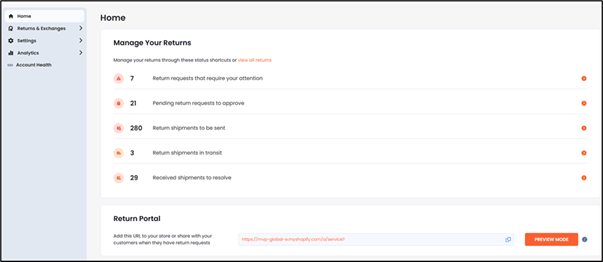
- Return requests that require your attention
- Pending return requests to approve
- Return shipments to be sent
- Return shipments in transit
- Received shipments to resolve
Managing Returns
In the Home screen description, we mentioned that you can view returns at different stages of the return life cycle. When you click one of the life cycle groups mentioned earlier, you can view the requests across the entire return life cycle.-
From the Home screen, click one of the following:
- Return requests that require your attention
- Pending return requests to approve
- Return shipments to be sent
- Return shipments in transit
- Received shipments to resolve
-
In the top row, click one of the following status filters:
All
Open RMAs
Pending requests
Approved requests
In transit
Shipment receivedDone
Rejected requests
Canceled requests
Shipment rejected
Require attention
Searching for an RMA
- Navigate to Returns & Exchanges > Manage Returns.
- In the Search RMA or order number text field, type an RMA number, order number, or customer ID.
-
Optional:
- Disable Exact match to search by partial number.
- Enable Exact match to search by full number only.
- Click the search Search.png button.
Sorting and Filtering RMAs
- Navigate to Returns & Exchanges > Manage Returns.
- Click SETTINGS.
-
From the Date Column menu, select one:
- RMA created
- Shipment delivered
- Shipment in-transit
- Click SAVE.
-
Filter RMAs using any of the following:
- Date Created (Select a start and end date, and click Applyto apply your date range)
- Resolutions (exchange, return resolutions, other)
- Return reason
- Resolutions (exchange, return resolutions, other)
- Reserved Item Expiration (All / By Date Range / By Days Remaining / Expired Reservations), requires item reservation
- Refund/Payment Status (All / Not Refunded / Not Paid / Paid / Expiring/Expired Payments)
- Click APPLY.
Viewing RMA Details
- Search for an RMA.
- From the search results, click an RMA number.
- RMA summary and order summary
- Customer information
- Original items and new items (if applicable)
- Shipments and draft orders
- Timeline
- Bottom action bar (actions change by status)
Approving a Return Request
- Open the relevant RMA.
- Review the request details.
- Click APPROVE in the bottom action bar.
Rejecting a Return Request
- Open the relevant RMA.
- Click REJECT.
- Enter a rejection reason.
- Click SUBMIT.
Canceling an RMA
- Open the relevant RMA.
- Click CANCEL.
- Confirm the cancellation.
Reopening a Canceled RMA
- Open the canceled RMA.
- Click REOPEN.
Issuing a Refund or Credit
- Open the relevant RMA.
- Click REFUND/CREDIT.
- Review the refund calculator.
- Click APPLY.
- Select the refund method.
- Click SUBMIT.
Exporting a Returns Data Report
- Navigate to Returns & Exchanges > Manage Returns.
- Click EXPORT.
- Select the desired export format and filters.
- Click DOWNLOAD.