

- Create relevant Airway Bills (AWB) and export documentation for all parcels.
- Automatically amend out-of-stock items.
- Notify merchants shipping via Global-e of the number of parcels on the way and their unique identifier codes so they can be scanned and processed upon arrival.
Preparing the Report
This page describes the guidelines for preparing a report for an EOD manifest. Follow these instructions precisely to ensure that the order and parcel information are processed correctly. This page describes the following:- Naming the report
- Formatting the report
- Report structure and data
- Field descriptions and requirements
Naming the Report
The report name should include the merchant’s name as configured in Global-e’s merchant settings, the date, and the time:- Format: {MerchantName}Manifest_ddmmyyyyhhmm
- Example: MyToysStoreManifest_100220151738
Formatting the Report
The report should be in CSV format and include commas as separators. Global-e does not support tabulations, semi-columns, or any other separators.Report Structure and Data
In your CSV file, make sure to name the columns headers A through I, as shown below:
Field Descriptions and Requirements
The following table shows the field descriptions and requirements:| Header | Required | Description | Notes |
|---|---|---|---|
| Global-e Order ID | No | If the merchant does not have a Global-e Order ID, this column should remain empty. | |
| Merchant Order ID | No | If there is no order ID, this column should remain empty. | |
| Parcel Code | Mandatory for in-stock items. Optional for backordered, pre-ordered, and out-of-stock items. | The code is assigned to each parcel in the merchant’s warehouse. | This code should also be barcoded on the label of each parcel that arrives at a Global-e hub (or shipped directly by the merchant), along with the Order ID barcode (either Global-e Order ID or Merchant Order ID, as included in the manifest data). |
| Product SKU | Yes | The SKU of each product in the parcel. | |
| Quantity | Yes | The quantity of each product in the parcel. | |
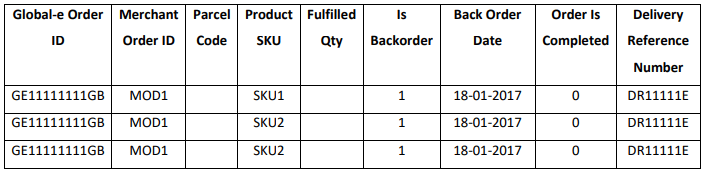
| Is Backorder flag | No | Relevant for items that are known as backordered. | Accepted values: 0 or empty – for in-stock items 1 – for backordered items Important: If the item is out of stock and being fulfilled, make sure to include this item in the relevant day manifest and change the flag value = 0. It is important to list separately in the manifest each line item that is backordered. For example, if there is a line item with a quantity of 2 purchased by a customer and both are back ordered, the merchant should list each line item separately in the manifest. |
| Backorder Expected Fulfilment Date | No | If provided by the merchant, Global-e includes this information in the notification on backordered items sent to customers. | Accepted values: Empty – if the fulfilment date is unknown. Expected Date (in ‘dd-mm-yyyy’ format). |
| Is Order Completed flag | Yes | Updated by the merchant to indicate if the order is completed or not. | Accepted values: 0 – for orders that were not yet completed (i.e. expecting more parcels to arrive). 1–for completed orders, where all items are sent, or amended. Empty – a label will be produced for the items in the parcel, fully or partially supplied. If partially supplied, then an automatic split will be performed. Note: The same order in the manifest cannot contain both Is Backorder = 1 and Is Completed = 1. If there are any backorder items, always send Is Completed = 0, until all the order items are supplied. |
| Delivery Reference Number | No | For merchants adding additional unique order identifier. It should be associated with each line item in the manifest. | |
| Weight | No | The weight of the parcel in grams. | If there are several items in the parcel, the total weight will be divided equally between all items. If the weight is not specified, it will be taken from the catalogue. |
| Country of Origin | No | The country where the item is manufactured. | If the country of origin is not specified, it will be taken from the catalogue. |
EOD Examples
This page shows the following EOD examples:- Example 1: Single parcel order with all items in stock
- Example 2: Multi-parcel order with all items in stock
- Example 3: Split multi-parcel order with all items in stock
- Example 4: Multi-parcel order with some items out of stock
- Example 5: Split multi-parcel order with some items out of stock
- Example 6: Split multi-parcel order with some items out of stock with exceptions
- Example 7:
- Example 8:
- Example 9:
- Example 10:
- Example 11:
Example 1: Single Parcel Order with All Items in Stock
This example describes a single parcel order when all items are in stock. In this example the customer has purchased the following products:- SKU 1 – quantity 1
- SKU 2 – quantity 1
- SKU 3 – quantity 1

- All the items are sent in one parcel, P1.
- The order is marked as completed and is dispatched to the customer on arrival at the Global-e hub.
Example 2: Multi-Parcel Order with All Items in Stock
This example describes a multi-parcel order when all items are in stock. In this example the customer has purchased the following products:- SKU 1 – quantity 1
- SKU 2 – quantity 1
- SKU 3 – quantity 1
- All the items are sent in one parcel, P1 and P2.
- The order is marked as completed and is dispatched to the customer on arrival at the Global-e hub.

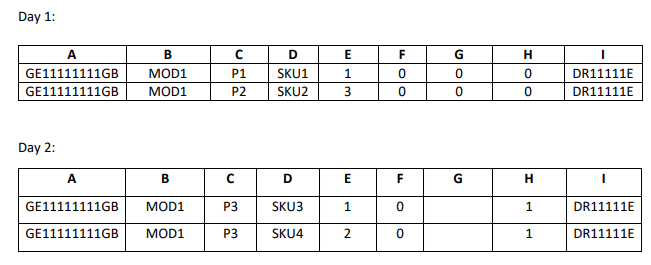
Example 3: Split Multi-Parcel Order with All Items in Stock
This example describes a split multi-parcel order when all items are in stock. In this example the customer has purchased the following products:- SKU 1 – quantity 1
- SKU 2 – quantity 3
- SKU 3 – quantity 1
- SKU 4 - quantity 2
- Two parcels, P1 and P2, arrive on the first day and the order is marked as incomplete.
- The Global-e hub processes the parcels and puts them in Holding Area 2.
- The following day, parcel P3 arrives. The parcel is processed, the hub operator is notified and collects the on-hold parcels.
- All three parcels are dispatched to the customer.
Example 4: Multi-Parcel Order with Some Items out of Stock
This example describes a multi-parcel order when some items are out of stock. In this example the customer has purchased the following products:- SKU 1 – quantity 1
- SKU 2 – quantity 3
- Two parcels, P1 and P2, arrive and the order is flagged as completed.
-
Product SKU 2 shows that only two out of three items were shipped. However, because the order is flagged as completed, the manifest processor treats the third item of SKU 2 as Stock Not Available (SNA):
- The customer is notified and refunded.
- The export documentation is amended.
- The parcels are dispatched to the customer on the same day.

Example 5: Split Multi-Parcel Order with Some Items out of Stock
This example describes a split multi-parcel order when some items are out of stock. In this example the customer has purchased the following products:- SKU 1 – quantity 1
- SKU 2 – quantity 3
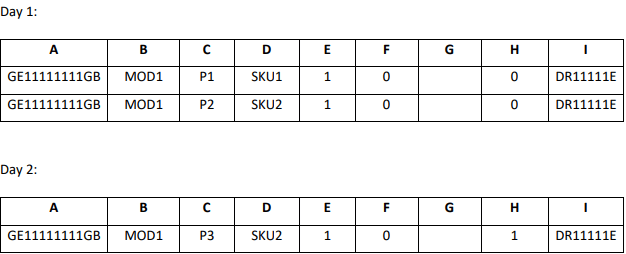
- Two parcels, P1 and P2, arrive and the order is flagged as incomplete.
- Product SKU2 shows that only 1 item out of the ordered 3 are shipped.
- The Global-e hub processes the parcels and puts them in Holding Area 3.
-
The following day parcel P3 arrives, and the order is flagged as completed, however, product SKU2 only shows 1 additional item.
This parcel is processed and:
- The customer is notified and refunded for one item of SKU2 which is out of stock.
- The export documentation is amended accordingly.
- The hub operator is notified of additional parcels in the holding area and collects the on-hold parcels. All three parcels are dispatched to the customer.
Example 6: Split Multi-Parcel Order with Some Items out of Stock with Exceptions
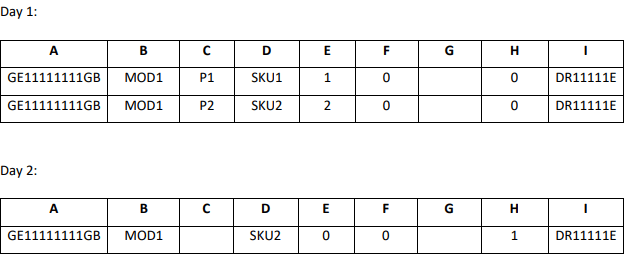
This example describes a split multi-parcel order when some items are out of stock, with some exceptions. In this example the last item is SNA indefinitely. In this example the customer has purchased the following products:- SKU 1 – quantity 1
- SKU 2 – quantity 3
- Two parcels, P1 and P2, arrive and the order is flagged as incomplete. Product SKU2 shows that only 2 out of 3 items were shipped.
- The Global-e hub processes the parcels and puts them in the holding area.
- The following day, the Merchant realizes that the third item of SKU2 is not being put back in stock and will never be fulfilled.
-
The Merchant notifies Global-e via the manifest by sending the missing item with quantity 0, triggering the following actions:
- The customer is notified and refunded for one item of SKU2 which is out of stock.
- The export documentation is amended accordingly.
-
A notification is sent to the hub operators to collect the parcels in the holding area and dispatch them to customers.
It is important to immediately notify Global-e if an item cannot be fulfilled to avoid longer waiting periods for parcels in the holding area and compromising customer delivery promises.
Example 7: All Orders are SNA and Cannot be Fulfilled
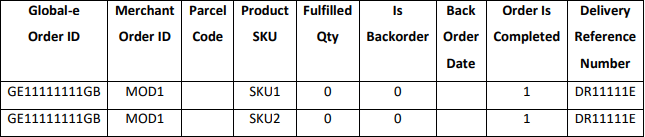
This example describes a scenario where all orders are SNA and cannot be fulfilled, and a notification is sent to Global-e through the manifest to update and refund the customer. In this example the customer has purchased the following products:- SKU 1 – quantity 1
- SKU 2 – quantity 1
- Both products are out of stock so the Merchant sends Global-e a notification with Is Completed flag set to 1 (order is completed).
- The parcel codes are missing (since nothing is actually being shipped) and quantities show 0.
In this situation, merchants do not need to notify Global-e through the EOD manifest if they send an Order Status Update notification via API. Contact your account manager or Technical Support if you are unsure if the Order Status Update API is implemented for your store.
- SKU 1 – quantity 1
- SKU 2 – quantity 1
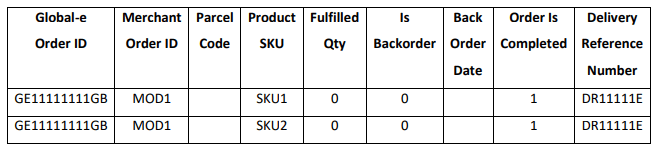
In this situation, Merchants do not need to notify Global-e through the EOD manifest if they send an Order Status Update notification via API.Contact your Account Manager or Technical Support if you are unsure if the Order Status Update API is implemented for your store.
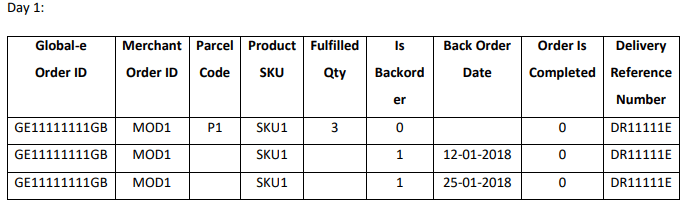
- SKU 1 – quantity 5

- SKU 1 – quantity 2
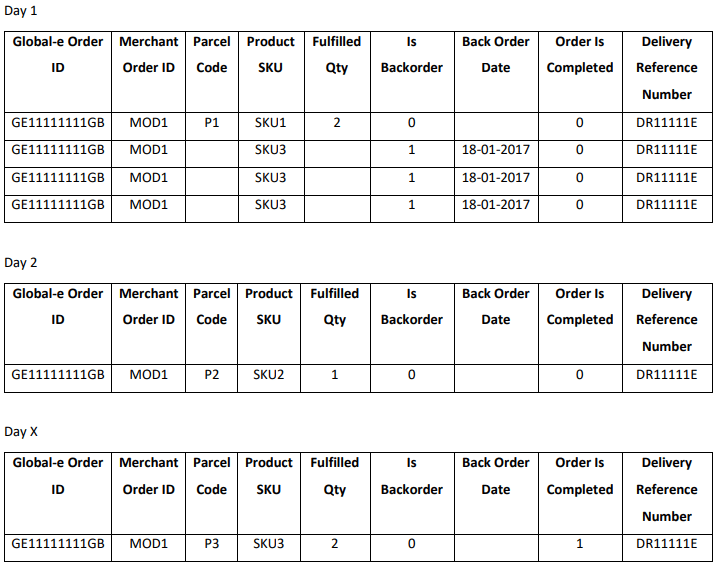
- SKU 2 – quantity 1
- SKU 3 – quantity 3
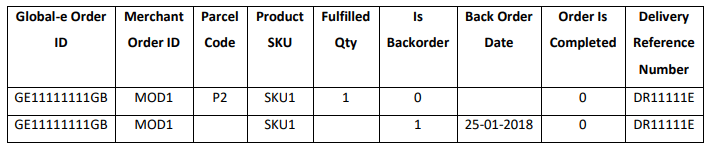
- One parcel, P1, is received at the hub with SKU 1. The order is marked as incomplete and some of the items are marked as backordered.
- The P1 parcel is processed and dispatched to the customer. The customer is notified of the backordered items.
- The following day, the P2 parcel arrives at the hub with SKU 2 item. The order is still incomplete.
-
In x days, the backordered items arrive at the hub in parcel P3. The order is marked as completed. The manifest processor:
- Recognizes that one of the items (SKU3) is missing.
- Refunds the customer and amends export documents for parcel P3.
- Dispatches the parcel to the customer.
- SKU 1 – quantity 1
- SKU 2 – quantity 2
Example 1: Single Parcel Order with All Items in Stock
Description
This example describes a single parcel order when all items are in stock. In this example the customer has purchased the following products:- SKU 1
- SKU 2
- SKU 3 - quantity 1
Shipping Scenario
The following describes the shipping scenario for this example:Report Schedule
The report should be sent once the pick and pack in the Merchant warehouse is completed for the day and before the orders arrive at the Global-e hub or before the orders are prepared for international shipping by Merchants fulfilling from their own warehouse.Uploading the Report
The report can be uploaded in the following ways:- On the Global-e sFTP
- On the Merchant’s sFTP
In order to pull the report from a Merchant’s sFTP server, the Merchant needs to provide Global-e with write permissions to the folder where the manifests are located. This folder should also contain an archive sub-folder.