

Overview
The Global-e Free Shipping Banner is a promotional tool that you can use to convey shipping and marketing messages to customers. The banner’s promotional message has been conveniently translated into twenty-four languages, to meet your localisation needs. This document introduces the Global-e Free Shipping Banners and provides instructions on how to customise the banners using the Global‑e Free Shipping Portal Banner editor.Prerequisites
- Provide Global-e with the HTML container where the banner code should be hosted.
- No action is required: The Country code, Culture, and Currency are sent via a cookie to the Global-e Client SDK), based on the shipping country. This is sent by default as part of the platform configuration.
Getting Started
Enable or Disable the Banner
The Banner is enabled by default. If you wish to disable the Banner, contact your Global-e Account Manager and request to have the Banner disabled.Access the Banner Editor
To access the Banner Editor: In the Global-e Admin, navigate to Configuration ➔ Customization.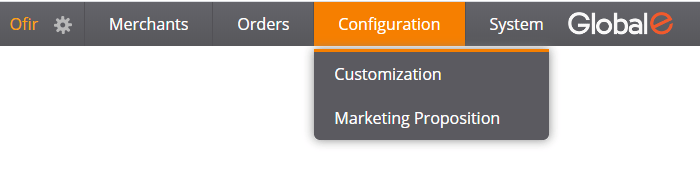
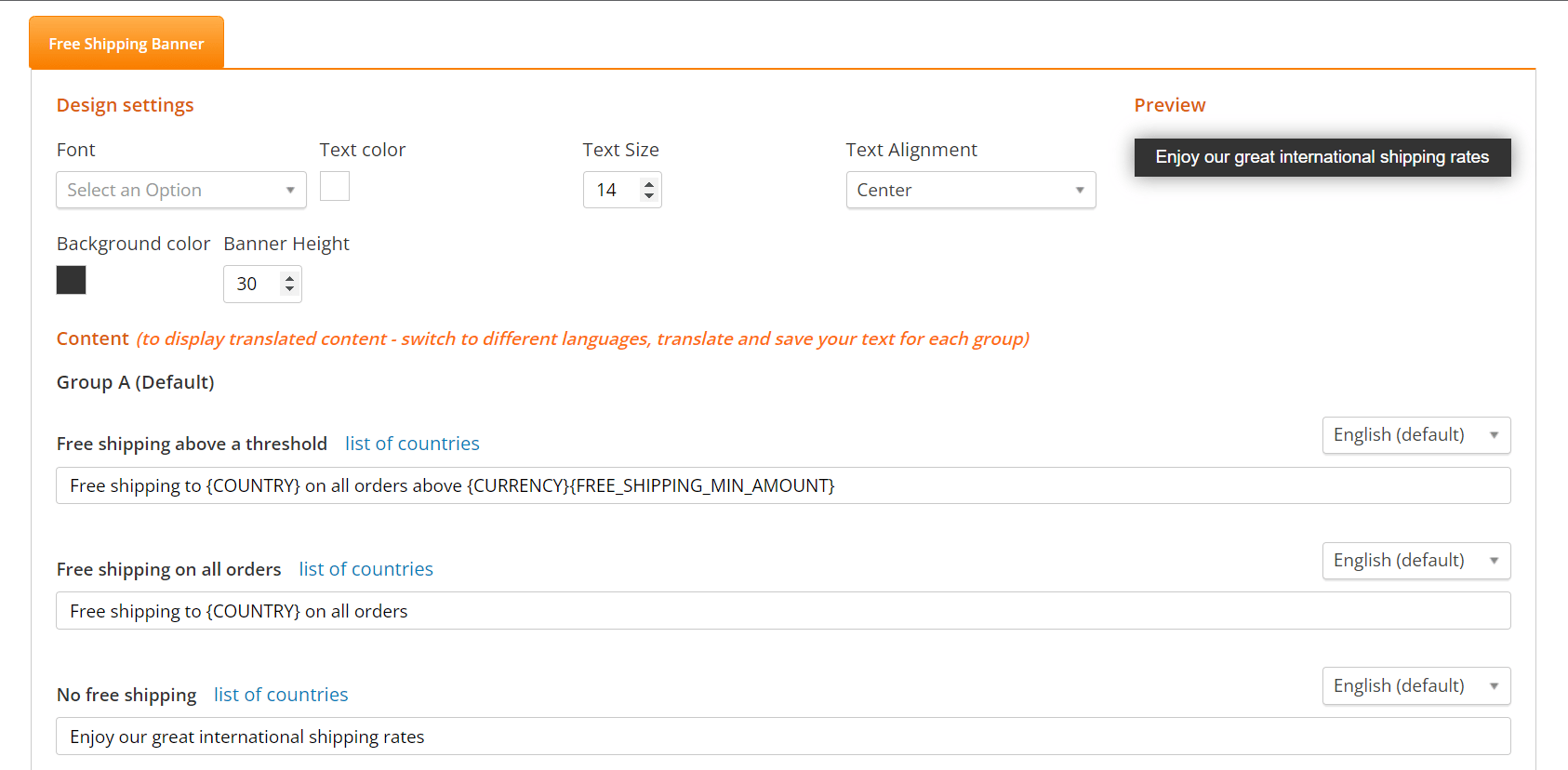
- Edit the Banner’s text
- Configure the Banner for a specific country or group of countries
- Customise the Banner’s design
Customise the Free Shipping Banner
There are two types of banners:- Shipping Rates Banner: A banner with shipping information based on the country’s shipping rates or the customer’s shopping cart value.
- Free Shipping Banner with Free Text: Add marketing text targeting any country or group of countries. See Understanding Banner Options for more information.
Understand the Banner Options
This section introduces and illustrates the various shipping and Free Shipping Banner options.Shipping Rates Banner
By default (if the banner is enabled), the automatic Shipping Rates banner is displayed to visitors in all countries. You can manually configure the Marketing Banner to target any particular country or group of countries. The following lists the shipping banner options:- Free Shipping Above a Set Threshold
- Free shipping on all orders
- No free shipping
Free Shipping Above a Set Threshold
This banner option is displayed for countries offering free shipping above a set cart price, for at least one shipping method. The following example shows that, in the selected country (Latvia), if the cart value is above €100, the standard courier shipping is free.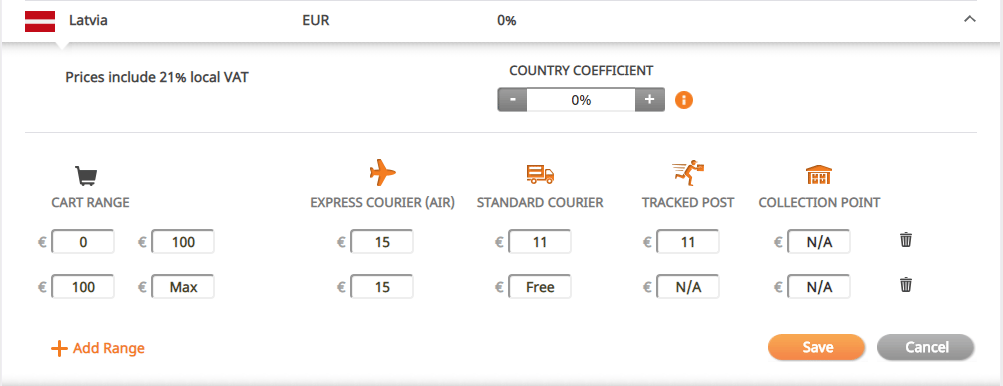
Default Banner Text
When configuring Free shipping above a threshold, the following default text is displayed in the banner editor:Free shipping to {COUNTRY} on all orders above {CURRENCY}{FREE_SHIPPING_MIN_AMOUNT}

Default Parameters
The default text parameters convey to shoppers the minimum order amount required in their country so that they can enjoy free shipping.- Country Name – the shipping country’s name
- Currency – the chosen currency for the shipping country
- Free Shipping Minimum Amount – the minimum cart value from which free shipping is offered
When the shipping banner is enabled, the text “free shipping above a threshold” is displayed in the editor by default. While you are not able to see this banner text in the other shipping options, it is also enabled.If “no free shipping” is configured or if “free shipping” is set for all cart prices, the relevant text is displayed, even though it is not visible in the editor.
Free shipping on all orders
This banner option is displayed for countries featuring free shipping for all orders, for at least one shipping method and for all cart price ranges. The following example shows that, in the selected country (France), a free shipping method (collection point) is offered to customers for all cart values (all orders).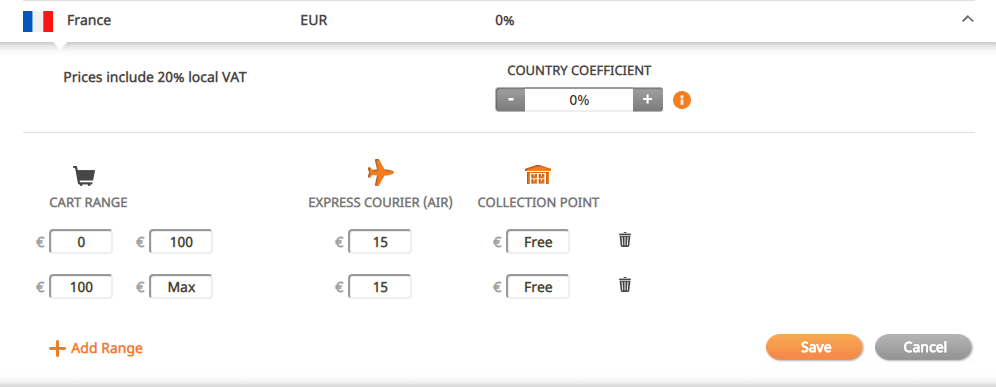
Default Banner Text
When configuring Free shipping on all orders, the following default text is displayed in the banner editor: Free shipping to {Country Name} for all ordersTo configure a different text for this scenario, contact your Account Manager.

No Free Shipping
This banner option is displayed for countries in which free shipping is not offered to customers for any shipping method. The following example shows that, in Italy, free shipping is not offered for any shipping method or cart value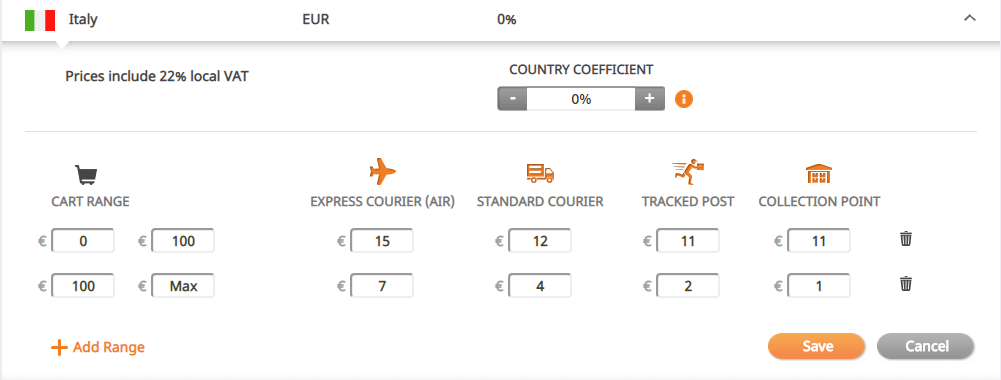
Default Banner Text
When No Free Shipping is configured, the following default text is displayed in the banner editor.To configure a different text for this scenario, contact your Account Manager.

Free Shipping Banner with Free Text
You can add any type of Marketing text to any country or group of countries. This text replaces the text of the shipping-related banner in the selected countries. The following example shows a marketing message to the customer. Example: Summer blockbuster deals are out now!
Edit the Banner Text
To edit the banner text:- In the text editor’s language drop-down, select the language to use for the banner. The editor displays the text in the selected language in the preview of the banner text.
-
Edit the text as required and click Save. Alternatively, click Cancel or Reset to reset the banner to its default appearance and settings.

Configure the Language
The default banner text is in English. To suit your localisation requirements, this text can be professionally translated into twenty-four other languages.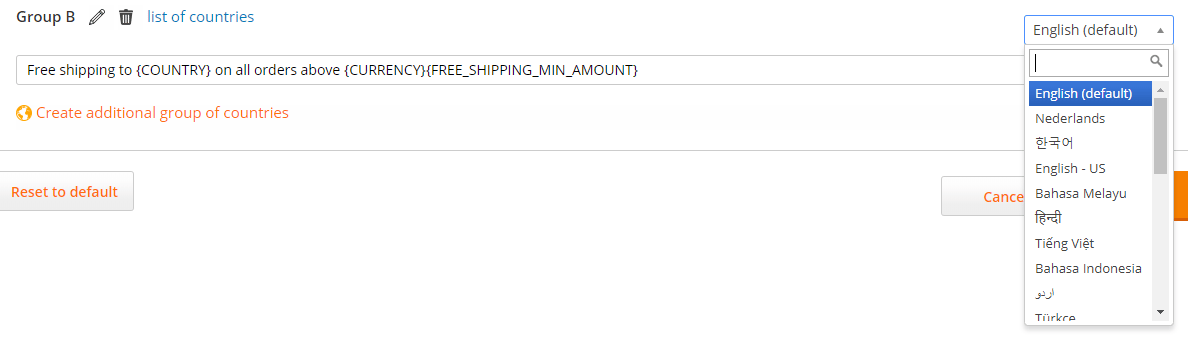
Add a Marketing Banner
Create new Marketing Banners that display customised messages to customers in different countries. To add a Marketing Banner you need to create a new Group for the country or group of countries that you are targeting. To add a marketing banner:-
In the Content area, click Create additional group of countries.
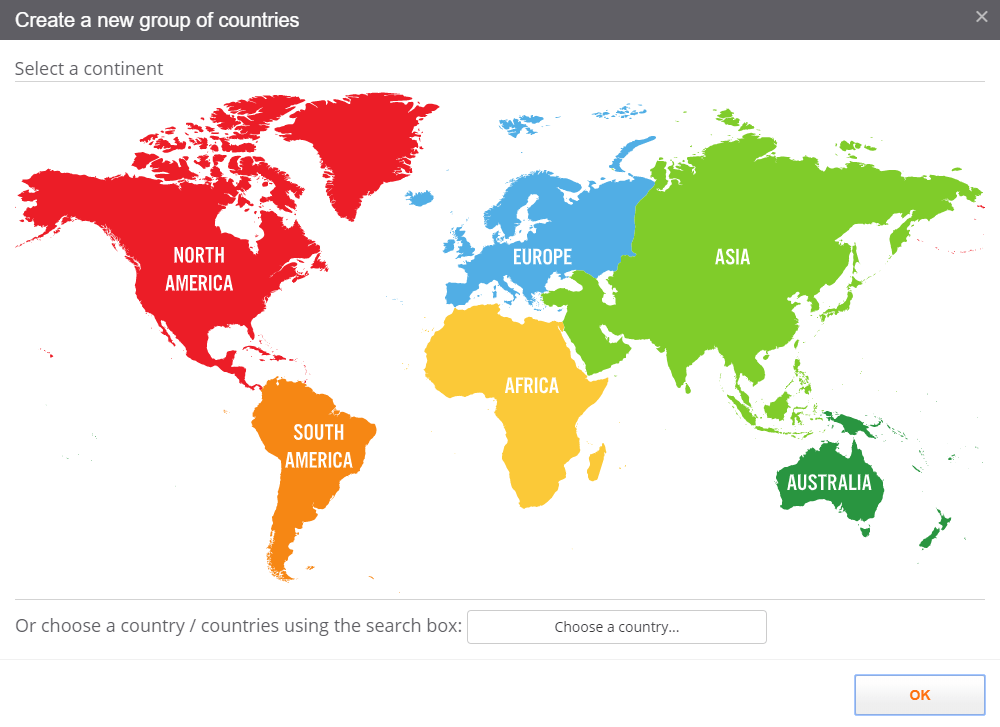
The Create a new group of countries screen opens.

-
Select the continent, country, or countries to which you wish to add to the group.
A country can only belong to one group at a time.If the name of a country is disabled, it indicates that the country has already been added to an existing group.You can select a continent and then select one of multiple countries.Alternatively, you can search for each country individually.
-
Click OK.
The new group is created; it is listed in the Content area.

- Click image17.png (Edit Group) to edit the name of the group.
- Select the language associated with each country in the group. For example, select Spanish if the group contains Spain (and Spanish is set as the country language).
- Edit the banner text as required.
- Click Save. Alternatively, click Cancel or Reset to default. Reset to default resets the banner to its default appearance and settings.
Add or Remove Countries from a Group
To add or remove countries to or from a group:- In the group you wish to modify, click list of countries. The Selected countries screen opens.
-
Add or remove countries:
- To add a country to the group, click Add a country… and select the countries you wish to add.
- To remove countries from the group, clear the checkbox of the countries you wish to delete.
- Click OK. The countries are added or deleted.
Delete a Group
To delete a group:- In the group you wish to delete, click image18.png (Delete Group).
- Click Save. The group is deleted.
Customize the Banner Style
To customize the banner style:- In the Design settings area, customize the banner design as detailed in the table below.
- View your changes in the Preview area.
- Click Save. Alternatively, click Cancel or Reset to default. Reset to default resets the banner to its default appearance and settings.
Unlike text edits, if you make changes to the banner’s design and appearance, these are applied to every language and country.
| Change the banner background color | Click the color pallet next to Background color and select a color. |
|---|---|
| Adjust the banner height | In the Height field, specify the height of the banner (in pixels) |
| Change the font of the banner text | In the Font drop-down, select the banner text font |
| Change the color of the banner text | Click the color pallet next to Text color and select the color of the banner text |
If the container that hosts the banner includes CSS properties, the styling performed via the editor will not take effect.