

Your layout may differ depending on your settings.
- Use the home page to jump to key return queues.
- Search, sort, and filter RMAs by status in Manage Returns.
- Review an RMA and complete common actions (approve, reject, cancel, reopen, receive, done).
- Validate, restock, and refund/credit.
- Export a returns data report and find RMAs that require attention.
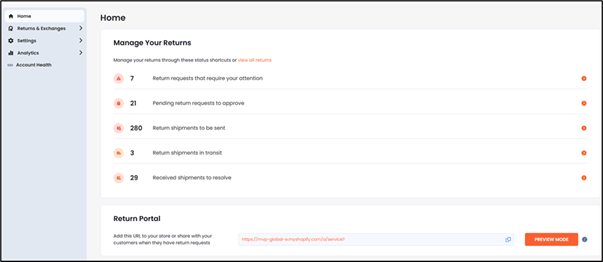
- Return requests that require your attention
- Pending return requests to approve
- Return shipments to be sent
- Return shipments in transit
- Received shipments to resolve
-
From the Home screen, click one of the following:
- Return requests that require your attention
- Pending return requests to approve
- Return shipments to be sent
- Return shipments in transit
- Received shipments to resolve
-
In the top row, click one of the following status filters:
All
Open RMAs
Pending requests
Approved requests
In transit
Shipment receivedDone
Rejected requests
Canceled requests
Shipment rejected
Require attention
- Navigate to Returns & Exchanges > Manage Returns.
- In the Search RMA or order number text field, type an RMA number, order number, or customer ID.
-
Optional:
- Disable Exact match to search by partial number.
- Enable Exact match to search by full number only.
- Click the search Search.png button.
- Navigate to Returns & Exchanges > Manage Returns.
- Click SETTINGS.
-
From the Date Column menu, select one:
- RMA created
- Shipment delivered
- Shipment in-transit
- Click SAVE.
-
Filter RMAs using any of the following:
- Date Created (Select a start and end date, and click Applyto apply your date range)
- Resolutions (exchange, return resolutions, other)
- Return reason
- Resolutions (exchange, return resolutions, other)
- Reserved Item Expiration (All / By Date Range / By Days Remaining / Expired Reservations), requires item reservation
- Refund/Payment Status (All / Not Refunded / Not Paid / Paid / Expiring/Expired Payments)
- Click APPLY.
- Search for an RMA.
- From the search results, click an RMA number.
- RMA summary and order summary
- Customer information
- Original items and new items (if applicable)
- Shipments and draft orders
- Timeline
- Bottom action bar (actions change by status)
- Open the relevant RMA.
- Review the request details.
- Click APPROVE in the bottom action bar.
- Open the relevant RMA.
- Click REJECT.
- Enter a rejection reason.
- Click SUBMIT.
- Open the relevant RMA.
- Click CANCEL.
- Confirm the cancellation.
- Open the canceled RMA.
- Click REOPEN.
- Open the relevant RMA.
- Click REFUND/CREDIT.
- Review the refund calculator.
- Click APPLY.
- Select the refund method.
- Click SUBMIT.
- Navigate to Returns & Exchanges > Manage Returns.
- Click EXPORT.
- Select the desired export format and filters.
- Click DOWNLOAD.