

- Return activity and performance
- Customer interactions in the Return Portal
- Financial transactions related to returns
Accessing Analytics
- Navigate to Analyticsfrom the left menu.
-
Select one of the following:
- Returns
- Sessions
- Transactions
Returns Analytics
The Returns page shows return activity during the selected timeframe.Accessing Returns Analytics
- Navigate to Analytics > Returns from the left menu.
-
Select one of the following:
- RMA Status
- Requested
- Processed
Monitoring and Analyzing RMA Status
The RMA Statustab provides a centralized analytics dashboard for monitoring and analyzing returns activity. It presents high-level KPIs such as the number and value of RMAs, returned items, time and logistics cost savings, and Portal NPS, alongside visualizations that track trends over time and distributions by policy rules and return methods. Together, these insights enable merchants to understand returns volume, financial impact, operational efficiency, and customer experience at a glance, even clearly indicating when no data is available to ensure transparency and consistency in reporting.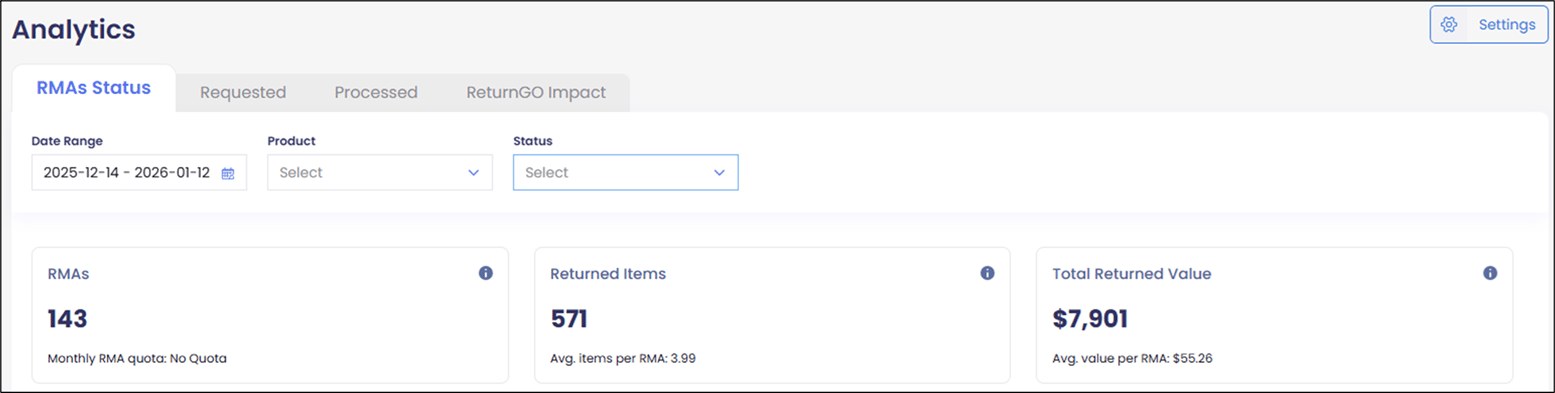
- Select RMA Status.
- Select a date range from the Date Range calendar.The displayed data refreshes daily.
- Select a product from the Productmenu.
- Select a status from the Statusmenu.
Analyzing Requested Returns
The Requestedtab provides detailed insights into retained revenue and return behavior, with flexible filtering by date range, product, return reason, and status. It highlights the total revenue retained from non-refunded items, along with the number of items retained, giving a clear view of value preserved through returns management decisions. Complementary breakdowns show the top return reasons and most-returned products by refunded item count, enabling merchants to quickly identify recurring issues, product-specific trends, and opportunities to optimize sizing, fulfillment, or policy strategies.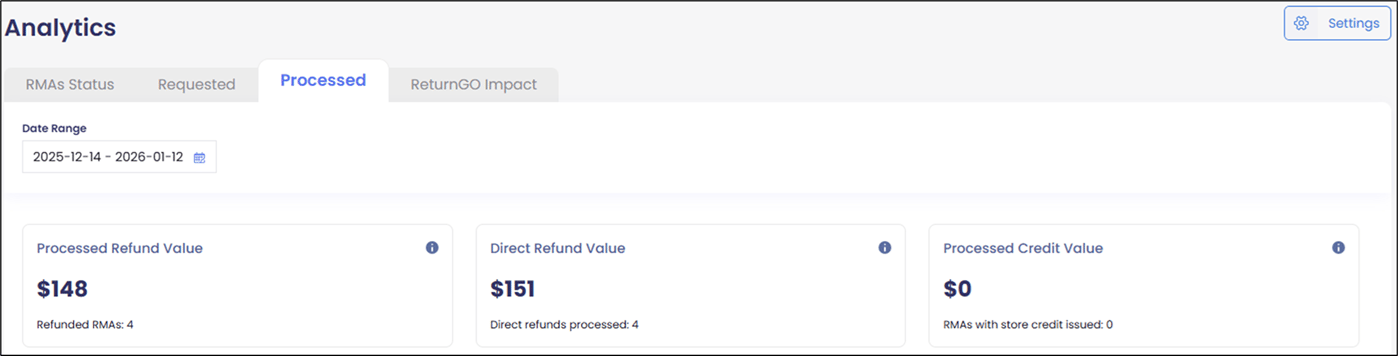
- Select Requested tab.
- Select a date range from the Date Range calendar.The displayed data refreshes daily with information up to the previous day.
- Select a product from the Productmenu.
- Select a status from the Statusmenu.
-
Select one of the following resolutions:
- All
- Refund
Analyzing Processed Returns
The Processed tab provides a comprehensive view of how returns are resolved and their financial outcomes. It summarizes the total value and volume of processed refunds. Visualizations further break down processed resolutions by type and track resolution activity over time, enabling merchants to understand customer resolution preferences, measure the refund strategies, and assess the overall revenue impact of returns processing.- Select Processed tab.
- Select a date range from the Date Range calendar.The displayed data refreshes daily with information up to the previous day.
Downloading Return Data
Some graphs and data displayed can be downloaded to CSV for further analysis by clicking the download: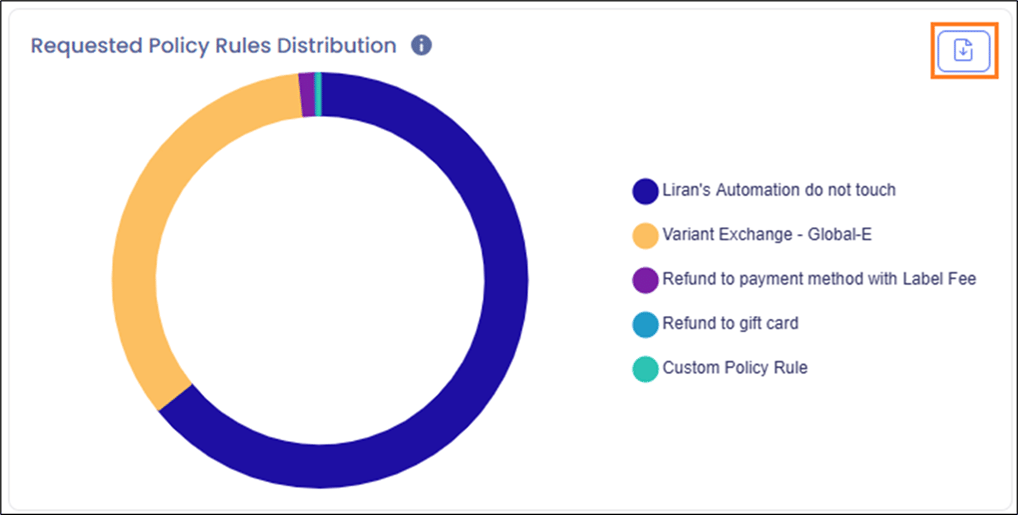
Sessions Analytics
The Sessionspage shows customer interactions in the Return Portal: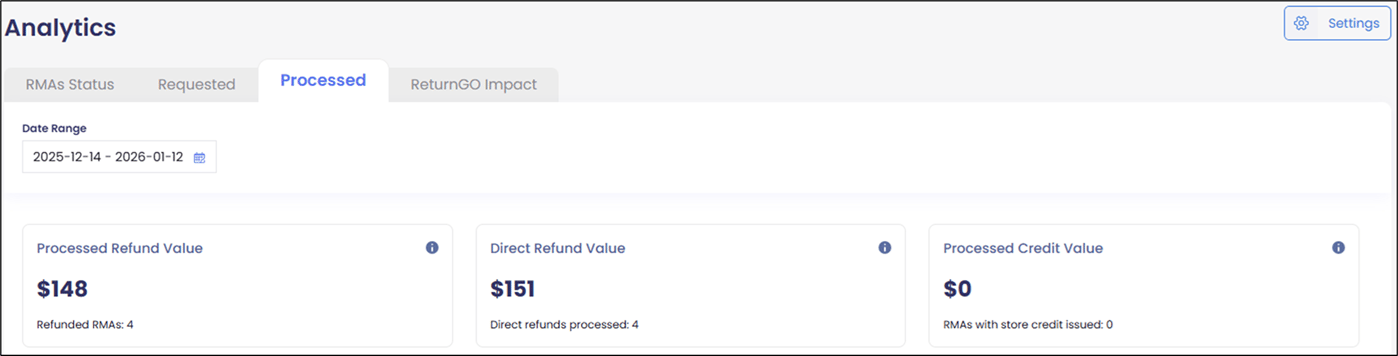
Accessing Session Analytics
- Navigate to Analytics > Sessions from the left menu.
-
A table showing the following information is displayed:
- ID
- Date/Time (UTC)
- Customer ID
- Order ID
- Status
- Values
- Action
-
Optional- Search by Customer ID, Order ID, or Status:
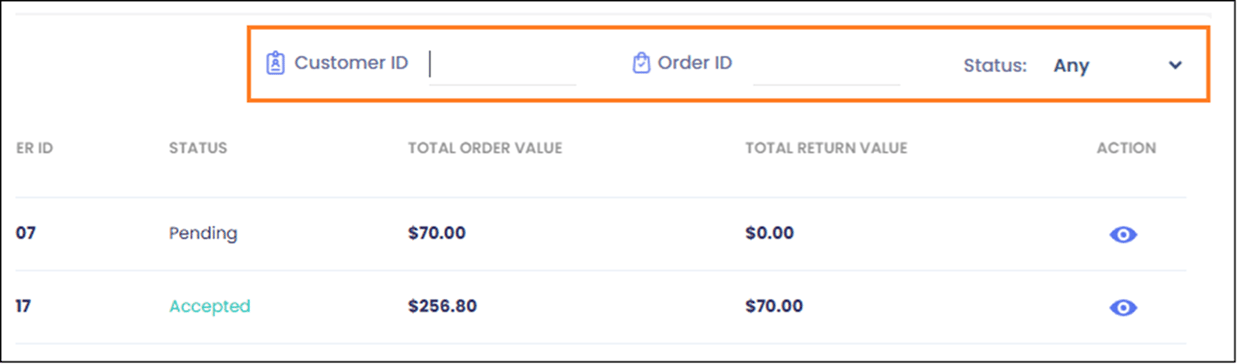
- In the row corresponding to the ID you want to analyze, click the Action icon Action_Icon.png.
-
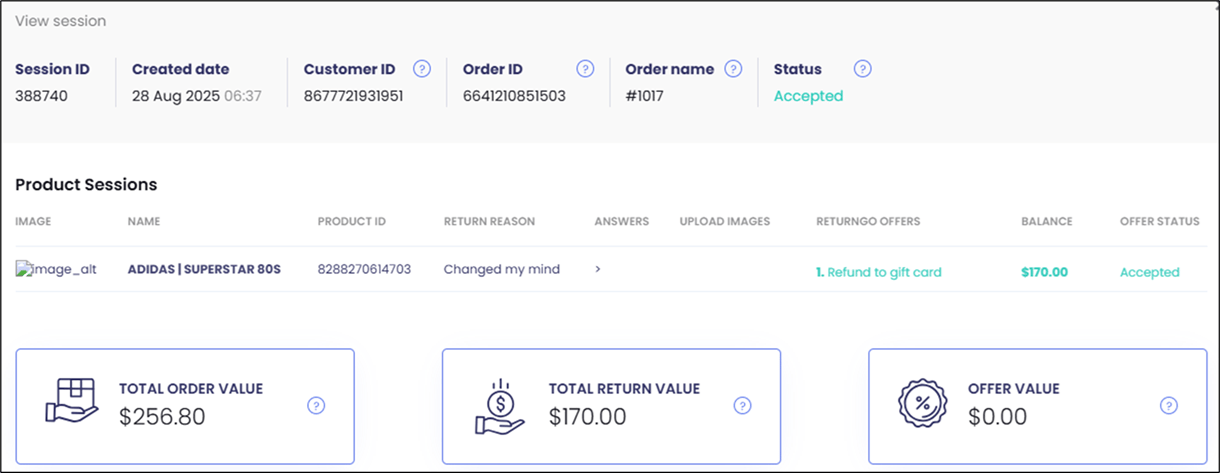
The session details are displayed:
Transactions Analytics
The Transactions page shows financial activity processed through the Return Portal:Accessing Transactions
- Navigate to Analytics > Returns from the left menu.
- Select a date range from the Date Range calendar.
- The displayed data refreshes daily with information up to the previous day.
-
Select one of the following statuses:
- Any
- Purchase
- Refund
-
A table showing the following information is displayed:
- ID
- Date & Time
- Customer ID
- Order ID
- RMA ID
- Platform Transaction ID
- Gift Cards, Money
- Action (Refund, Invoice, Purchase, Authorization, Capture)
- Status (Requested, Success, Canceled)