
- The currency conversion – See Converted Prices and Prices and Price Conversion.
- The checkout for countries managed by Global‑e – See Global‑e Managed Checkout and Cart and Checkout.
- Order notifications for orders managed by Global-d. See Global‑e Notifications.
- The welcome pop-up: See Welcome Pop-up.
- The country switcher: See Configuring Your Switcher Popup Page.
- The checkout iframe: See Global‑e Managed Checkout, Global‑e iFrame Checkout (Example) and Order Creation.
checkoutDisplay.jsp, in which Global‑e injects HTML via an iframe.
Backoffice
Use Backoffice to set up and manage pricing and Global-e Orders.
Additional Functionality: Custom Add-on Functionality
If required, customize the Global‑e extensions for additional functionality.
globaleaddonis used for front-end changes.globalecoreandglobalefacadesare used to communicate with the Global‑e API.globaleendpointis used to receive order update notifications.globalepromotionsis used for custom Global‑e promotions.globalebackofficeis used for Backoffice modifications.
Shipping Country and Currency Indication
The shopper can view the localized Shipping country and currency indication. For example, Ship to £GB (GBP).Converted Prices
The customer can view prices in local currency including current conversion rates, country coefficients, rounding rules, and currency symbols. TheGlobaleSwitcherFindPriceStrategy is an element of the price determination and conversion that delegates to GlobaleFindPriceStrategy.
GlobaleFindPriceStrategy delegates to GlobaleConvertingPriceValueConverter,
GlobaleConvertingPriceValueConverter delegates to GlobalePriceConverter.
To convert an existing OOTB SCC price row to another currency, the Global-e add-on asks Global-e for the conversion rate of the price row (without VAT) to the customer’s selected currency; for example, GBP to EUR has a rate of around 1.18.
The add-on also requests a coefficient rate and tax rate. Once converted into the customer’s chosen currency, Global‑e applies rounding rules (improving the appearance of customer-facing price values).
Global‑e Managed Checkout
When the shopper adds items to the cart and clicks the checkout button, the extension redirects from the native environment to the Global-e checkout (iFrame). The Global-e Add-on implements a Global-e API method that uses the Platform API to load the contents of the user’s cart and passes it securely to the Global-e checkout through a server-to-server API call. During the checkout, the Global‑e add-on posts the following to the Global‑e system via theSendCartV2 API:
checkoutDisplay.jsp, in which Global‑e injects HTML via an iframe.
The Global‑e iframe is implemented as its own WCMS ContentPage (globalecheckout).
For more information, see:
Cart and Checkout
Checkout Flow (Technical)
Global‑e Notifications
Once the customer has been through the Global‑e checkout and finished the order - Global‑e will communicate with the merchant at a few points:-
Order creation: As soon as the order is accepted on the Global‑e side, it is processed and delivered to the hybrid system.
-
Endpoint:
-
Order Status:
“Pending“
-
Endpoint:
-
Payment creation: After the order passes the fraud analysis successfully, Global‑e updates the order:
-
Endpoint:
-
Order Status: “
Processing“
-
Endpoint:
-
Shipping creation: Once the products are shipped to the customer, Global‑e sends the shipping call to the app:
-
Endpoint:
-
Order Status:
“Processing“
-
Endpoint:
-
Cancel order: If Global‑e cancels the order (for any reason), Global‑e also sends the status update to the app:
-
Endpoint:
-
Order Status:
“canceled“
-
Endpoint:
My Account
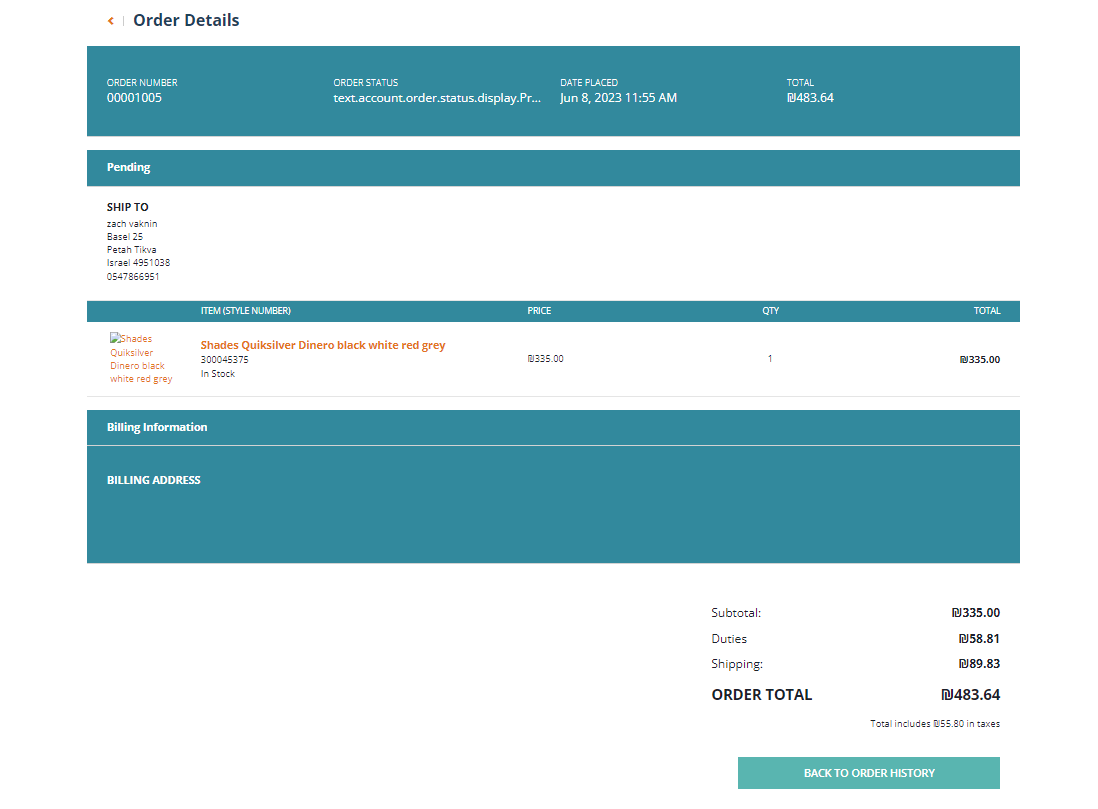
Orders created by logged-in customers are assigned to the relevant account in your merchant store and the order history section. Global‑e displays the order prices paid by the customer, in their currency. Example in SAP Hybris: