

Viewing Orders
Once Global‑e creates the order on SAP Hybris, it adds an extra tab called ‘Global‑e order’ to the order details. The Global‑e tab contains Global‑e-specific information, such as order IDs, international processes, order tracking URLs, and currencies. Global‑e Order Screen (Tab)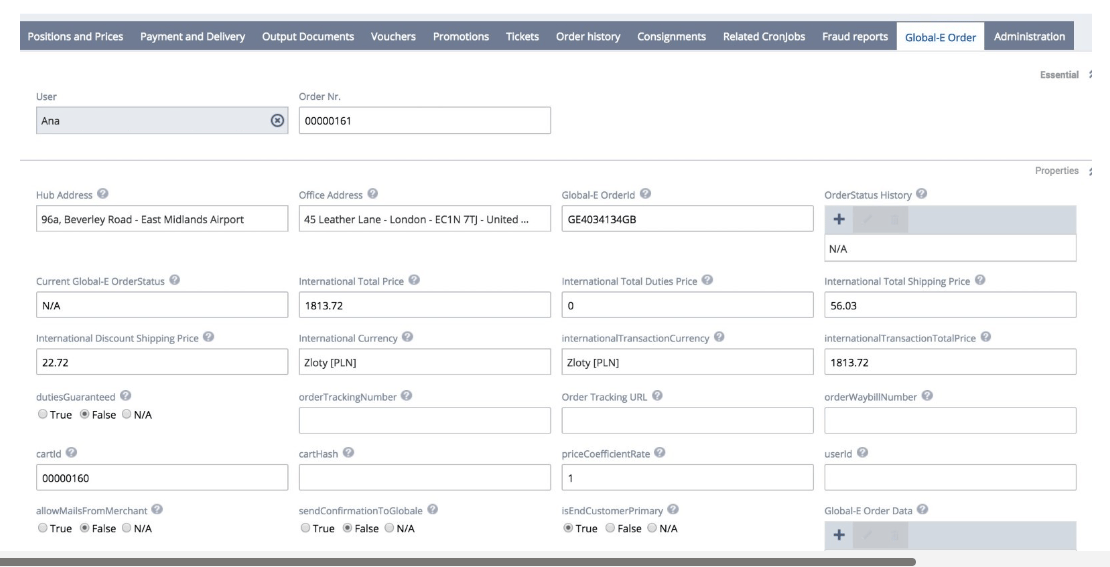
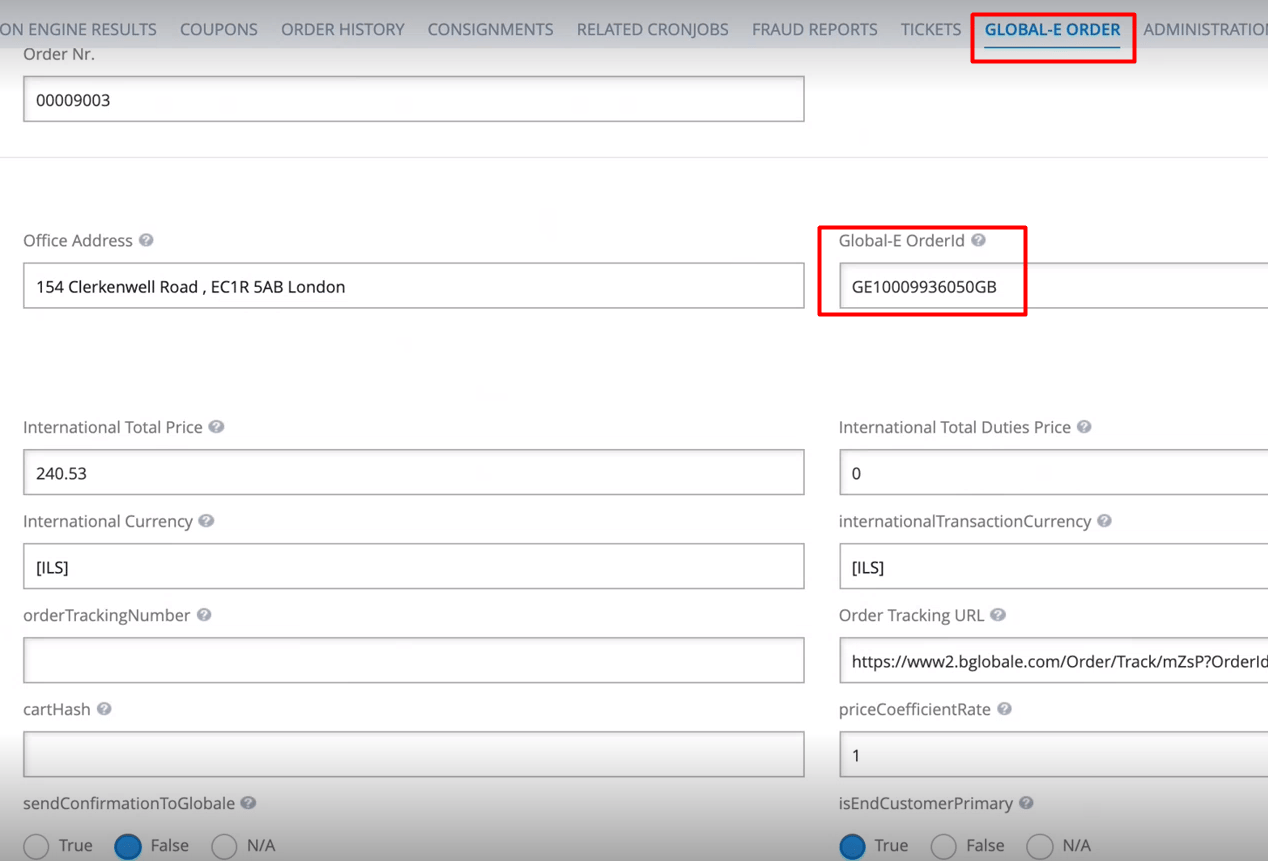
OrderID or the Global-e OrderID starting with GE.
You can also view Global-e orders in the Customer Services Tools.
Searching for Global‑e Orders
You can find Global-e orders by running a search in Backoffice using the Hybris OrderID or Global-e OrderID starting with GE. You can also view Global-e orders by using the Customer Services Tools.Order Details
To manage Global-e orders and view Order Details:-
Log in to Backoffice.
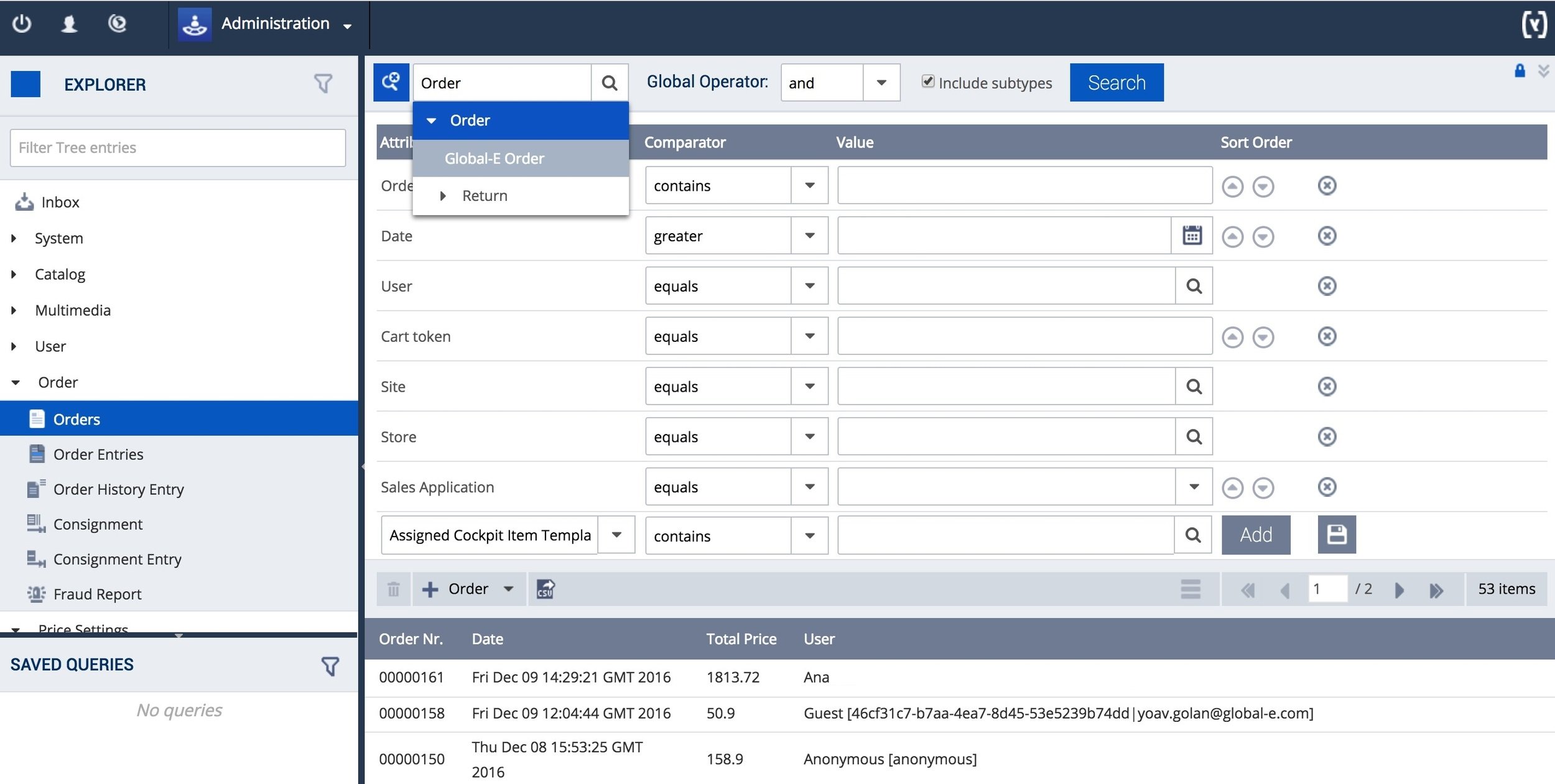
- From the Backoffice Explorer (left menu), select Orders.
- At the top of the main area, to the left of the Order field, click image46.png (magnifying glass).
-
Select Order > Global‑e Order.
The attribute screen opens showing the Global-E
OrderId. -
Enter the Global‑e
OrderIDand click Search.An overview of the order is displayed.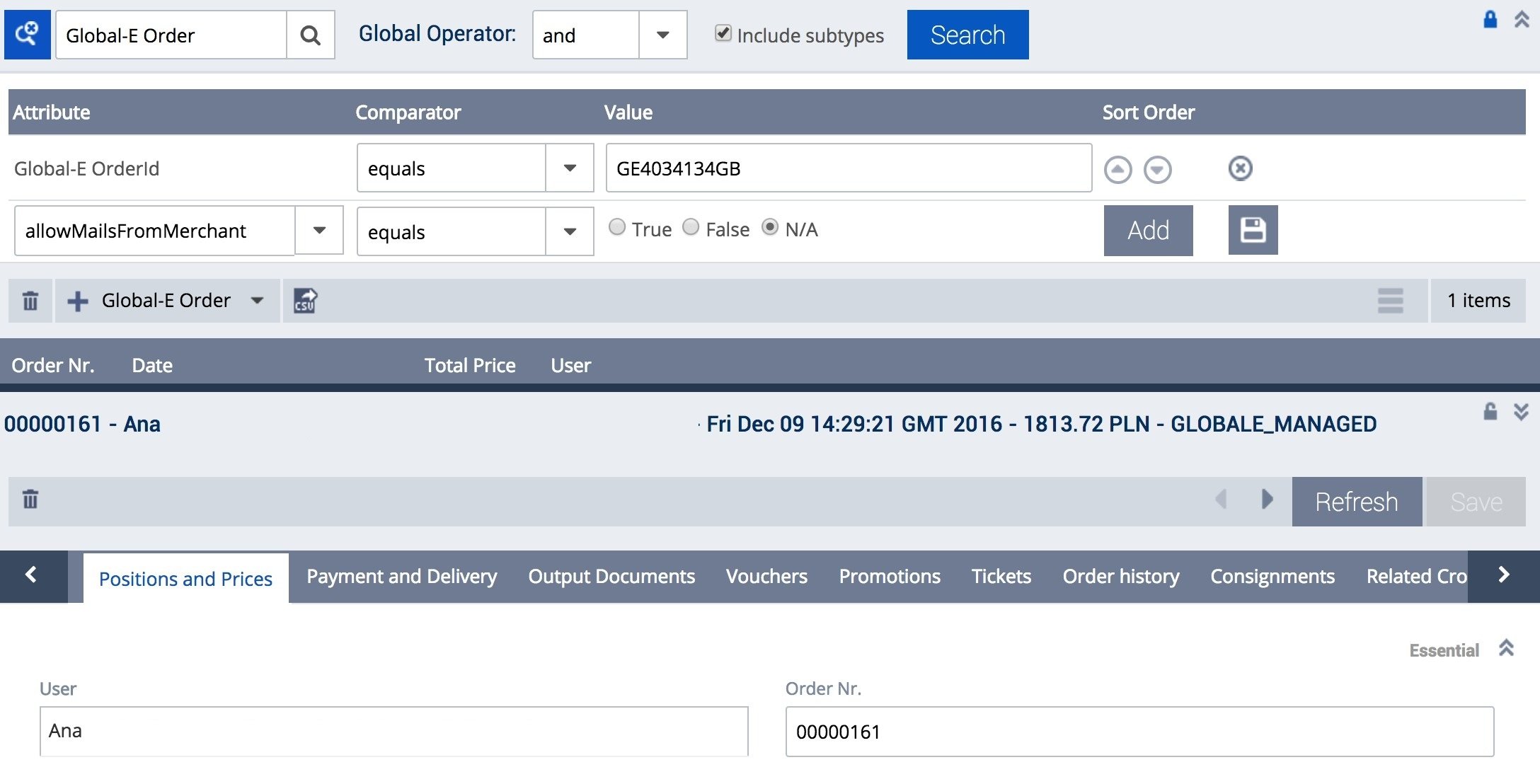
-
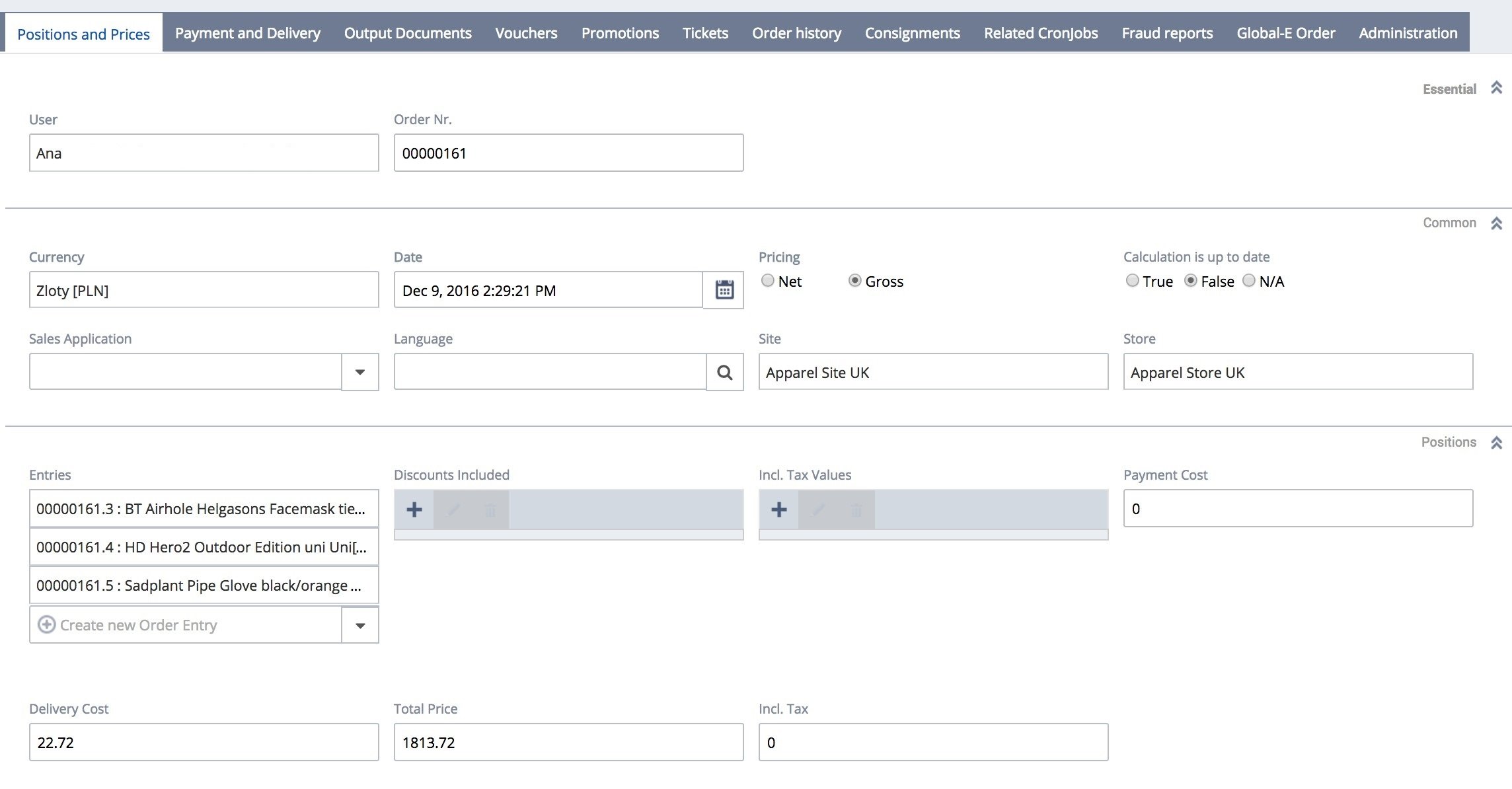
Click the Positions and Prices tab.
This tab shows:
- A line item for each product.
- The delivery cost and total price are in international currency.
- Product details, such as the base price in merchant currency.
-
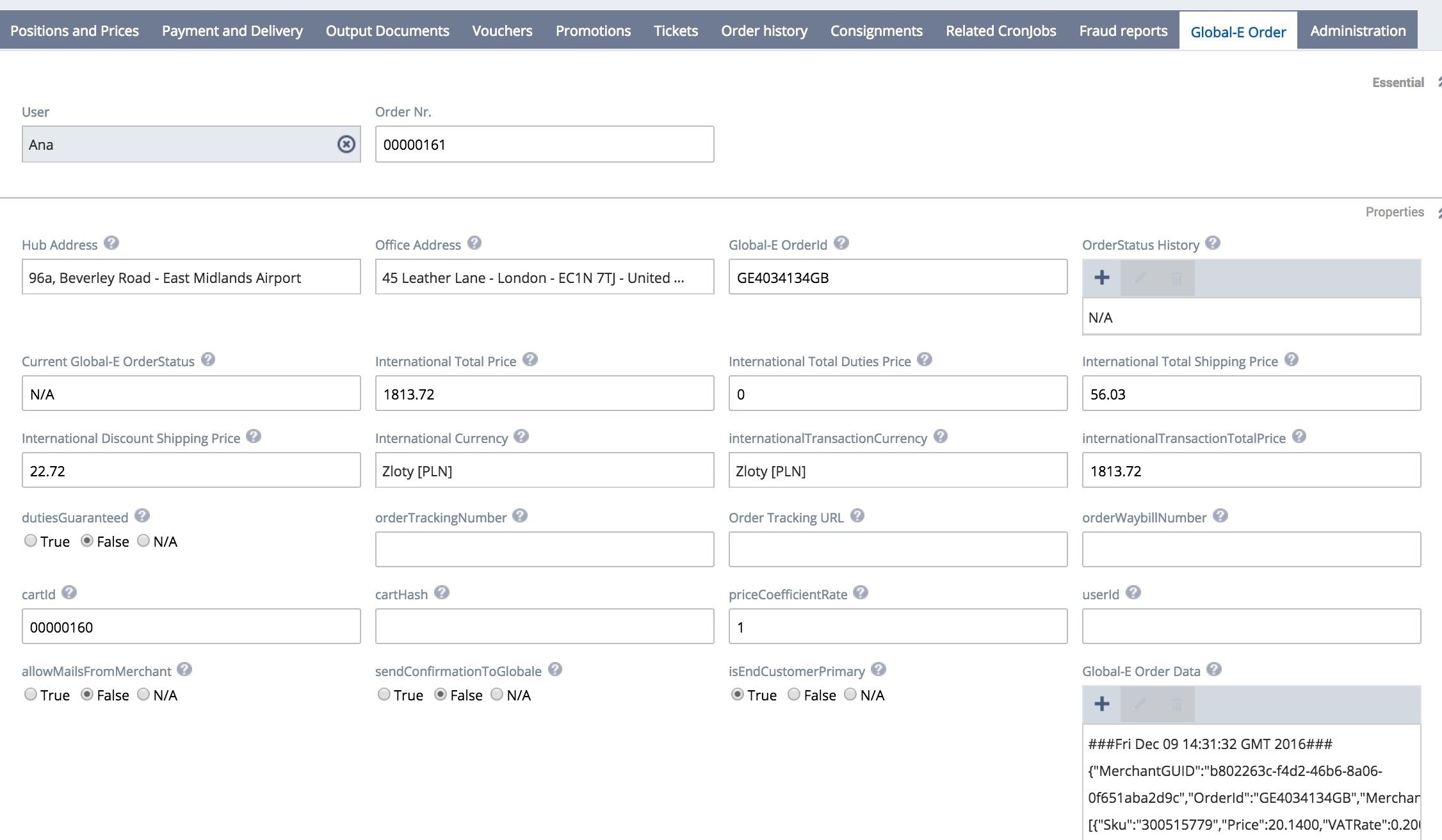
Click the Global‑e Order tab.
This tab shows additional information about the order. For example, the Duties and Discounts applied to shipping.
Global‑e Order Screen (Tab)
Note the Global‑e order ID.
-
Double-click a product line.
The Global‑e Properties show the base price of the product and the currency (supported by the merchant),
The
vatRatethat is shown is the Global-evatRate.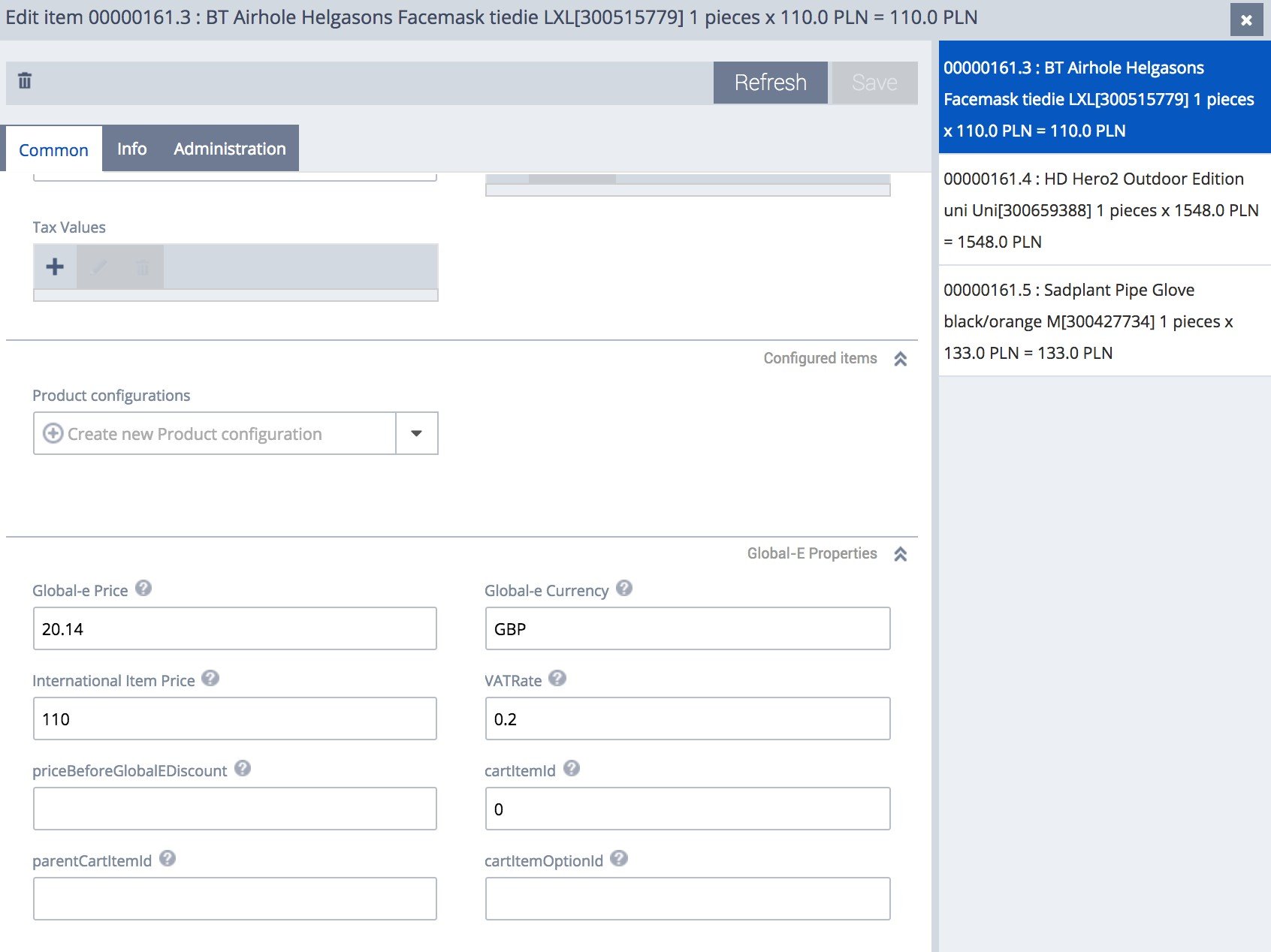
- Log in to Backoffice as a Customer Services Agent.
-
Search for a Global‑e order:
- Click the Orders tab.
- Repeat steps 1 - 4 in the previous procedure.
- The Order Status shows that the order is managed by Global-e.
- The Order Details tab shows the details of the order.
- A Global‑e Order tab is also added to the Customer Services Tools